Respond to a RFQ on P2i
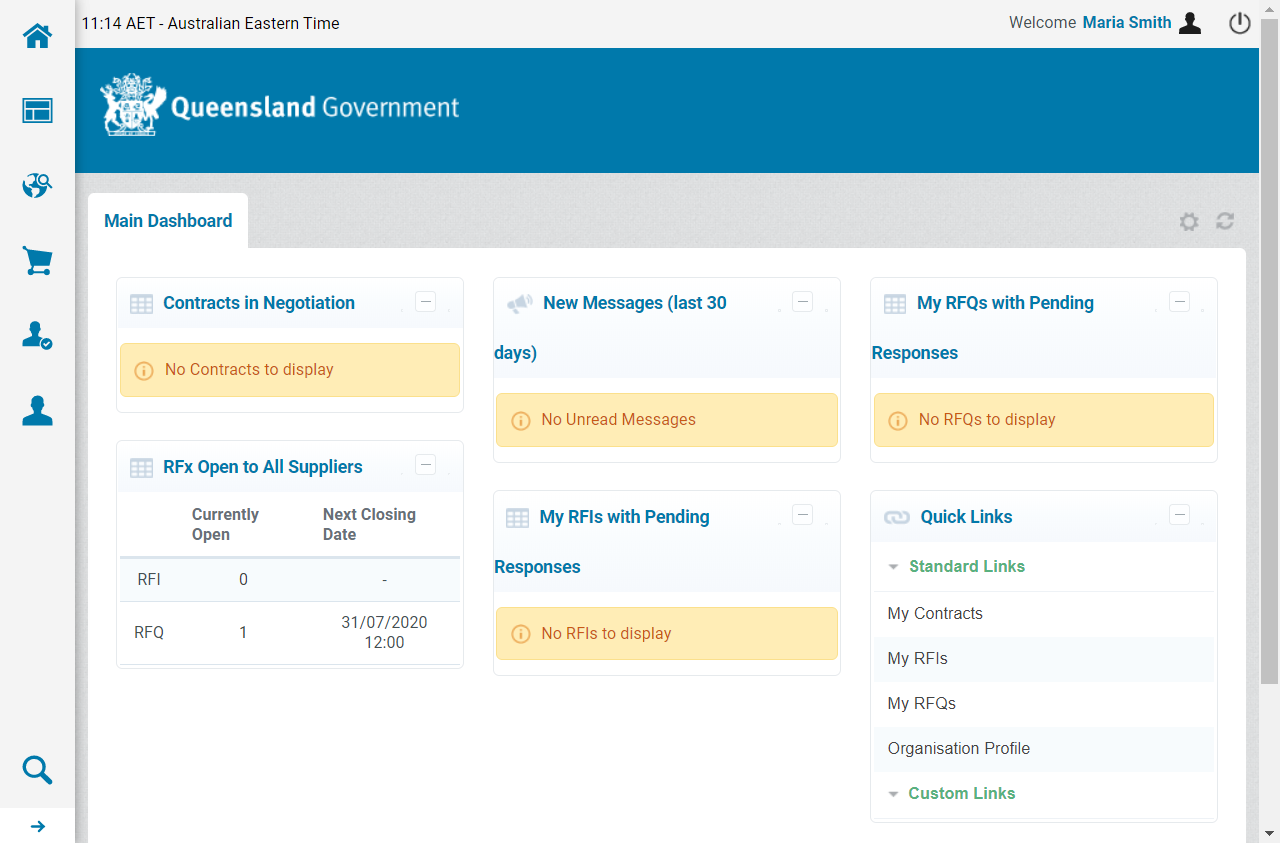
Published RFQs are located on the P2iMain Dashboard under RFx Open to All Suppliers. Before responding to any published RFQ it is necessary to express interest. This action moves the RFQ into your My RFQ list for easy access.
To respond to an RFQ:
-
Access the P2i login service. Refer to Login to the P2i Main Dashboard
-
From the P2i Main Dashboard, click the RFQ link in the RFx Open to All Suppliers portlet.
-
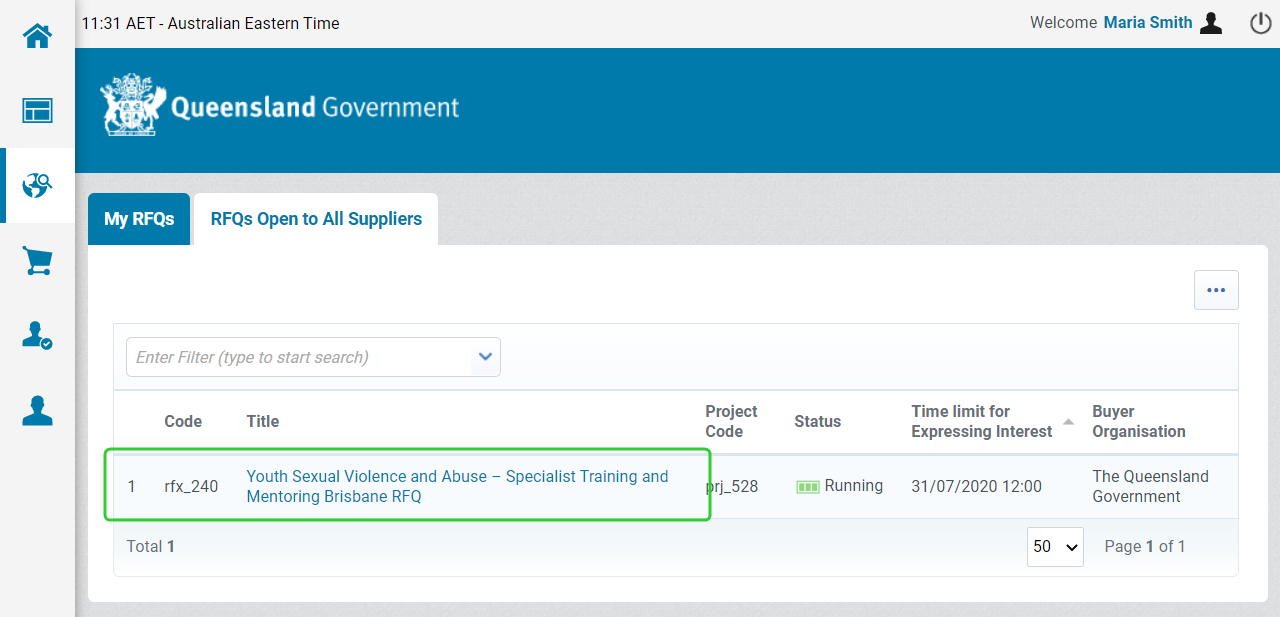
Click the Title (i.e. the hyperlink) to the RFQ that you want to express interest in.
Warning The time limit for expressing interest is listed against each RFQ along with the title of the RFQ.
-
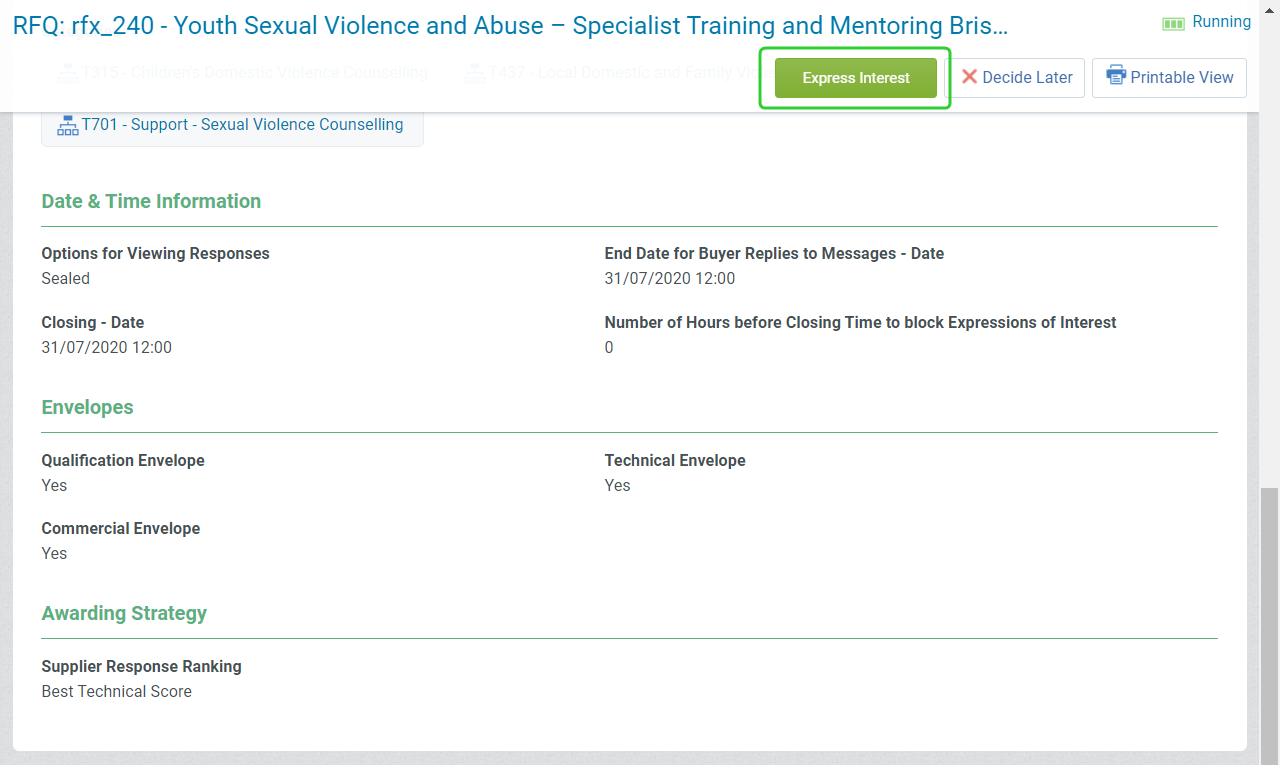
Scroll through and read the overview details of the RFQ.

-
When you are ready to proceed with your RFQ response, click Express Interest.
-
Click OK when prompted.

-
Click OK when prompted.

-
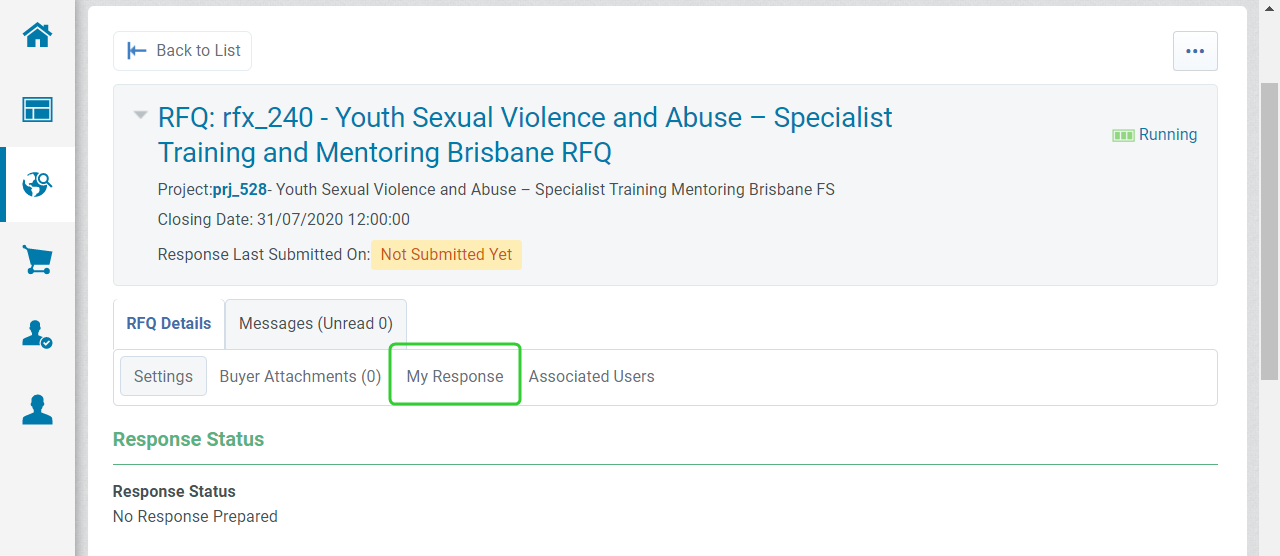
Click My Response when you are ready to create a response to the RFQ.
-
Click Create Response.

-
Click OK when prompted.
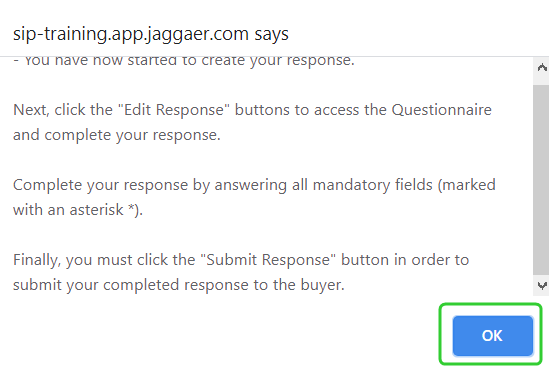
-
Click Edit Response next to the Qualification Response section.

-
Scroll through the form and enter your responses.
Tip Click Save at any time to record your responses.
Use the Validate Response button to check you have answered all mandatory questions. -
Click Save and Return.
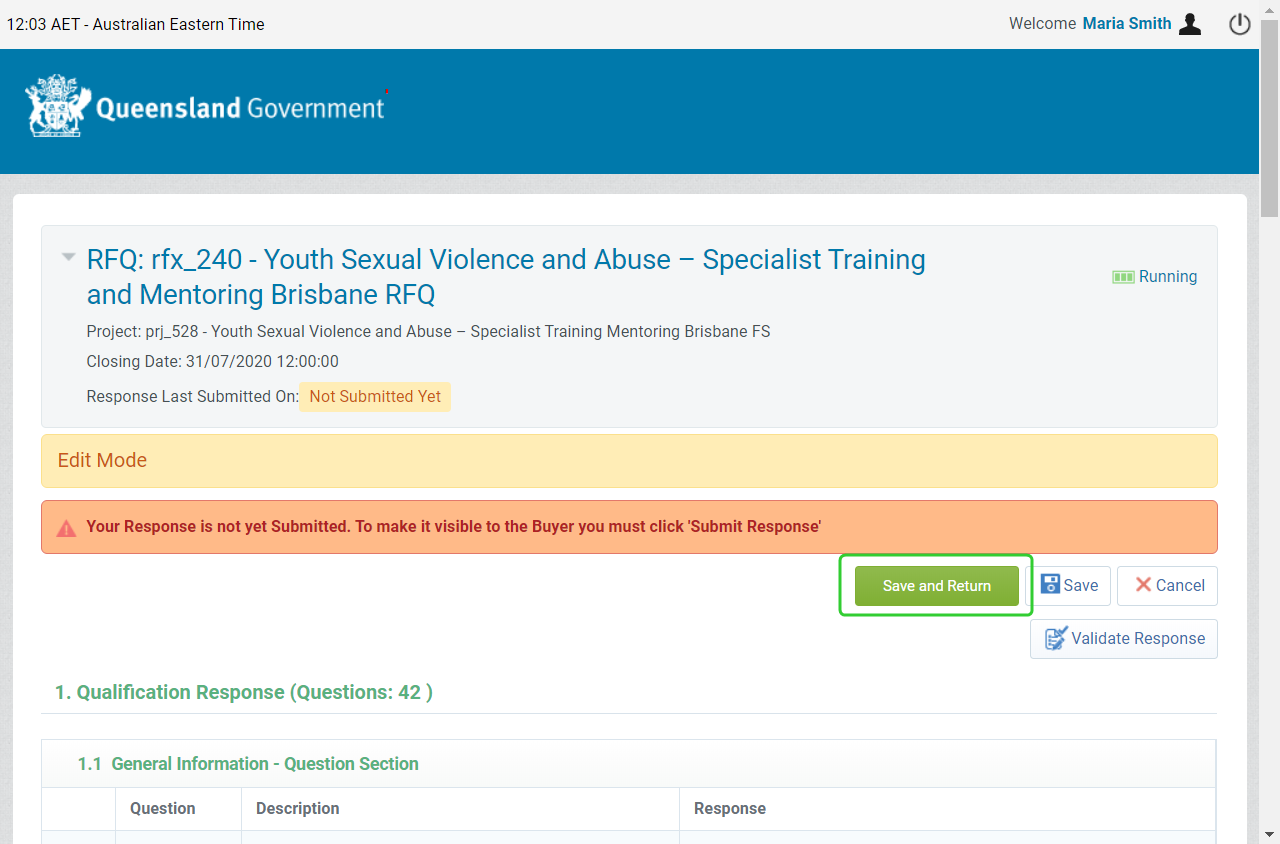
-
Click OK.

-
Scroll down and repeat the above steps for the Technical Response and Commercial Response.
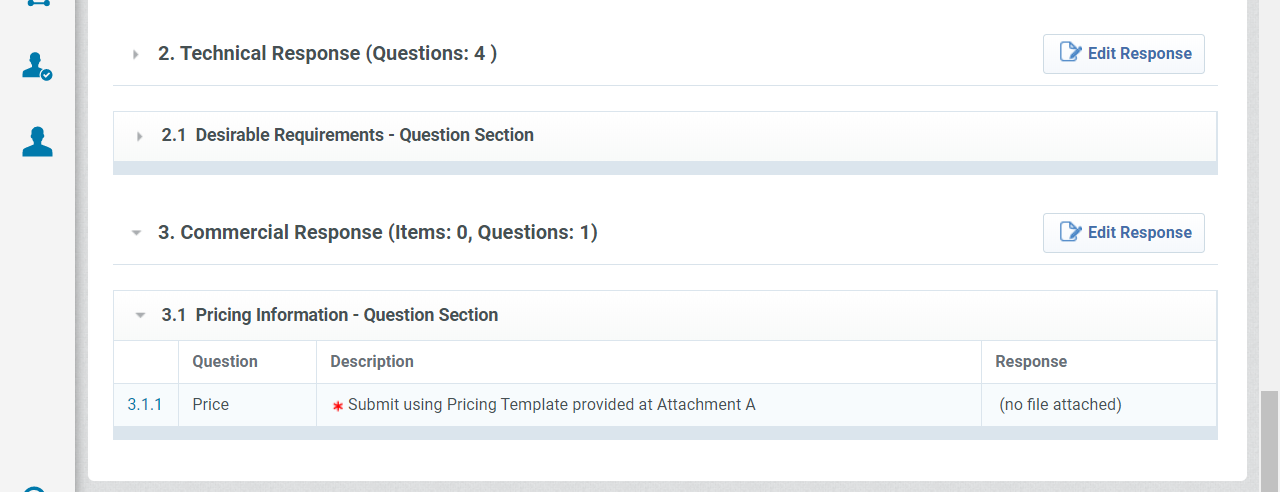
-
Click Submit Response
Tip You can amend and resubmit your response up to the deadline.
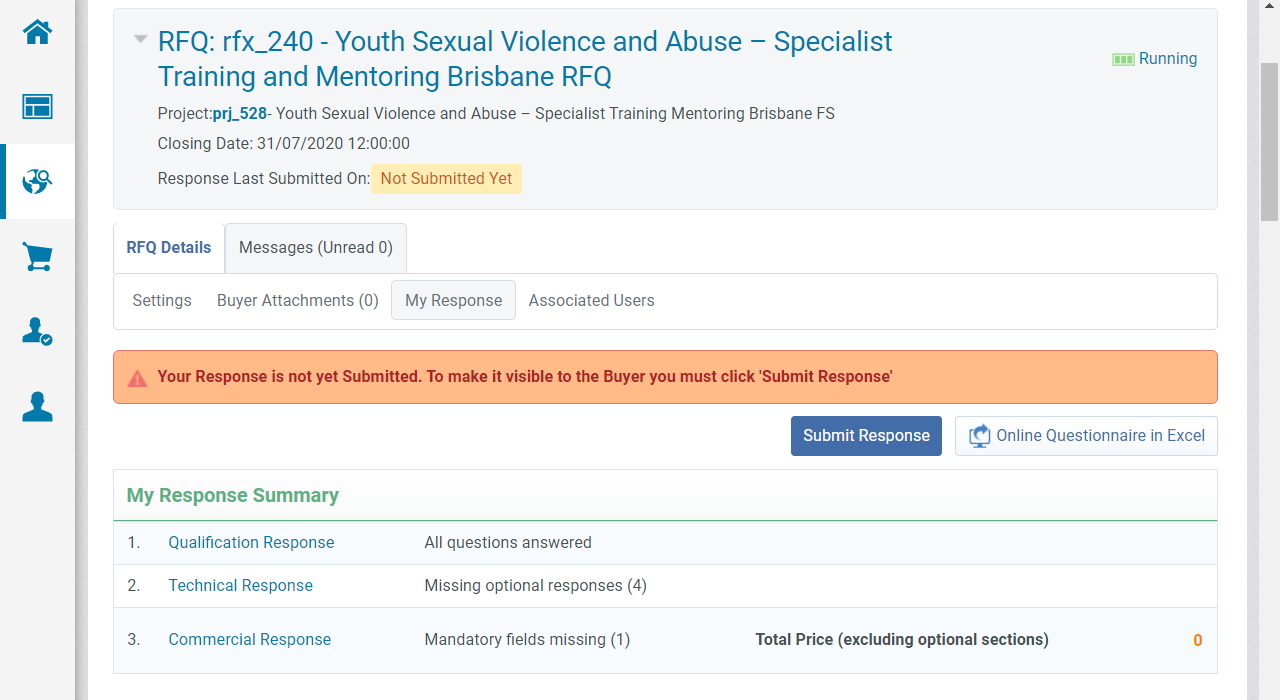
-
Click OK when prompted.

-
Click OK when prompted.

Note Your response has now been submitted. You can click Withdraw Response if you no longer want to proceed with this response. You can also make changes to your response until the Closing Date.
Refer to Request clarification to a RFQ if you wish contact the department regarding a Request For Quote.