Electronic signatures
P2i contracts are able to be electronically signed (eSign) via Docusign.
Docusign is an e-signature format which uses AES 256-bit encryption. Docusign uses Public Key Infrastructure (PKI) to ensure secure digital signing with each document receiving its own certificate of authenticity. All data access and transfer activities within Docusign use secure protocols such as HTTPS, SSL, SSH, IPsec, and SFTP.
Signatories are added to the contract by the Department and will include the signatory email address and mobile number to ensure the correct person electronically signs the contract.
There may be more than one signatory from the Organisation involed in the eSign process.
 View the signature approval status
This is useful to help determine the status of signatories involved in electronically signing the contract.
-
Log in to P2i. Refer to Login to the P2i Main Dashboard.
-
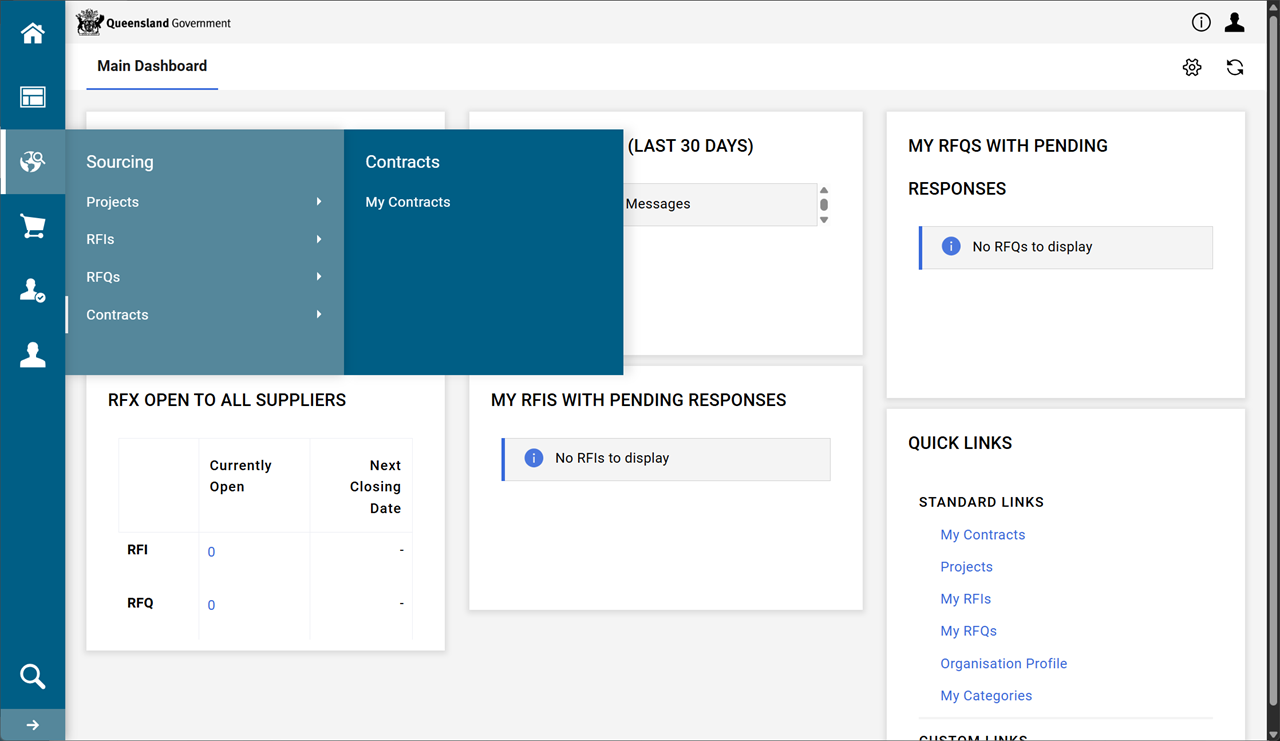
From the P2i Main Dashboard, click
 Sourcing > Contracts > My Contracts.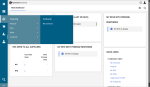
-
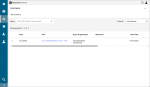
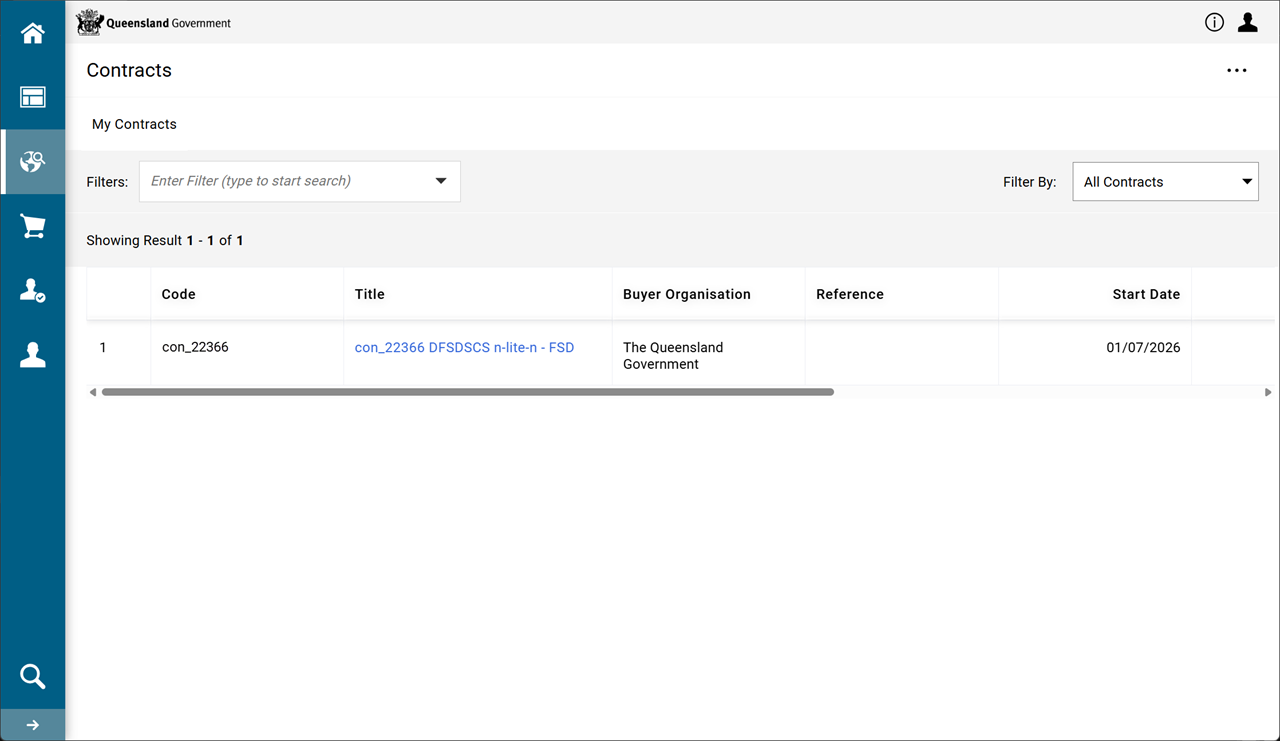
Locate the contract and click on the Title hyperlink.
-
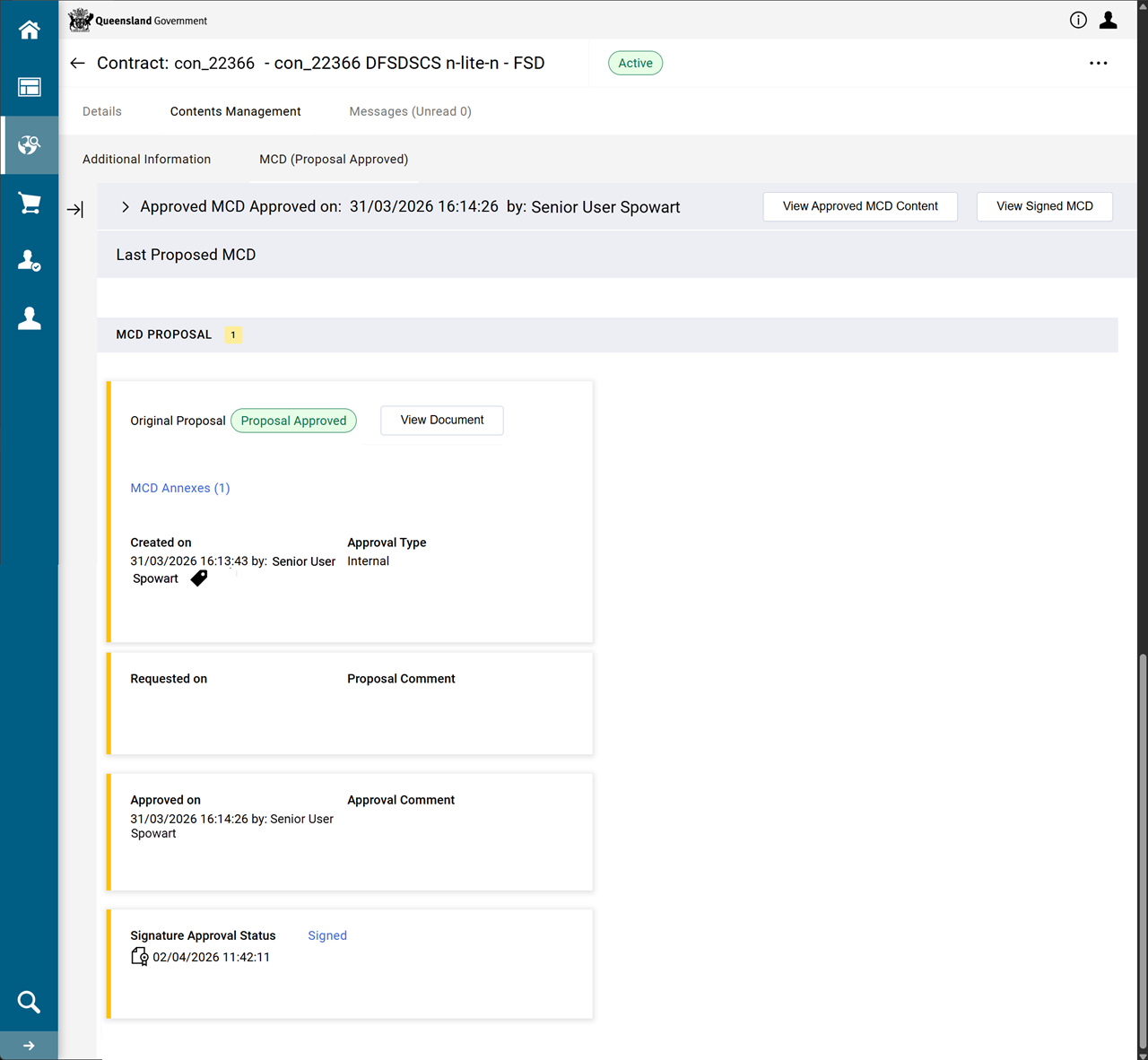
Click Contents Management tab > MCD page.
-
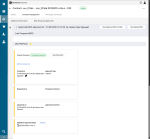
Click the hyperlink in Signature Approval Status box.
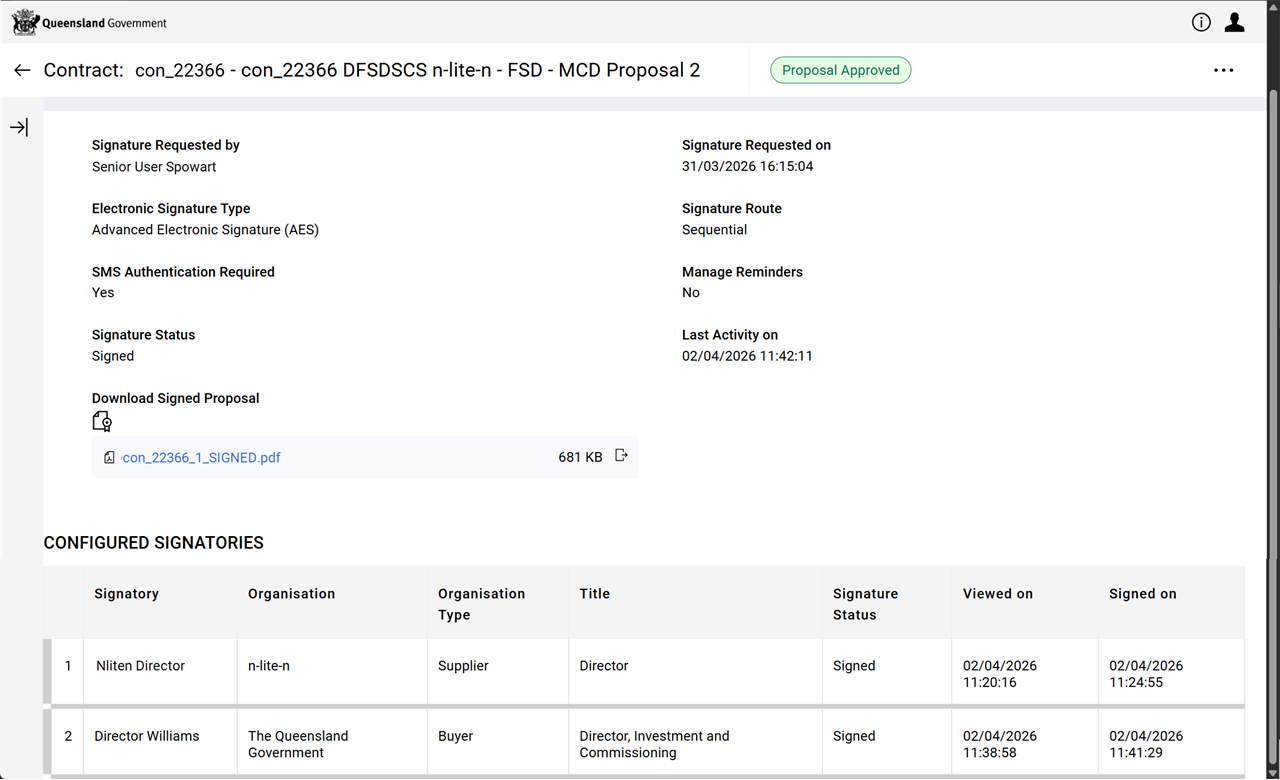
The signatories are listed and where the signature process is up to.
In this screen capture, the signed copy of the contract is available
Electronically sign contract (MCD)
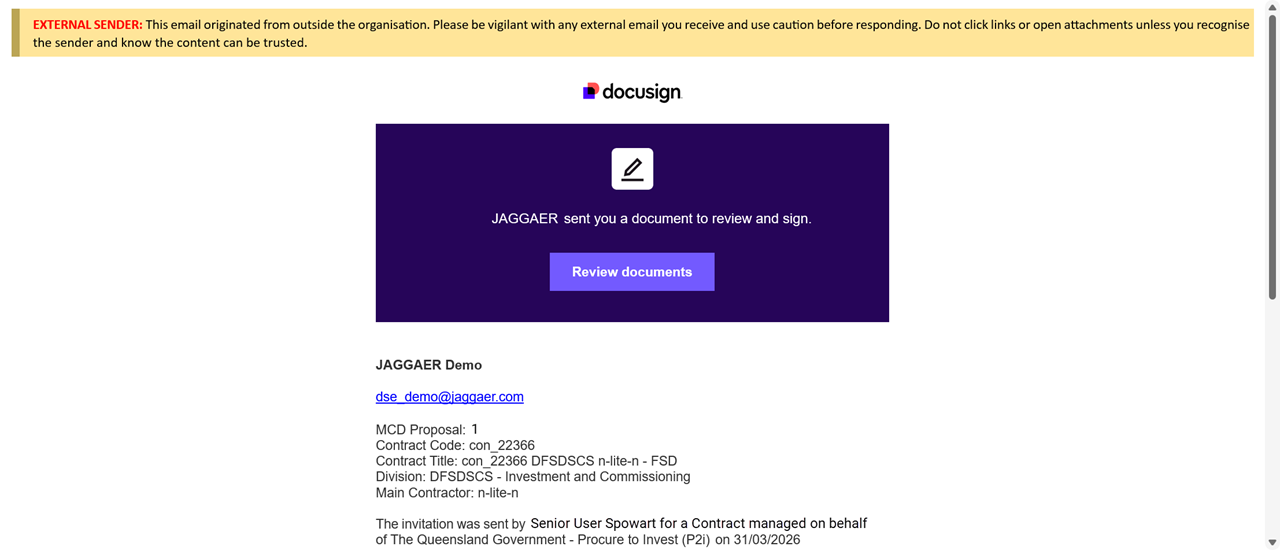
An email is sent to the signatory's email address when the contract requires a signatory to eSign.
If there are more signatories listed then at completion of signing, the process repeats for the next signatory. (refer to View the signature approval status)
-
Find the email.
- Click Review documents.

-
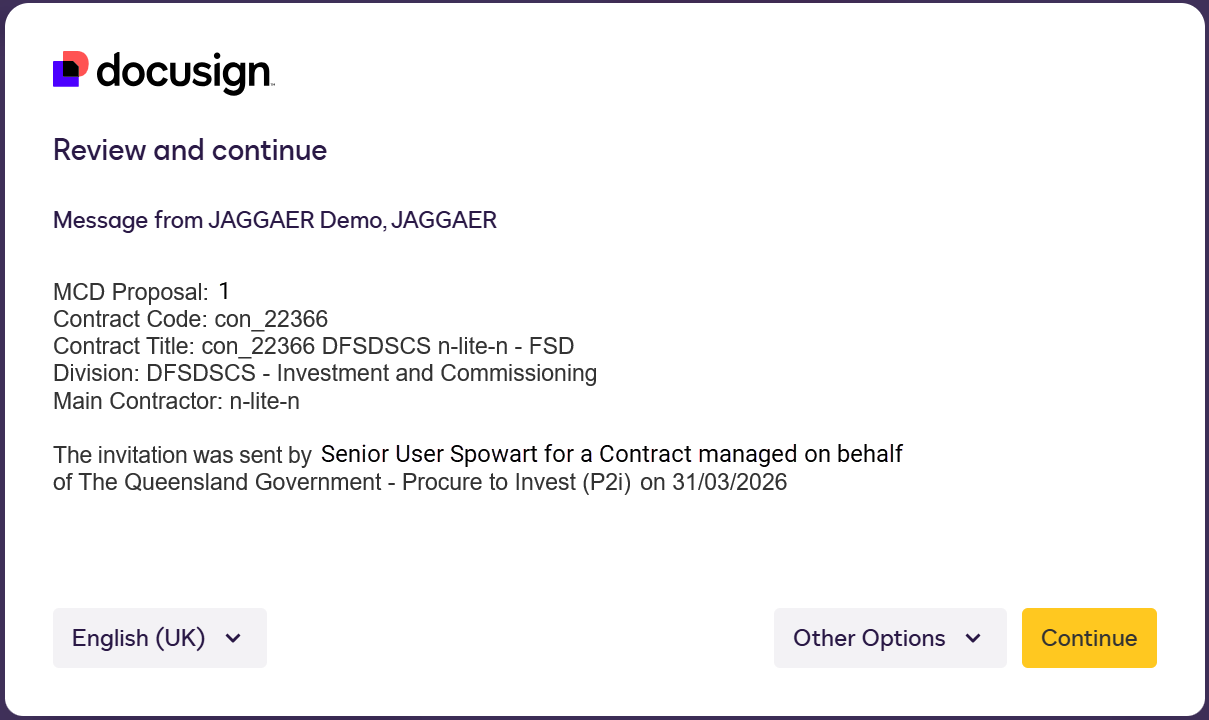
Click Continue.
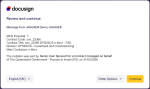
-
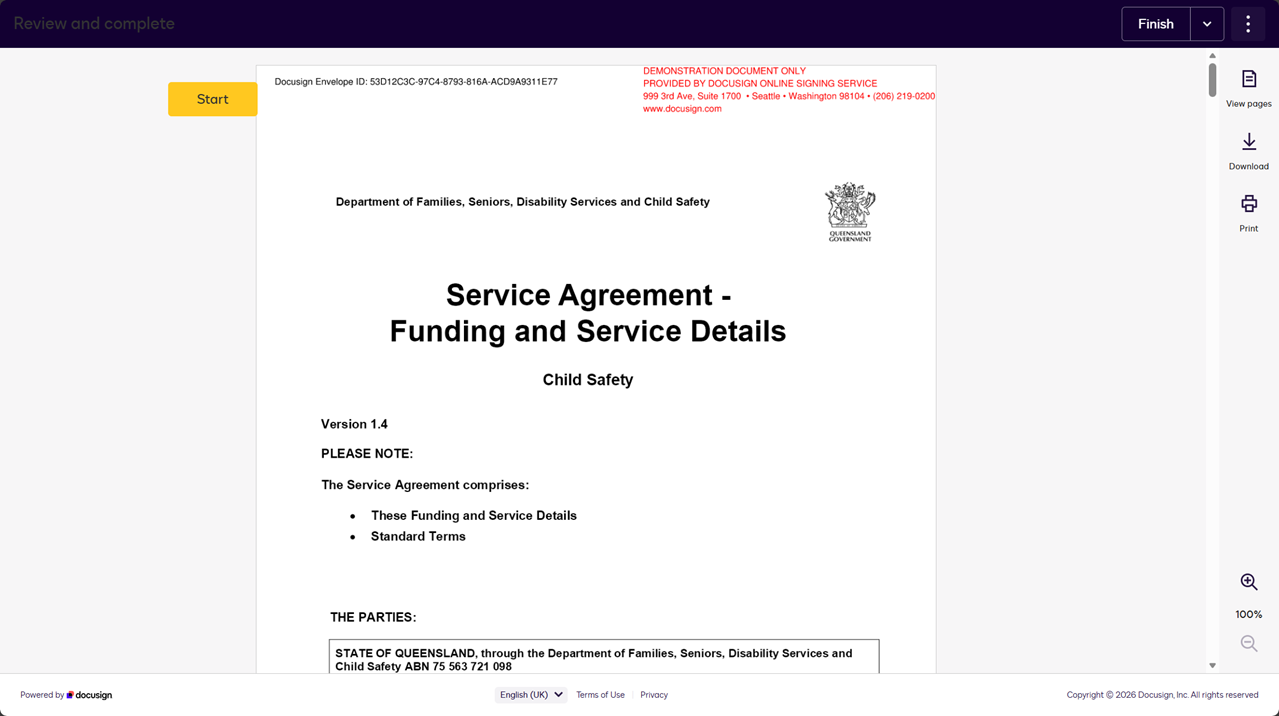
Review the contract via scrolling down (or click Start to navigate to the first signature spot).
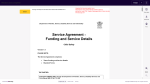
-
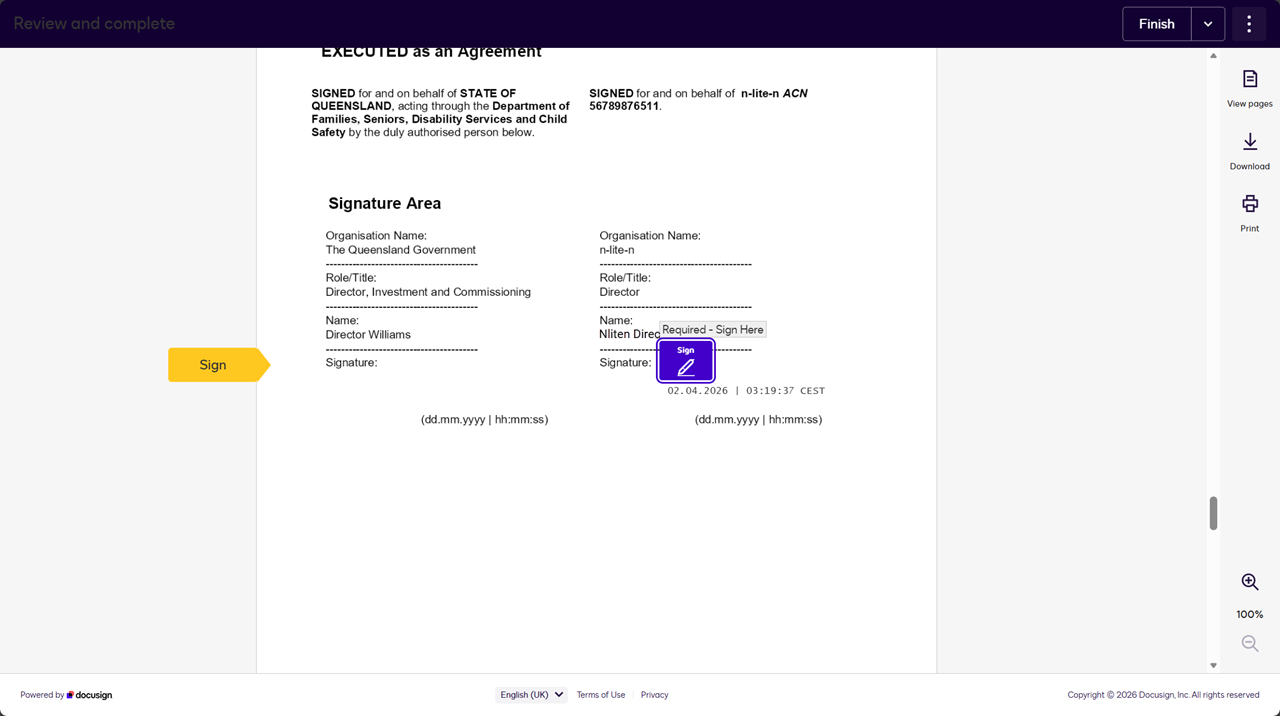
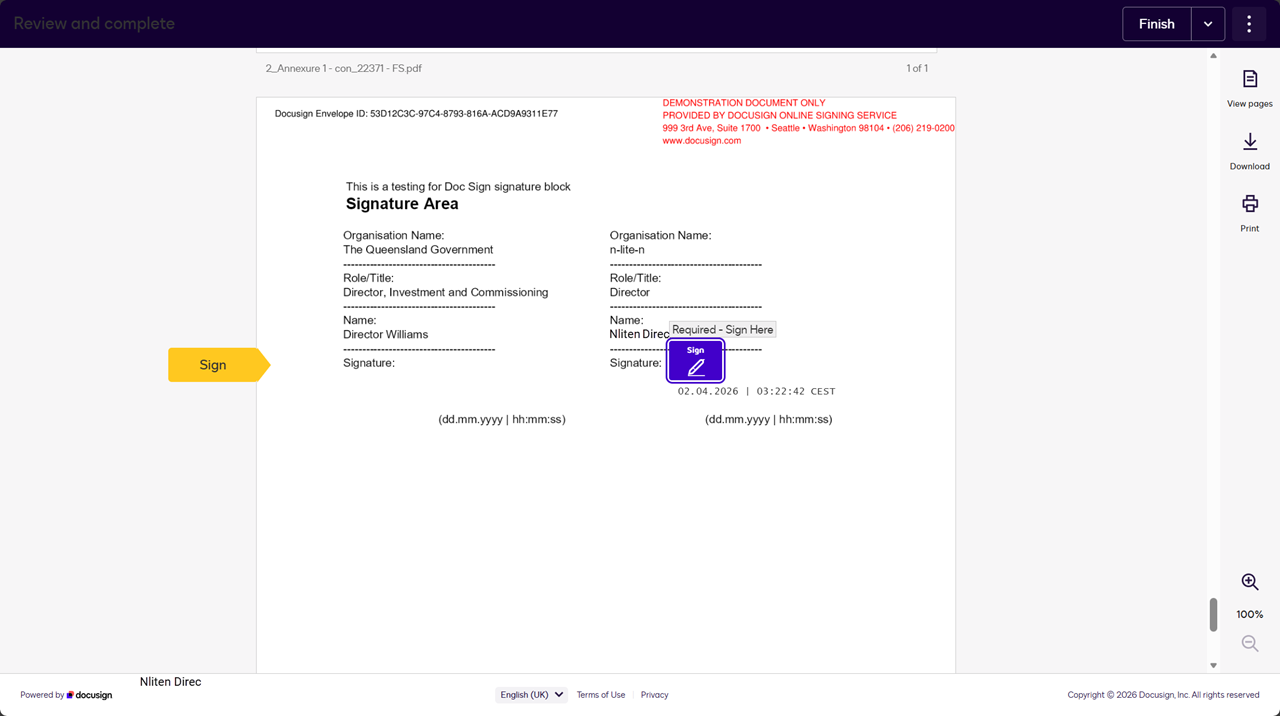
Click Sign.
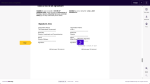
-
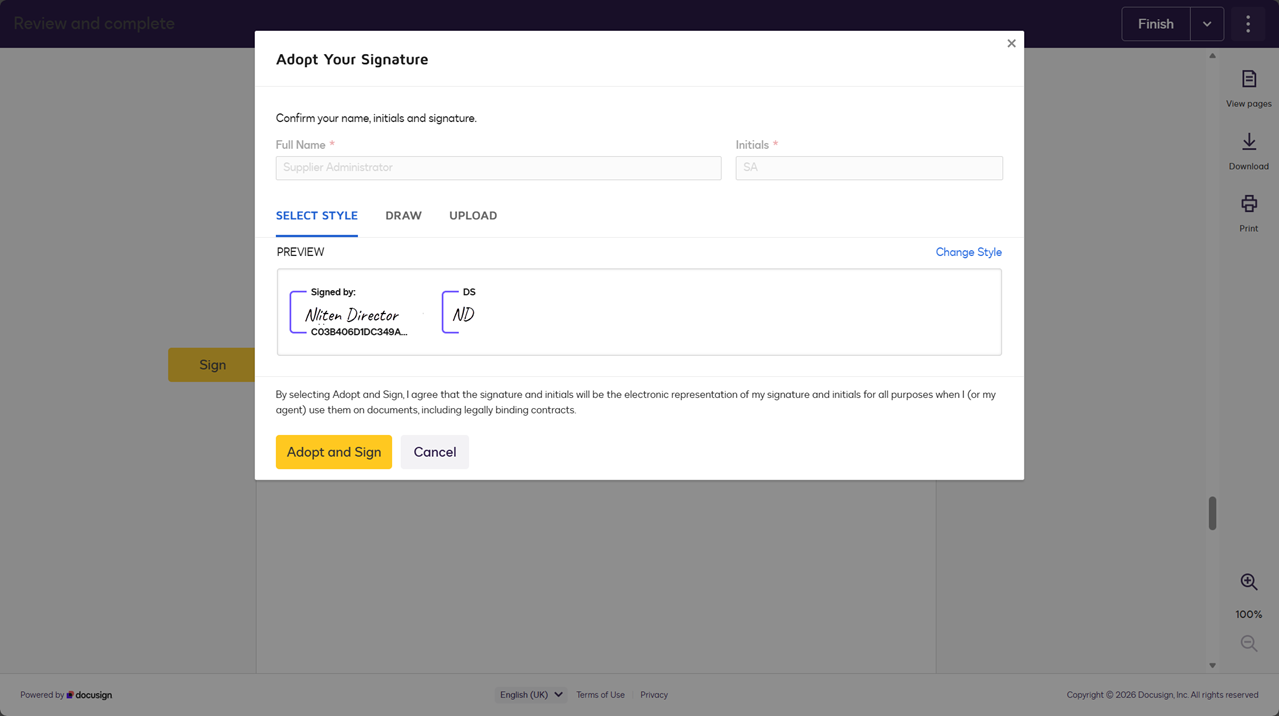
Click Adopt and Sign.
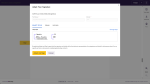
-
(Optional) When annexes are included each will need to be signed.
Example The annex title is in top left of screen.
(Annexure 1 - con_22371 - FS.pdf)
-
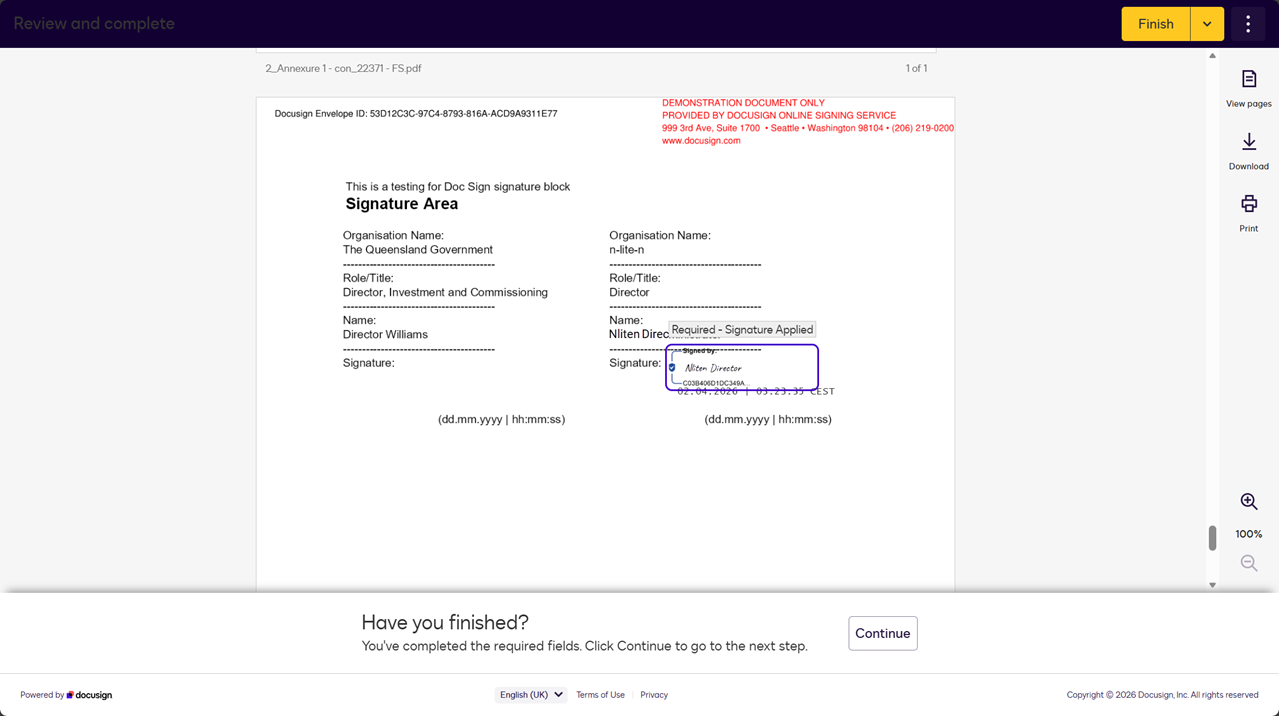
Click Sign.
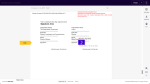
-
-
When all documents are signed, click Continue.
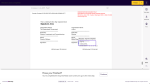
-
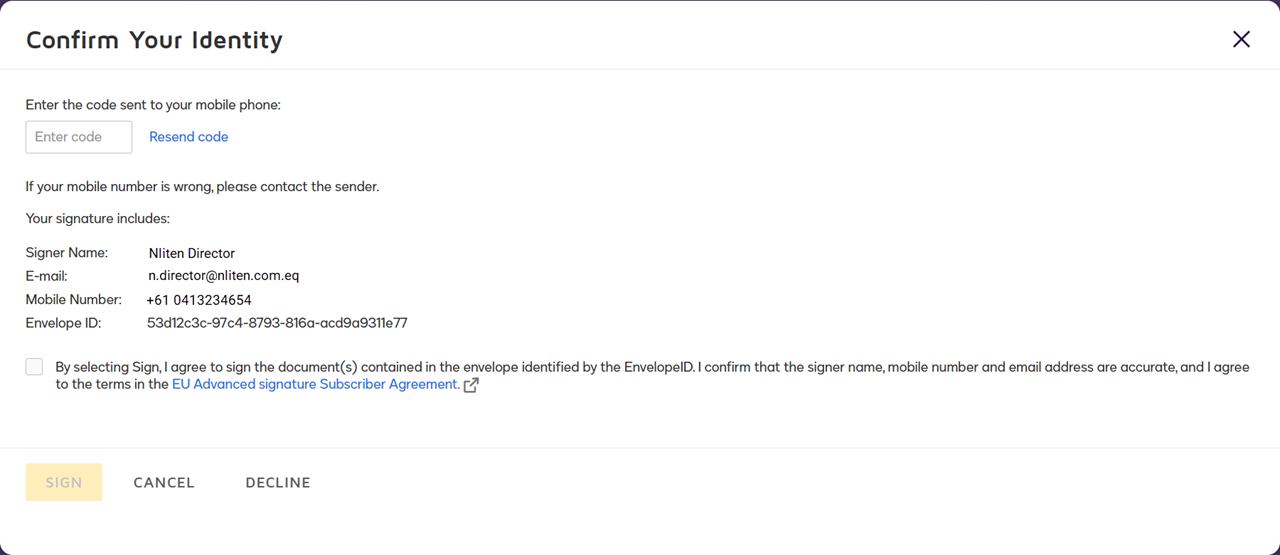
An sms is sent to the signatory's mobile phone with a confirmation code.
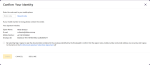
-
Enter the code.
-
Tick the agree checkbox
-
Click Sign.