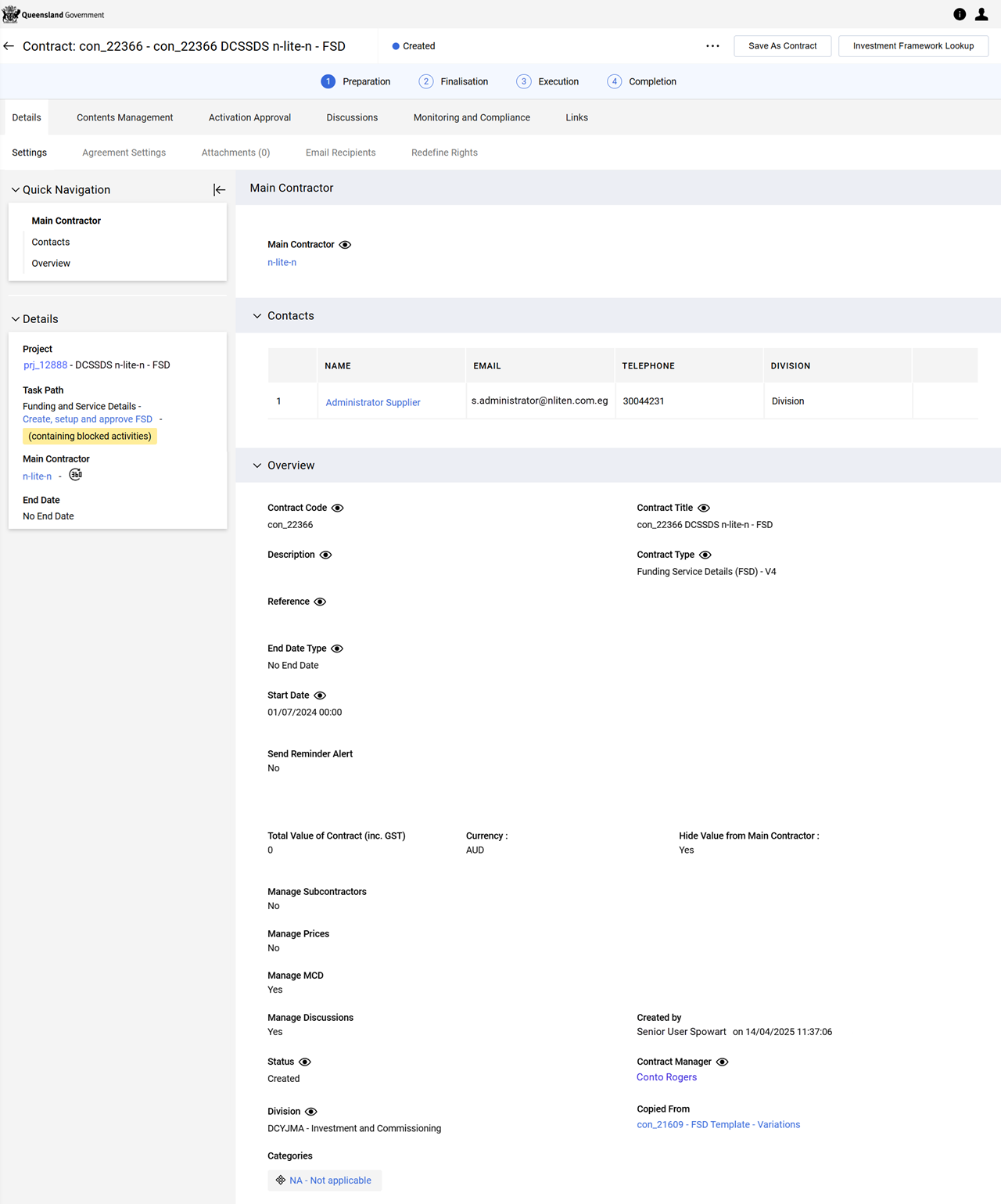
Set up an FSD contract
The setup step involves four processes.
 Additional Information (i.e. manage the contract content)
Additional Information contains a number of fields which are included in the MCD Master Contract Document. There are four sections (groupings) of fields.
Mandatory fields are marked with an asterisk (*) and must be completed before a contract can be activated. Refer to Validate for Activation
-
From the contract, Contents Management tab > Additional Information page.
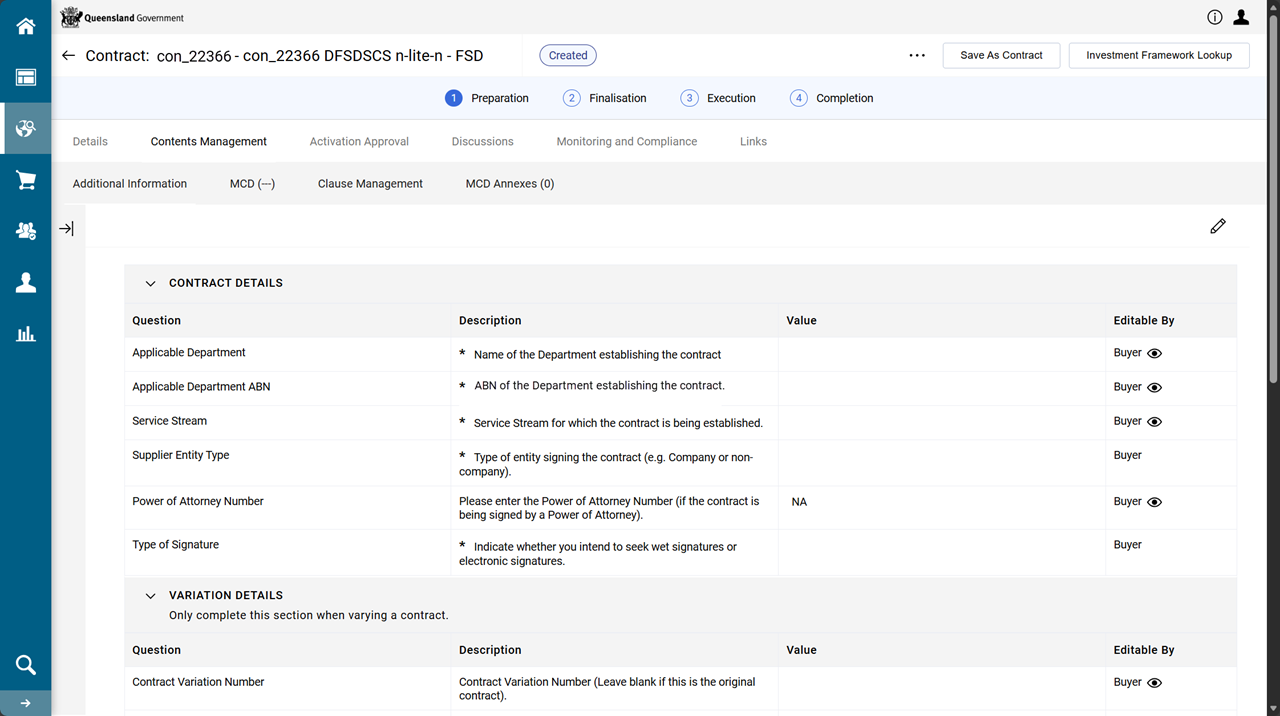
no electronic signature
Note There is no Signatories page (between the MCD and Clause Management pages).
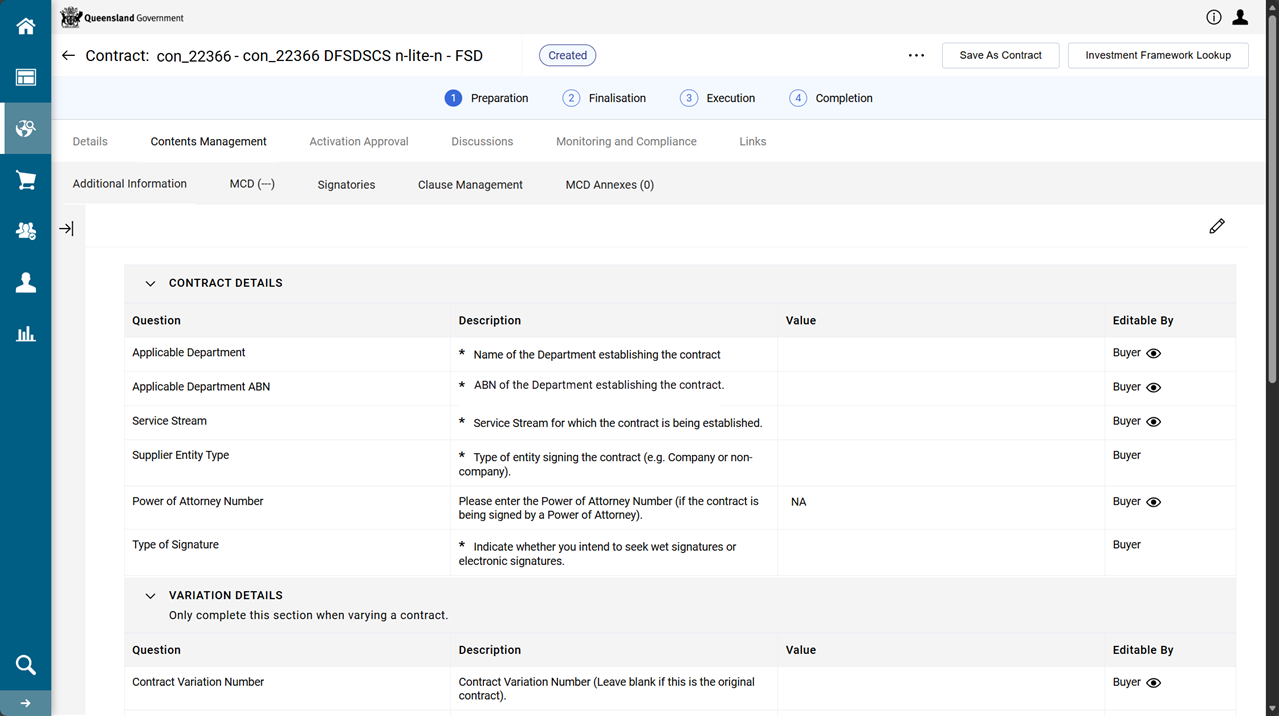
with electronic signature
Note There is a Signatories page (between the MCD and Clause Management pages).
-
Click
 .
. -
Complete the CONTRACT DETAILS section.
-
Choose the correct combination of values from the dropdown lists:
-
Applicable Department
-
Applicable Department ABN - the order of the ABN aligns to the order of the Department
-
Service Stream
-
-
Choose a Supplier Entity Type from the dropdown list.
The option selected will determine the signature clause included in the MCD.
Note When the option of Registered Power of Attorney is selected, enter a value for the Power of Attorney Number.
-
In Type of Signature dropdown list, select the value which aligns with the value chosen in the Details tab > Settings page > Manage MCD dropdown list. Refer to Manage MCD.
-
Leave the VARIATION DETAILS section with the default values.
-
Complete the PROVIDER'S CONTACT DETAILS and DEPARTMENT'S CONTACT DETAILS sections.
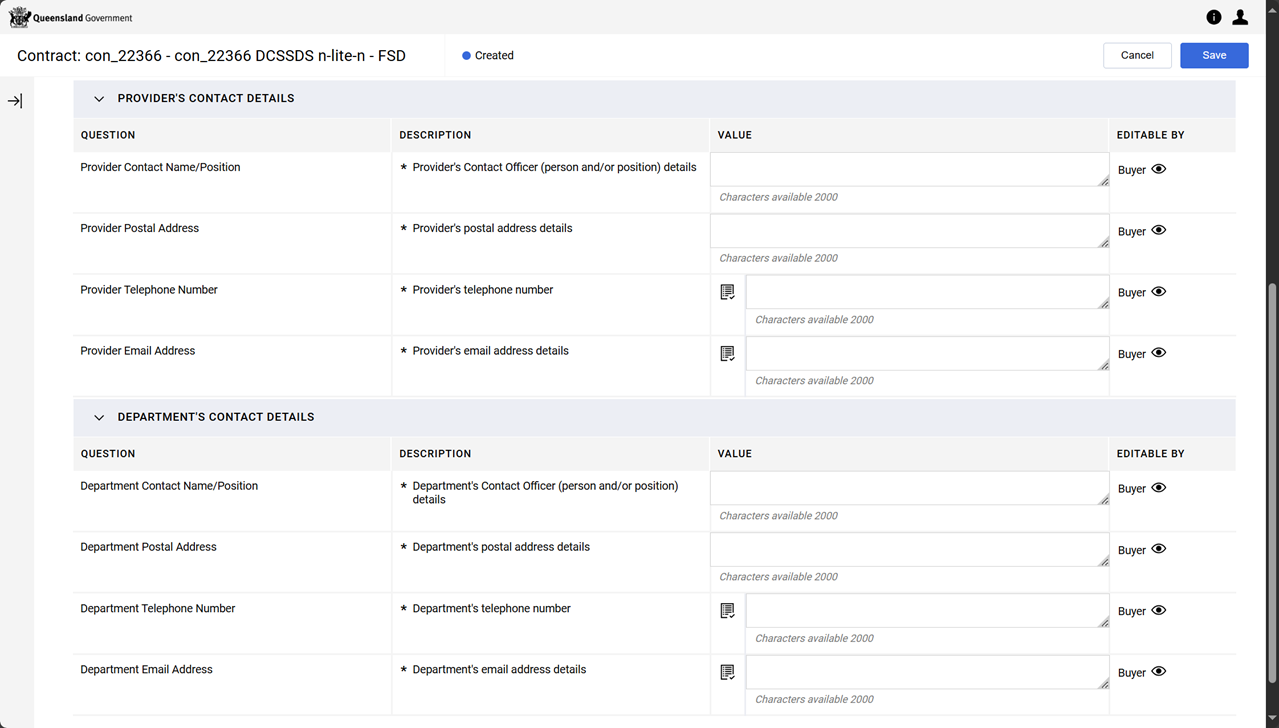
-
Click Save.
Generate an MCD
Now additional information is complete, generate a contract (MCD Master Contract Document).
Warning
Ensure configuration of the Agreement Settings is completed BEFORE creating a contract (MCD) proposal. Refer to Agreement Settings page.
Consider carefully setting these fields as the settings are fixed for the life of the contract, including the contract variation process. For example, if contract negotiation is set to occur during initial contract creation, it will occur during the contract variation process.
Once the MCD proposal is created, editing these agreement settings IS NOT possible.
Choose the instruction path if this contract involves electronic signatures.
Decision: contract DOES NOT involve electronic signature
-
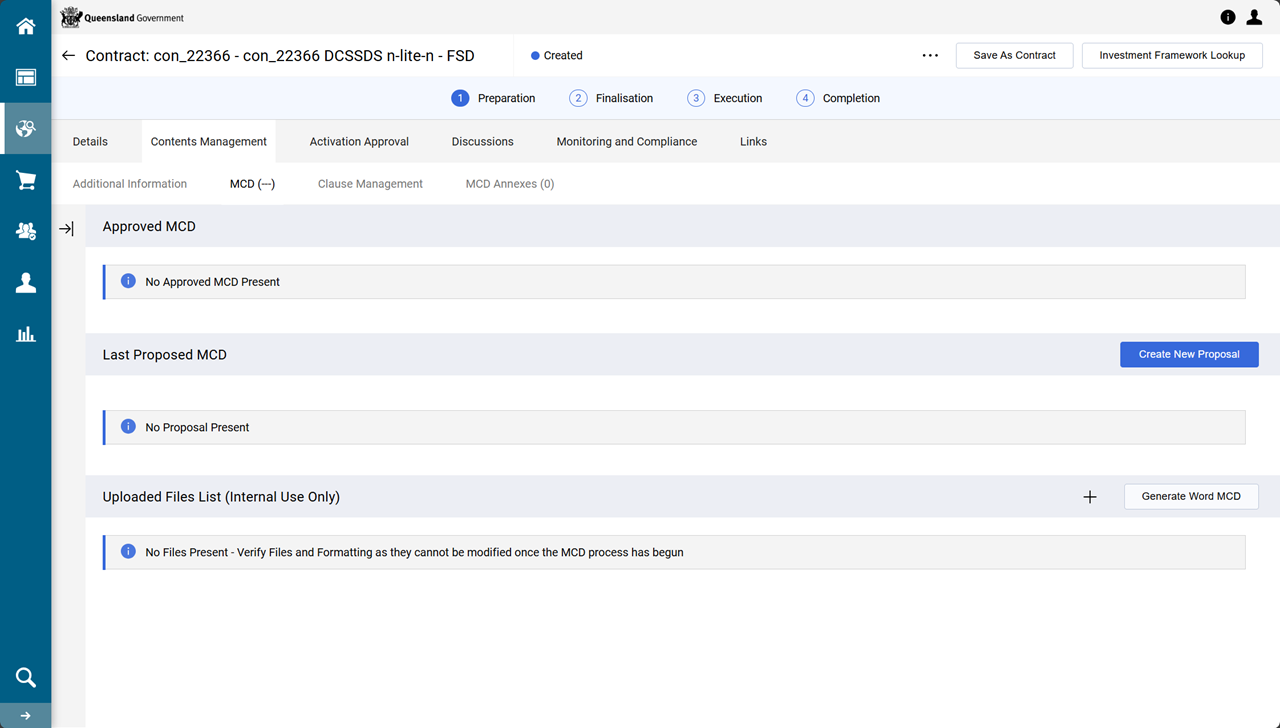
From the contract, Contents Management tab > MCD page.
Note There is no Signatories page (between the MCD and Clause Management pages).
-
Click Create New Proposal
-
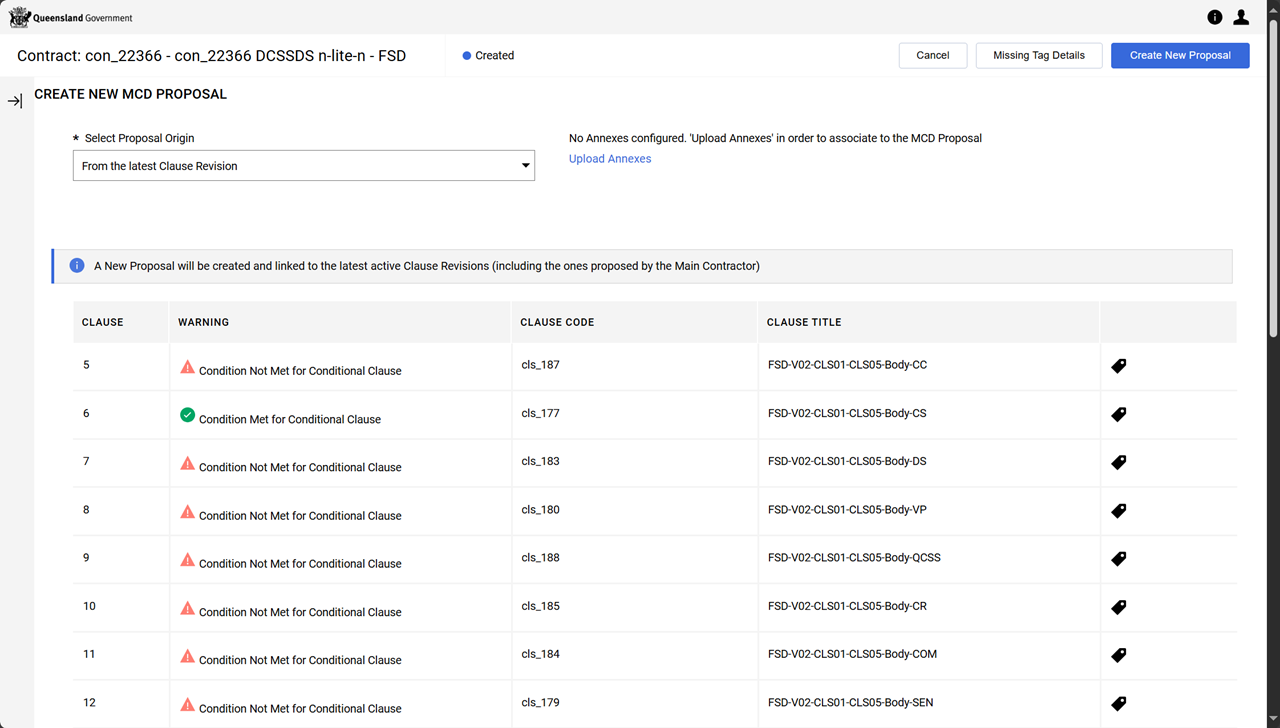
Leave Select Proposal Origin dropdown list set to From the latest Clause Revision.
TABLE: Select Proposal Origin - Values and Use Option Source Use Case From the Enable Library Clause
Standardised, pre-approved clauses stored in the clause library
Use when needing the most up-to-date, compliant, and standardised clauses
From the Latest Clause Revision
The most recent version of a clause that was modified in a prior contract or proposal
Use when needing to maintain continuity with a customised clause from a previous contract
From Previous Proposals Clauses from a specific previous proposal or contract Use when wanting to replicate clauses from a past proposal that are relevant to the current one.
Will need to pick which proposal version.
Note The warning indicators are a reminder clauses are not applicable to this contract. If it appears a clause is being excluded but it ought to be included, click Cancel and return to Contract Management tab > Additional Information page and change selections.
-
Click Create New Proposal
Note The status of the the MCD is To Be Submitted.
-
(Optional) Click Edit MCD Contents.
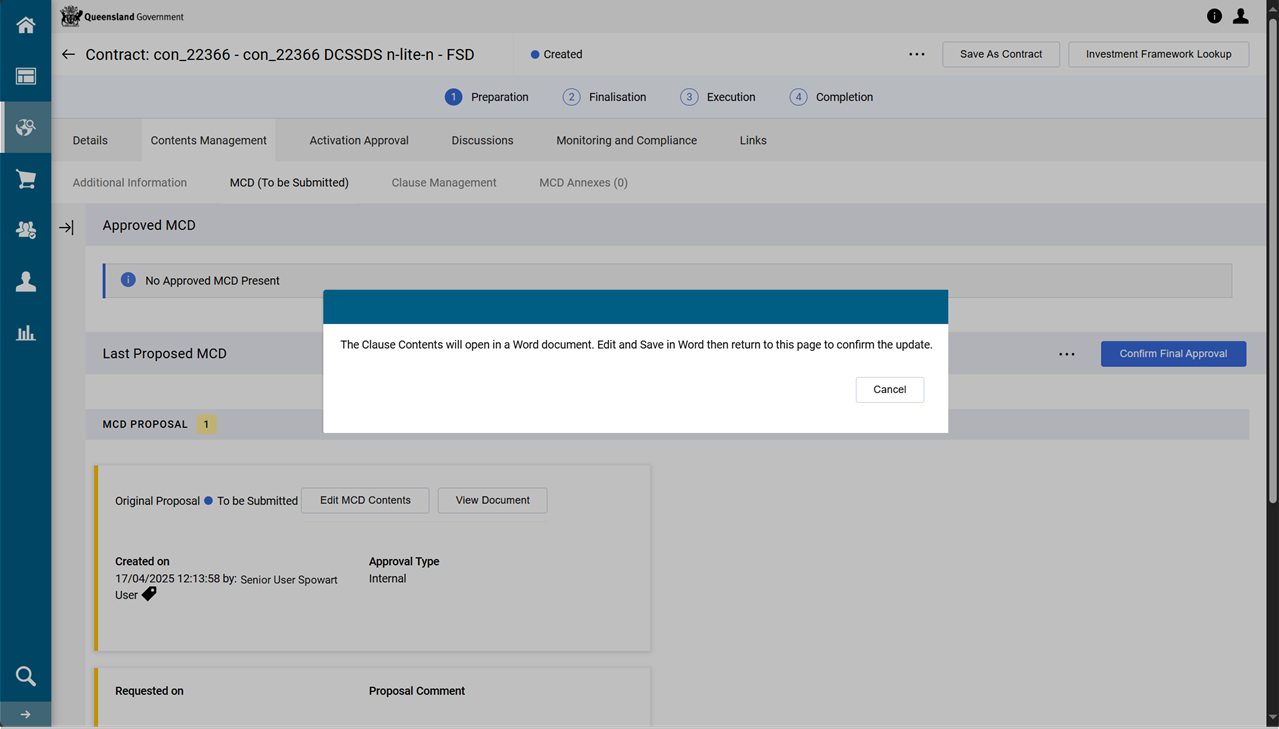
The MCD opens in Microsoft Word and is available for editing.
Warning Use extreme caution when editing the MCD document as it contains numerous P2i tagged content and there may be unintentional errors introduced if incorrect editing occurs. If this happens delete proposal, recreate a new proposal and recommence the edits.
-
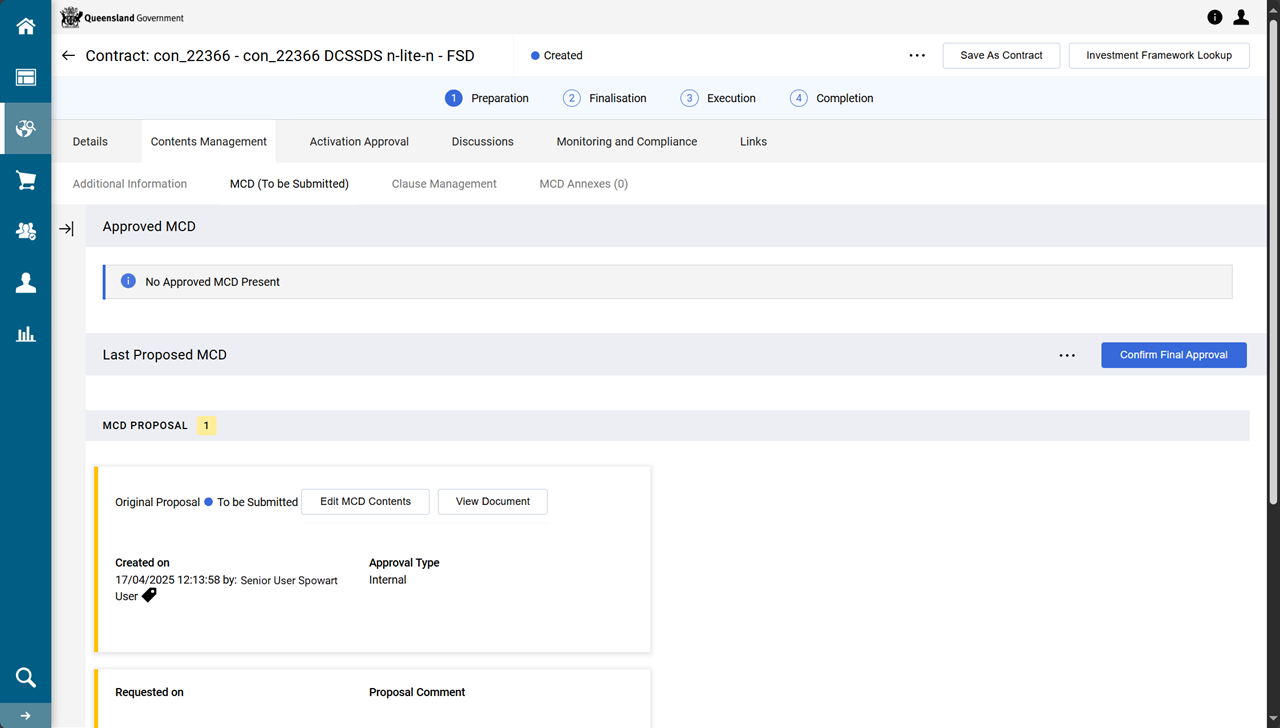
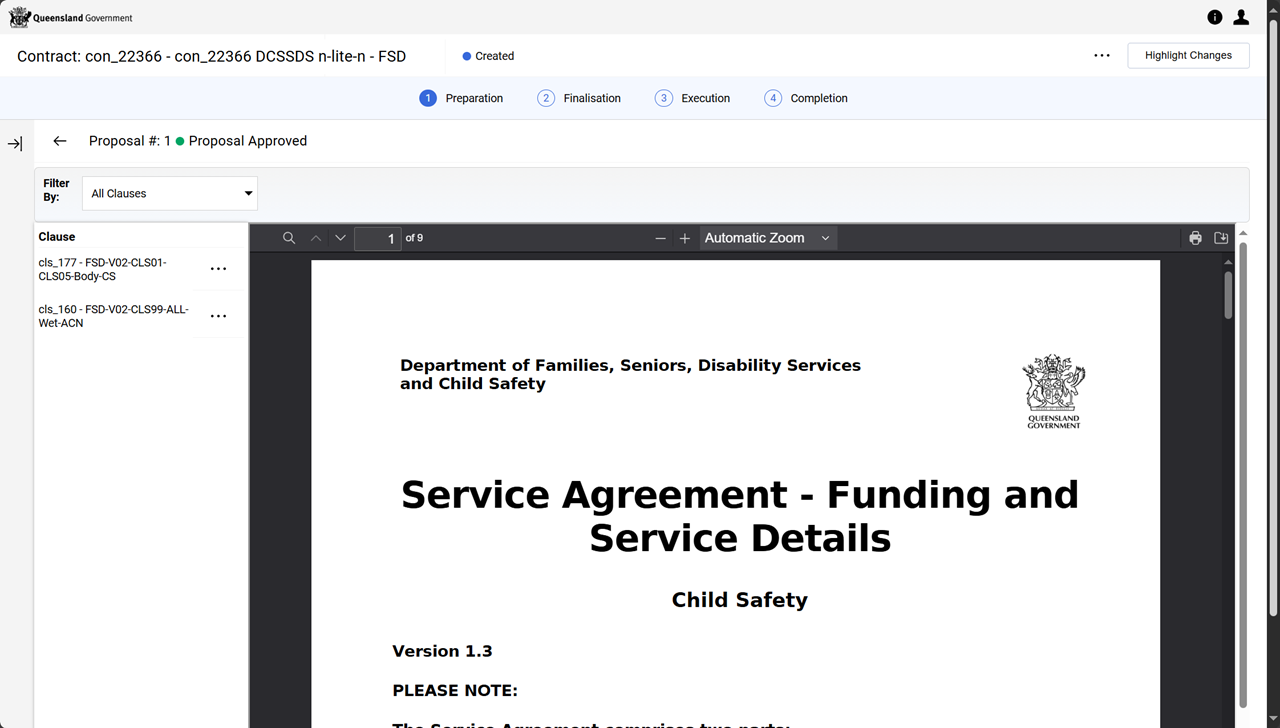
Click View Document.
-
Review the contract and click Back arrow.
Tip <- ... is to left of Proposal #: at top of window
-
Click Confirm Final Approval.
-
Click Approve.
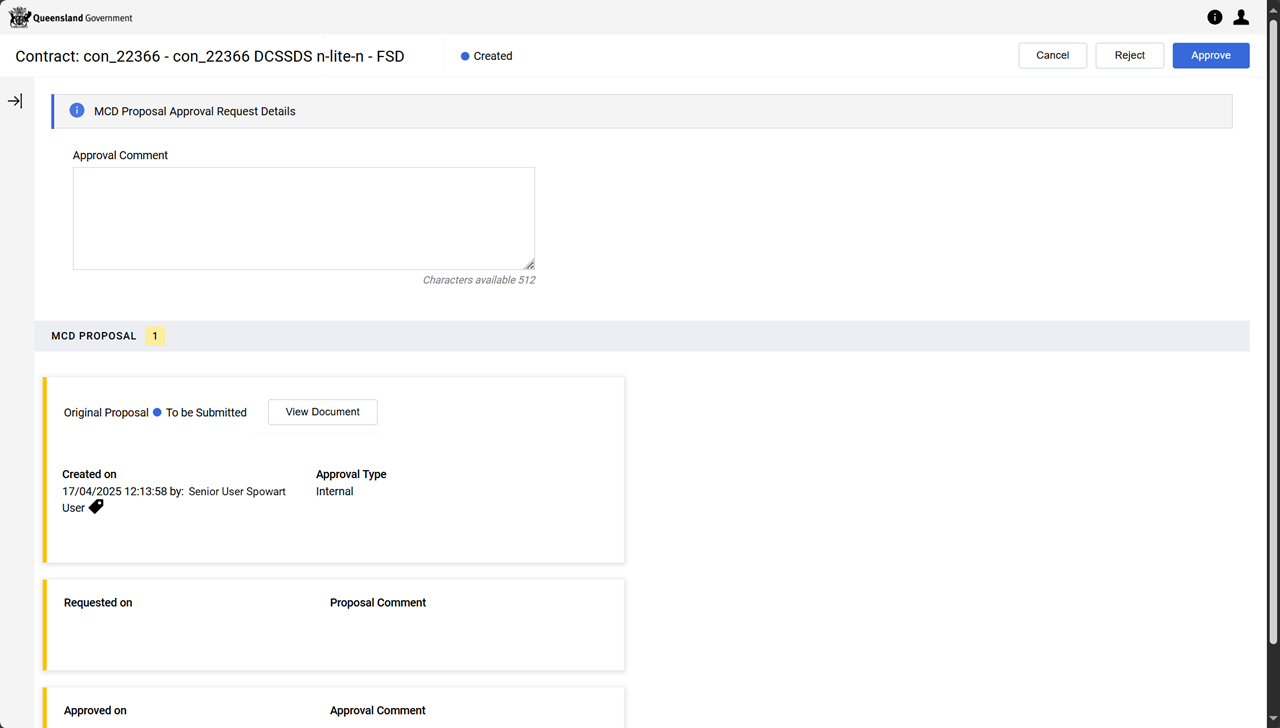
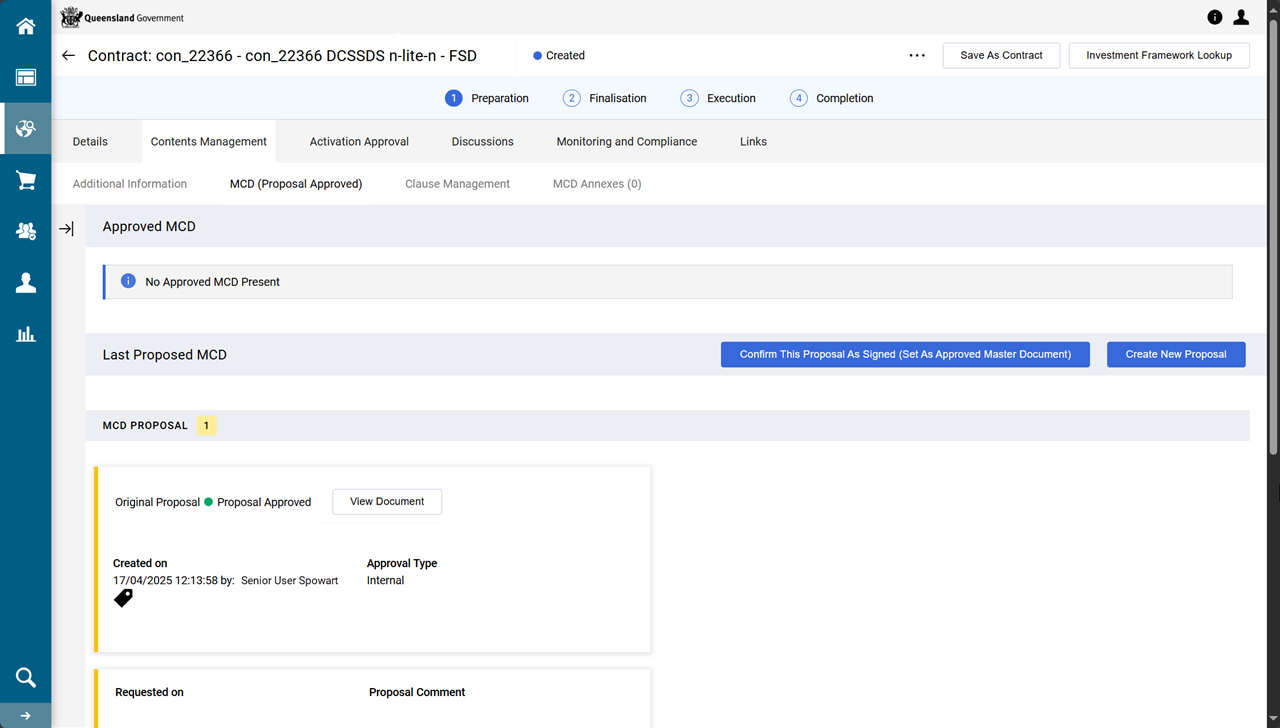
The status of the MCD is Proposal Approved.
Decision: contract DOES involve electronic signature (with optional annexes)
-
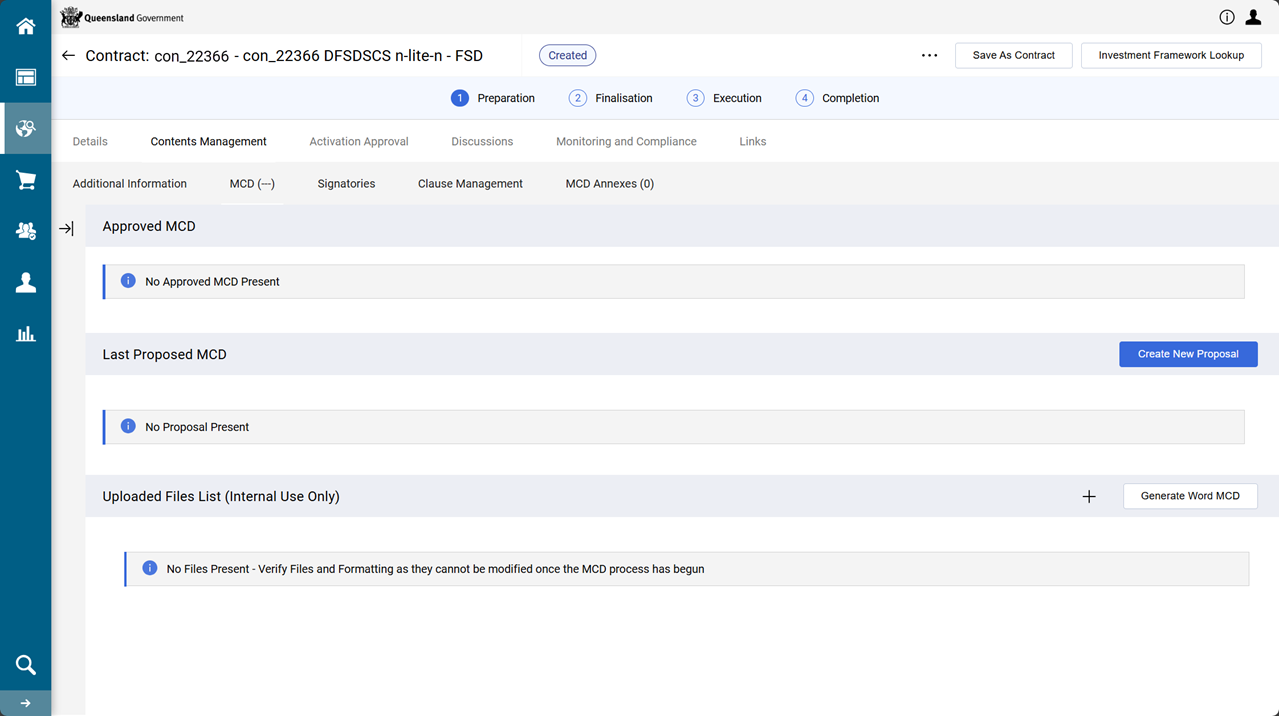
From the contract, Contents Management tab > MCD page.
Note There is a Signatories page (between the MCD and Clause Management pages).
Signatories are updated within workflow task: Setup and execute FSD (refer to Electronic signatures).
-
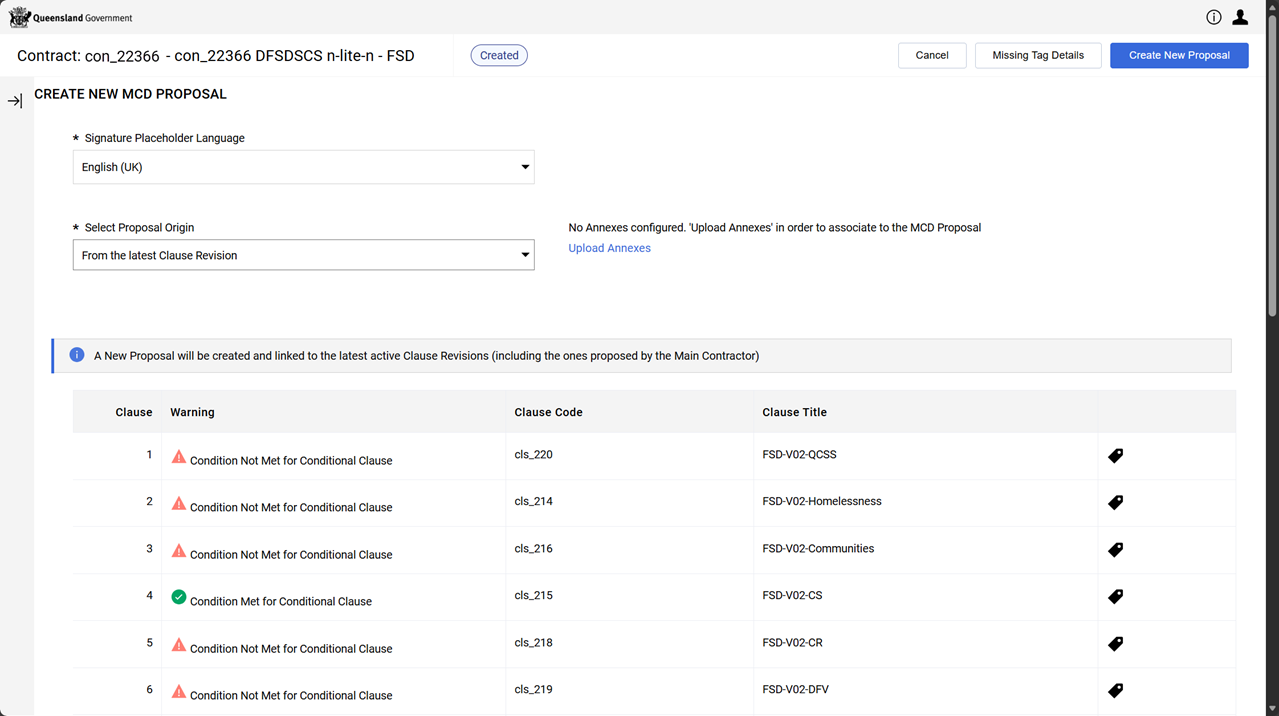
Click Create New Proposal
-
(Optional) Click Upload Annexes hyperlink
-
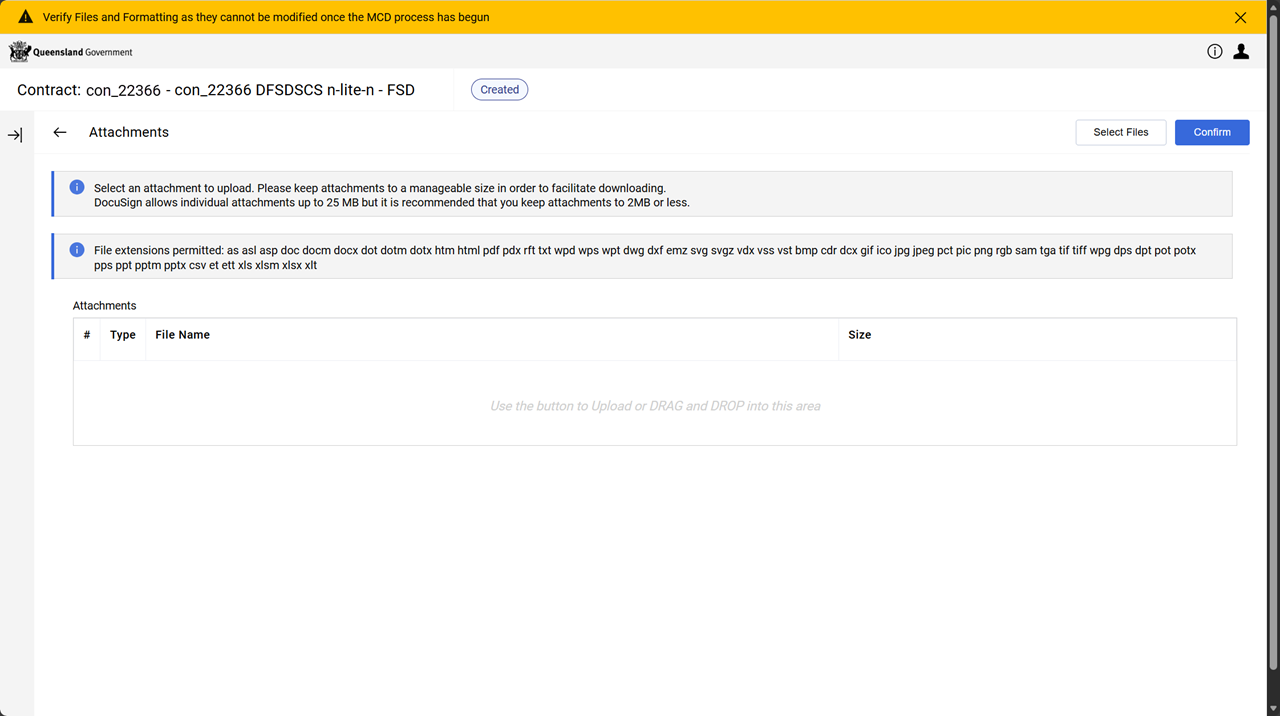
DRAG and DROP file/s into the Attachment box or click Select Files.
-
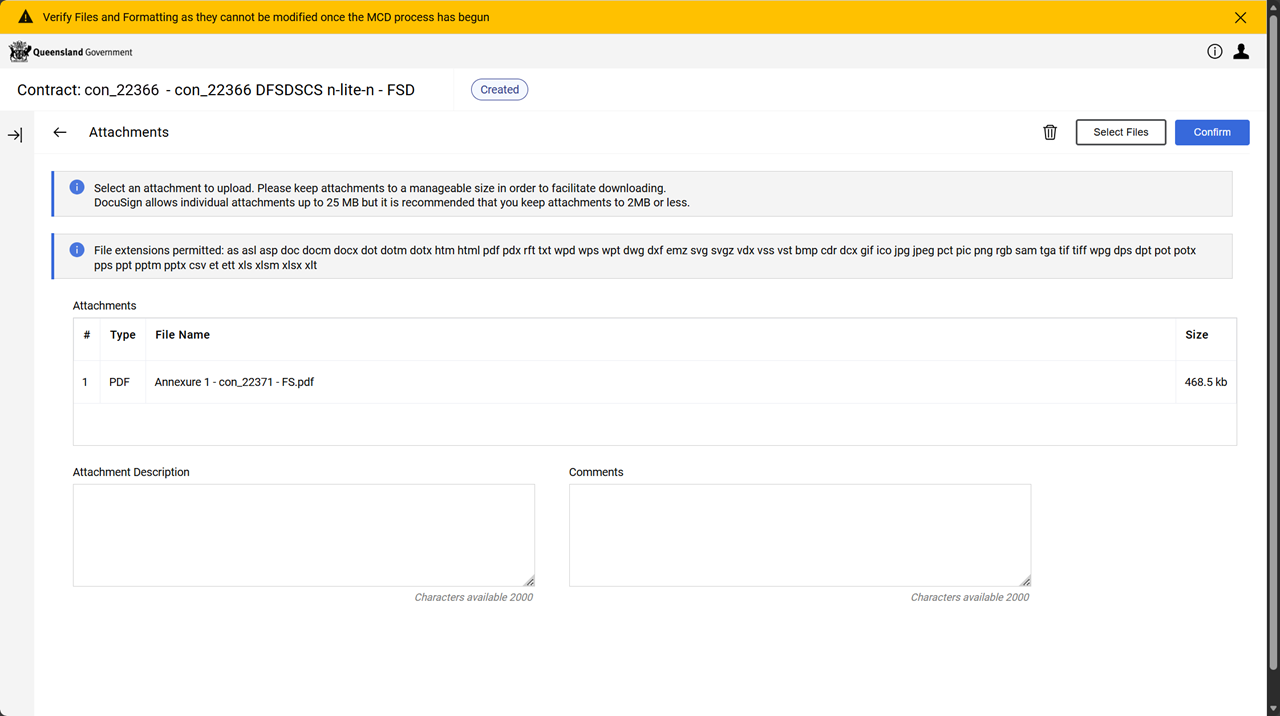
Enter an Attachment Description and Comment.
-
Click Confirm.
-
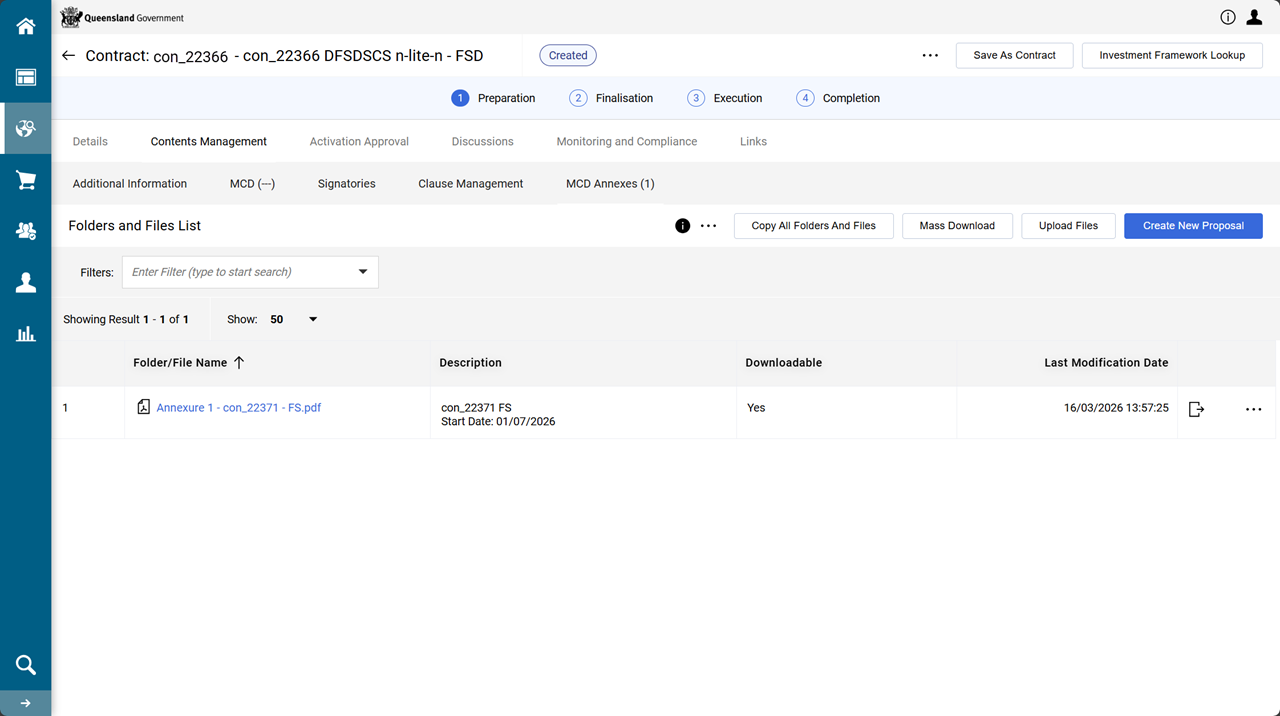
Click Create New Proposal.
-
-
Leave Select Proposal Origin dropdown list set to From the latest Clause Revision.
TABLE: Select Proposal Origin - Values and Use Option Source Use Case From the Enable Library Clause
Standardised, pre-approved clauses stored in the clause library
Use when needing the most up-to-date, compliant, and standardised clauses
From the Latest Clause Revision
The most recent version of a clause that was modified in a prior contract or proposal
Use when needing to maintain continuity with a customised clause from a previous contract
From Previous Proposals Clauses from a specific previous proposal or contract Use when wanting to replicate clauses from a past proposal that are relevant to the current one.
Will need to pick which proposal version.
Note The warning indicators are a reminder clauses are not applicable to this contract. If it appears a clause is being excluded but it ought to be included, click Cancel and return to Contract Management tab > Additional Information page and change selections.
-
(Optional) Select Yes or No from Associate Annexes to Proposal dropdown list.
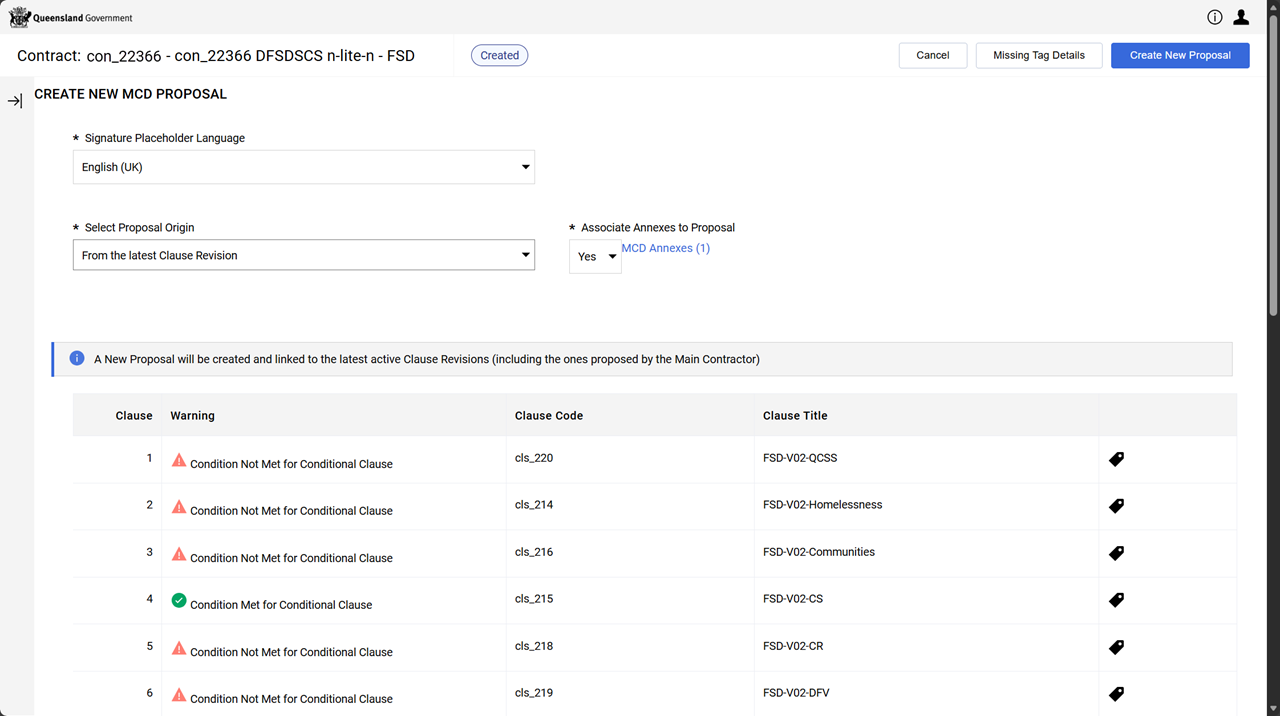
-
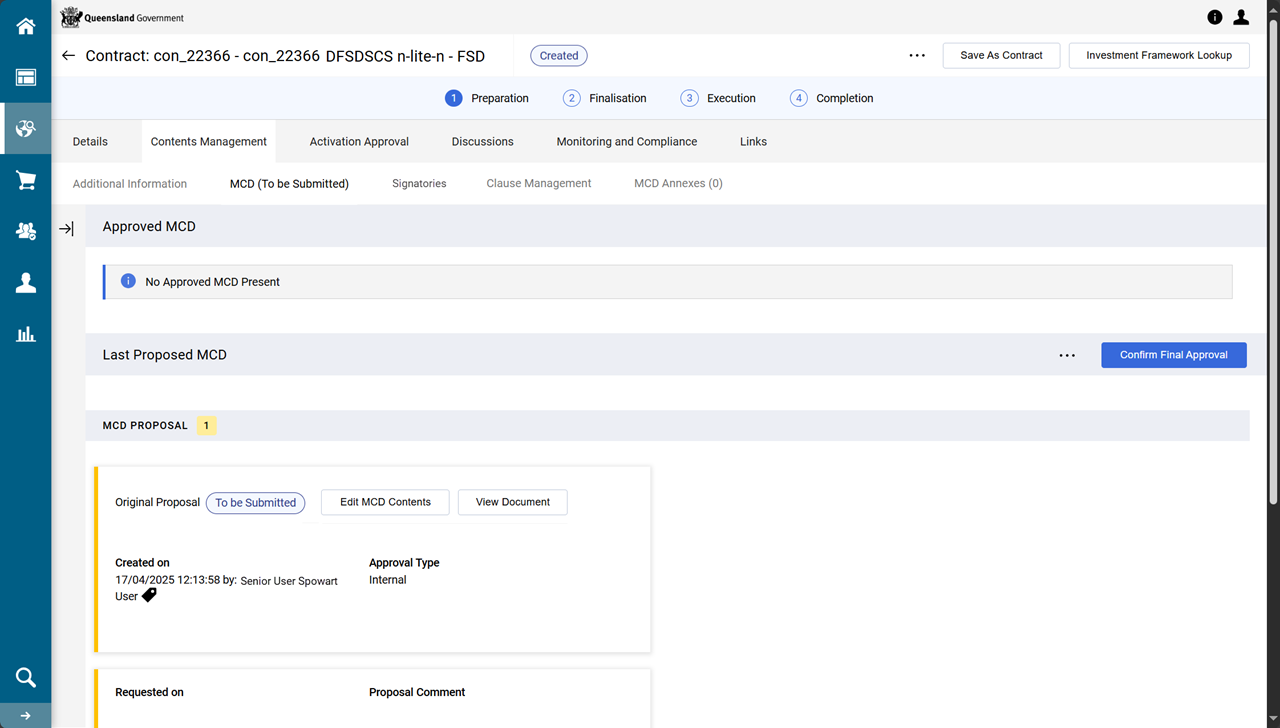
Click Create New Proposal
Note The status of the the MCD is To Be Submitted.
-
(Optional) Click Edit MCD Contents.
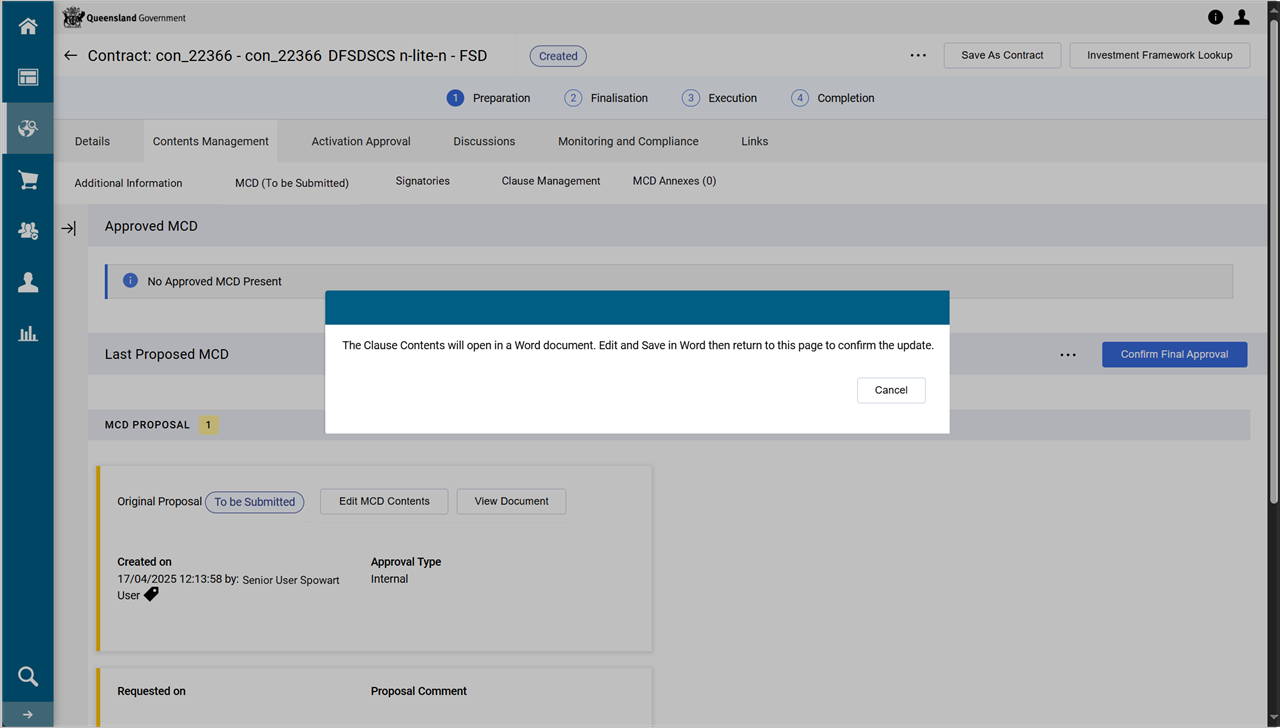
The MCD opens in Microsoft Word and is available for editing.
Warning Use extreme caution when editing the MCD document as it contains numerous P2i tagged content and there may be unintentional errors introduced if incorrect editing occurs. If this happens delete proposal, recreate a new proposal and recommence the edits.
-
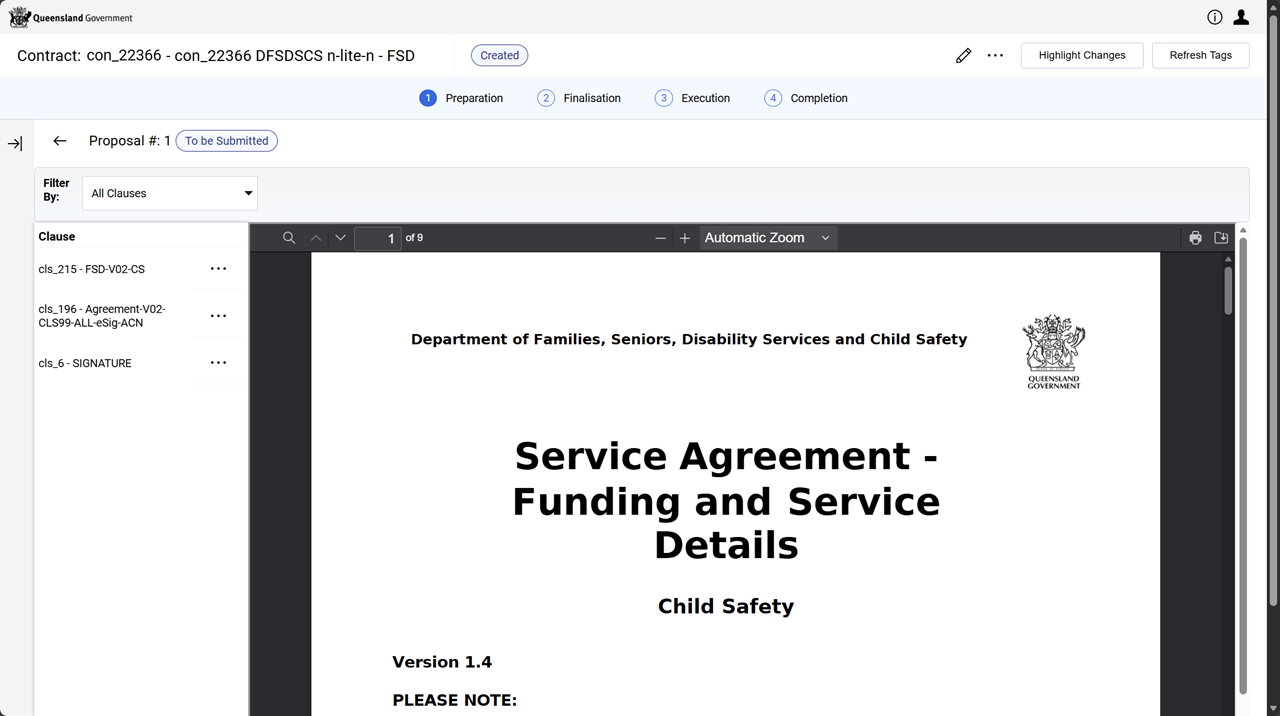
Click View Document.
-
Review the contract and click Back arrow.
Tip <- ... is to left of Proposal #: at top of window
-
Click Confirm Final Approval.
no annexe
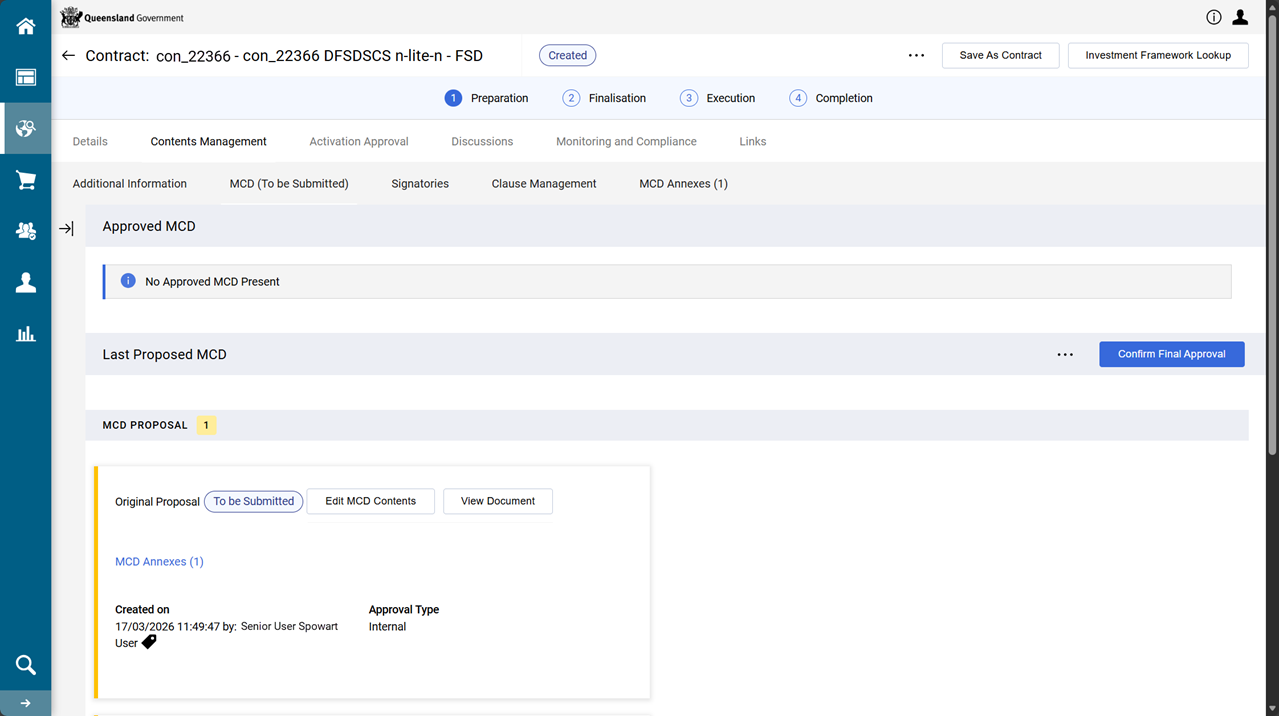
with annexes
-
Click Approve.
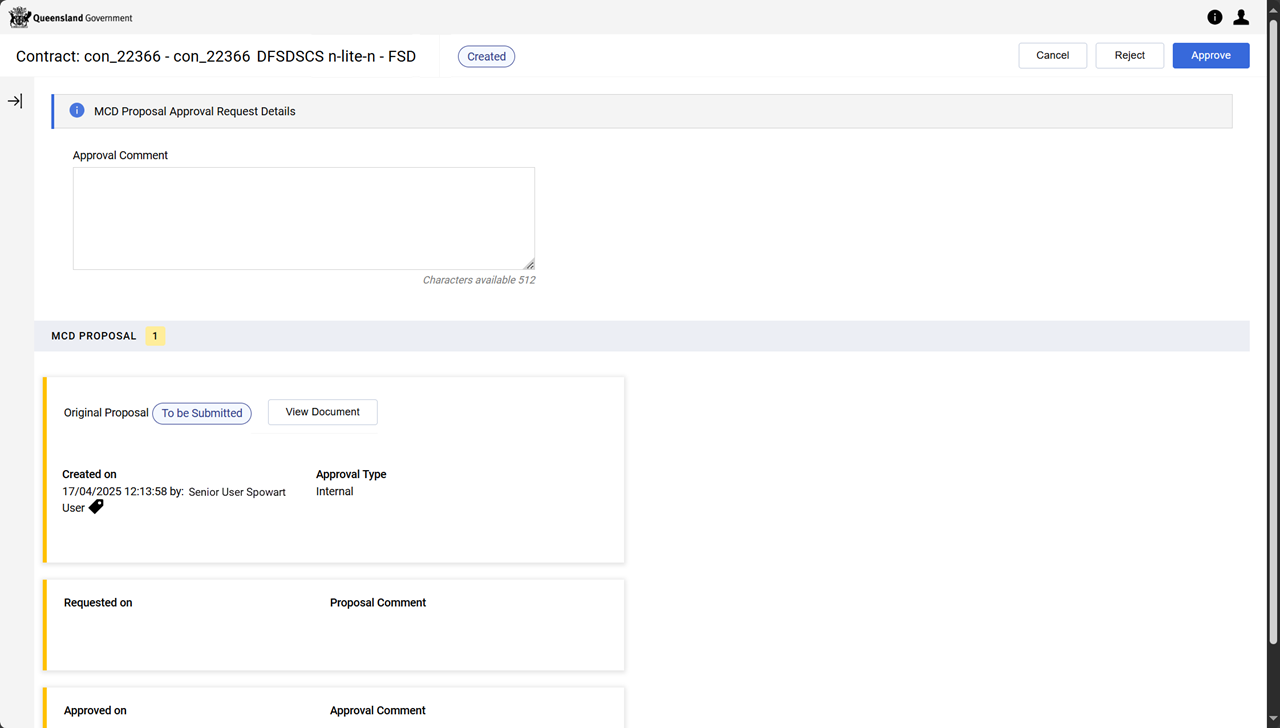
no annexe
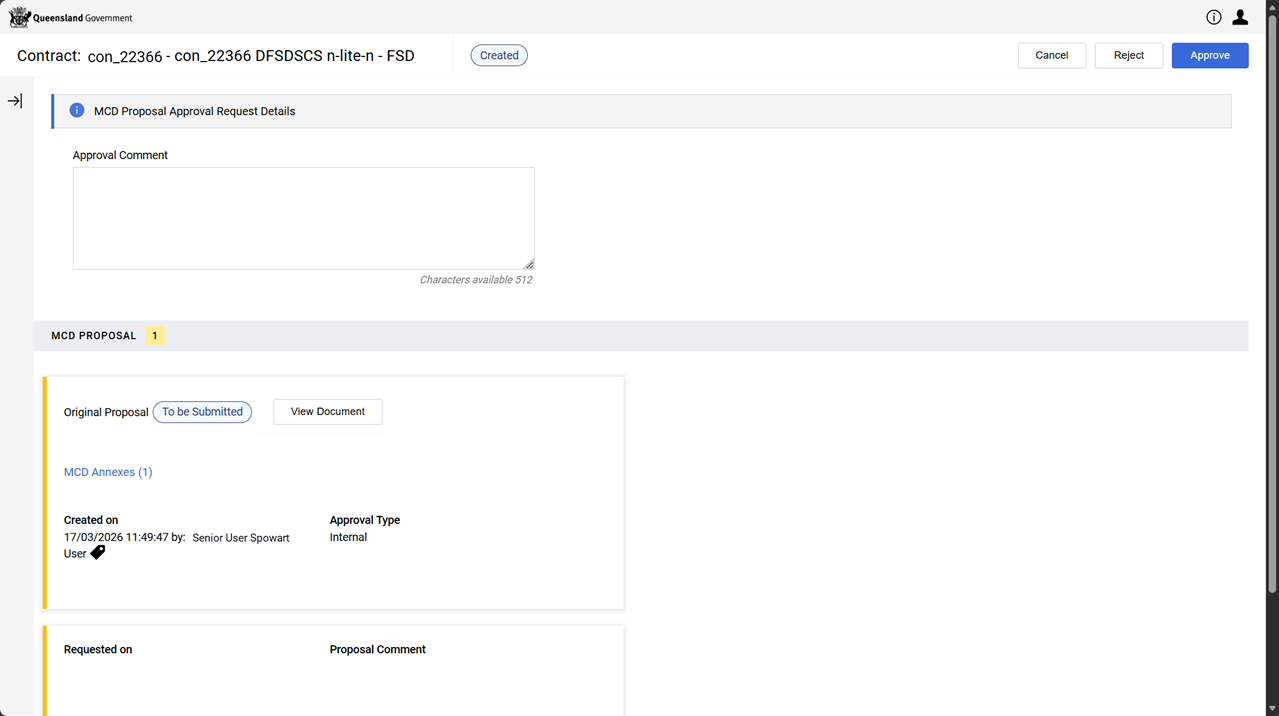
with annexes
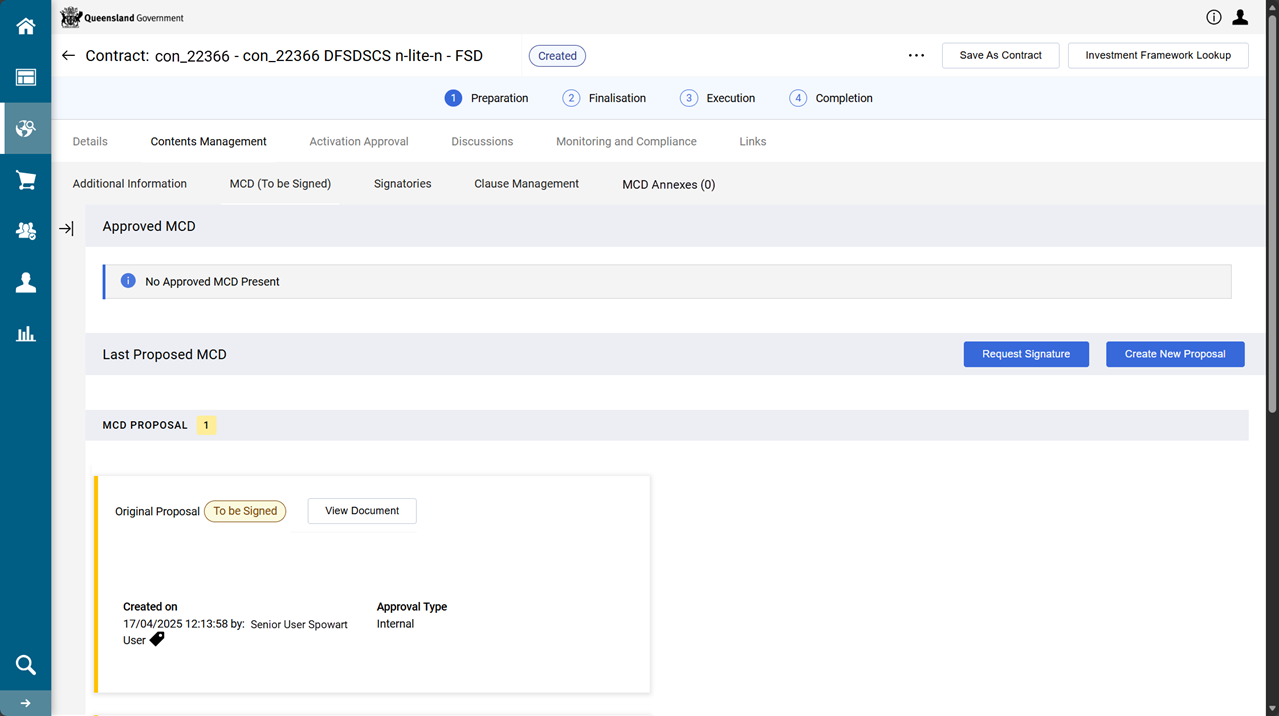
The status of the MCD is To be Signed.
|
no annexe |
with annexes |
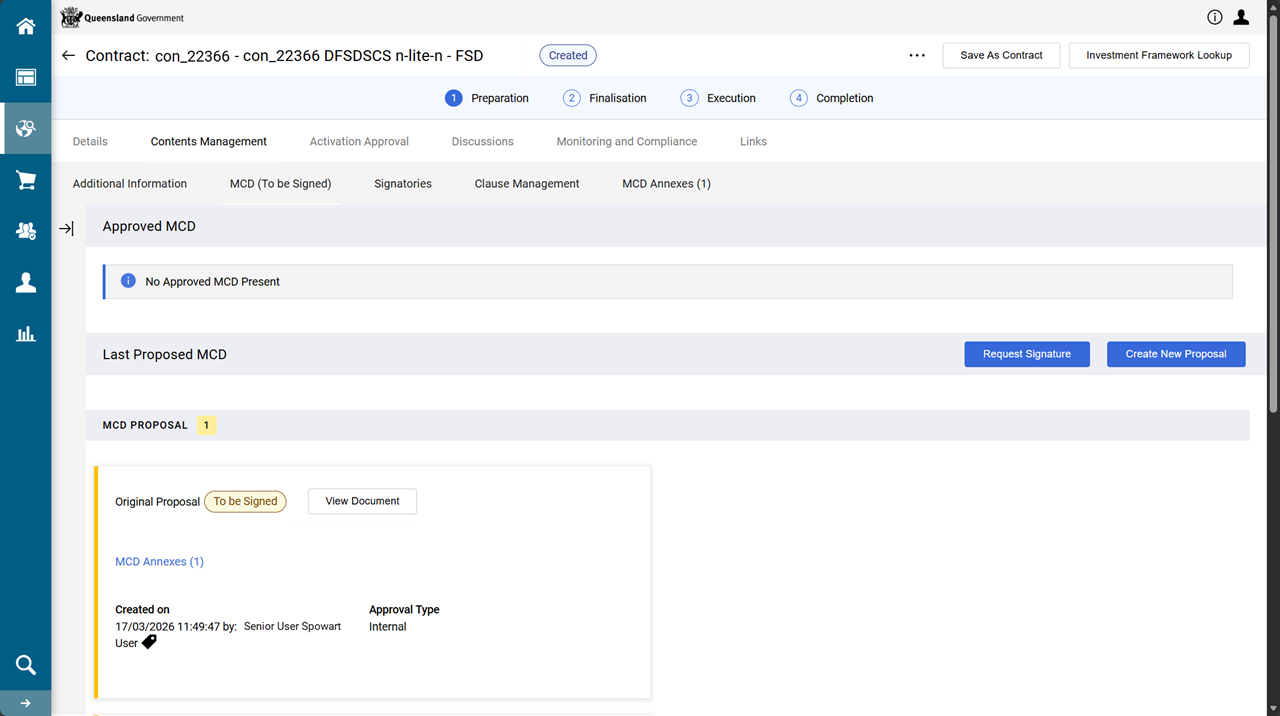 Validate for Activation
This procedure ensures the contract is in a valid state prior to and being ready for activation. This process can be performed in two workflow steps. This is the first opportunity to perform the action.
-
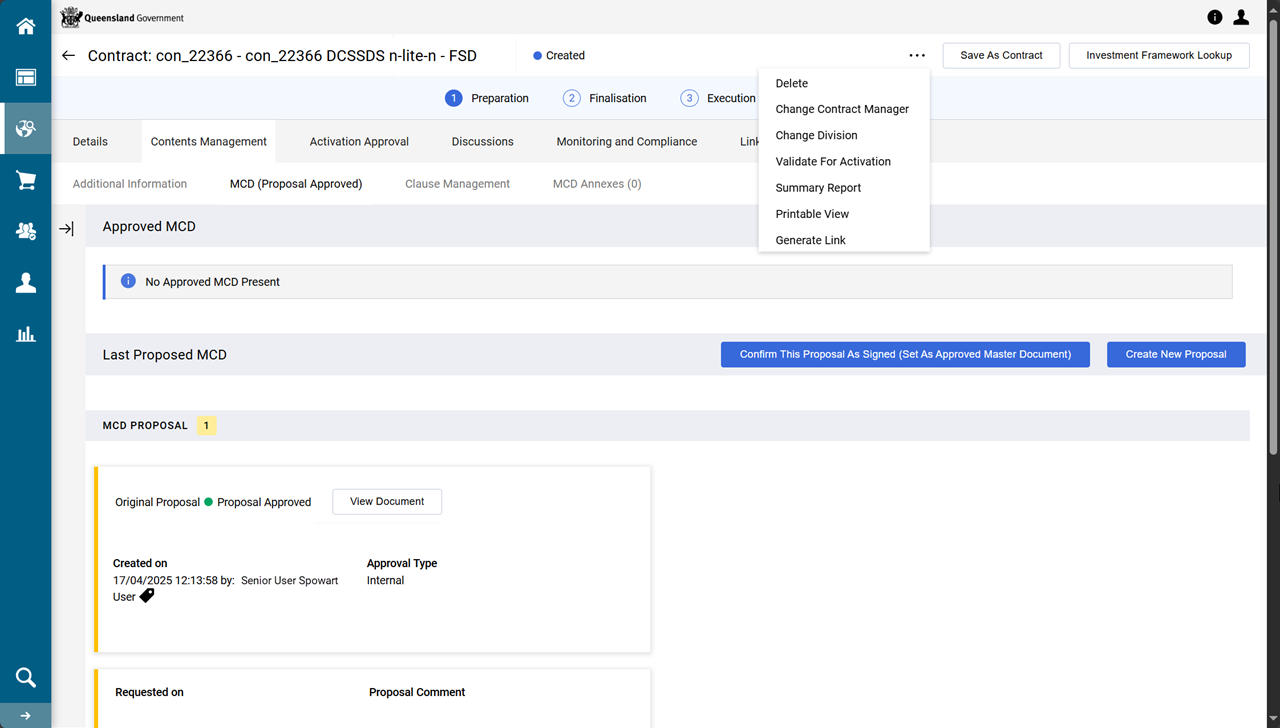
From the contract, click the ellipsis (... in the right-hand corner of the screen).
-
Click Validate for Activation
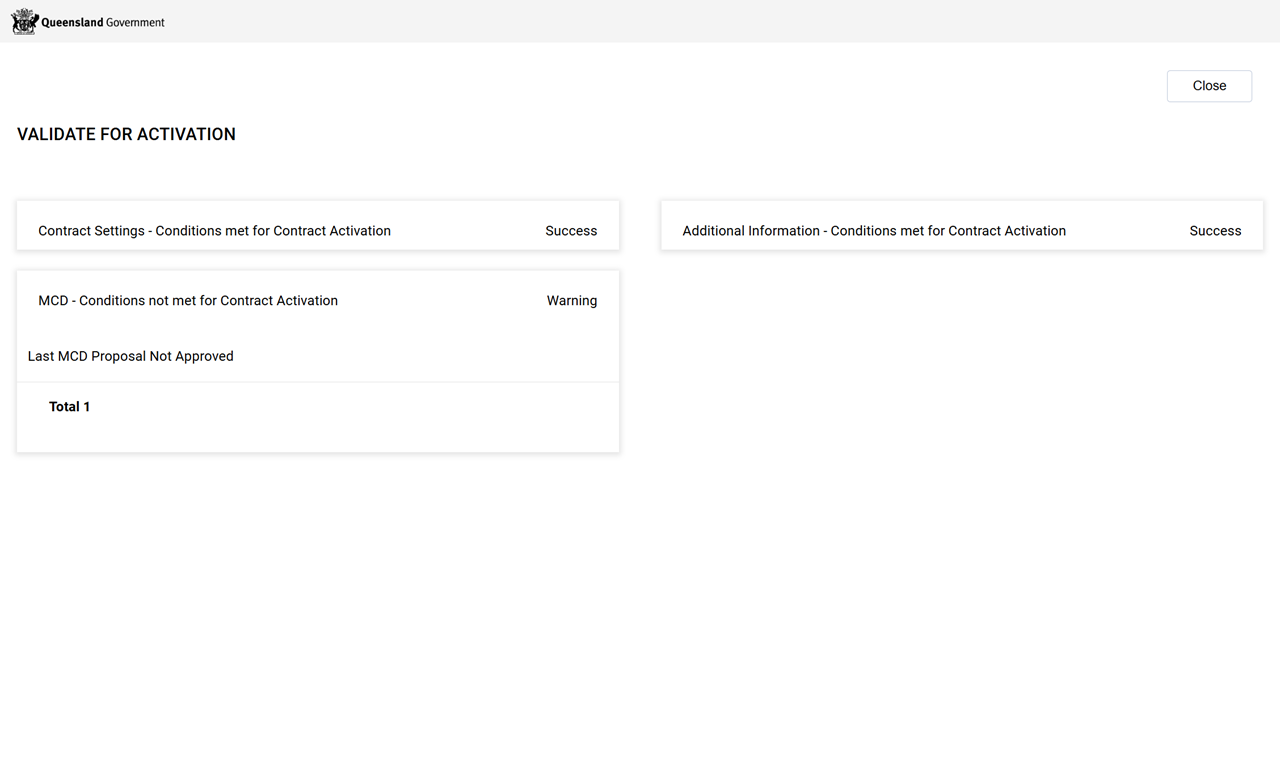
Note The Warning for MCD - Conditions not met for Contract Activation highlights the Last MCD Proposal Not Approved. This is expected and is normal for this point in the process. Correct any other warnings.
Change the contract's Contract Manager
At this point in the process, assign the P2i Contract Officer to be the contract's Contract Manager. (This will also ensure the P2i Contract Officer can complete the contract setup activities in the Contract Management Hub).
Tip If the P2i Contract Officer has not been added to the Project Team, add them. Being on the Project Team will enable more access to make changes to the contract. Refer to Assign project team members.
-
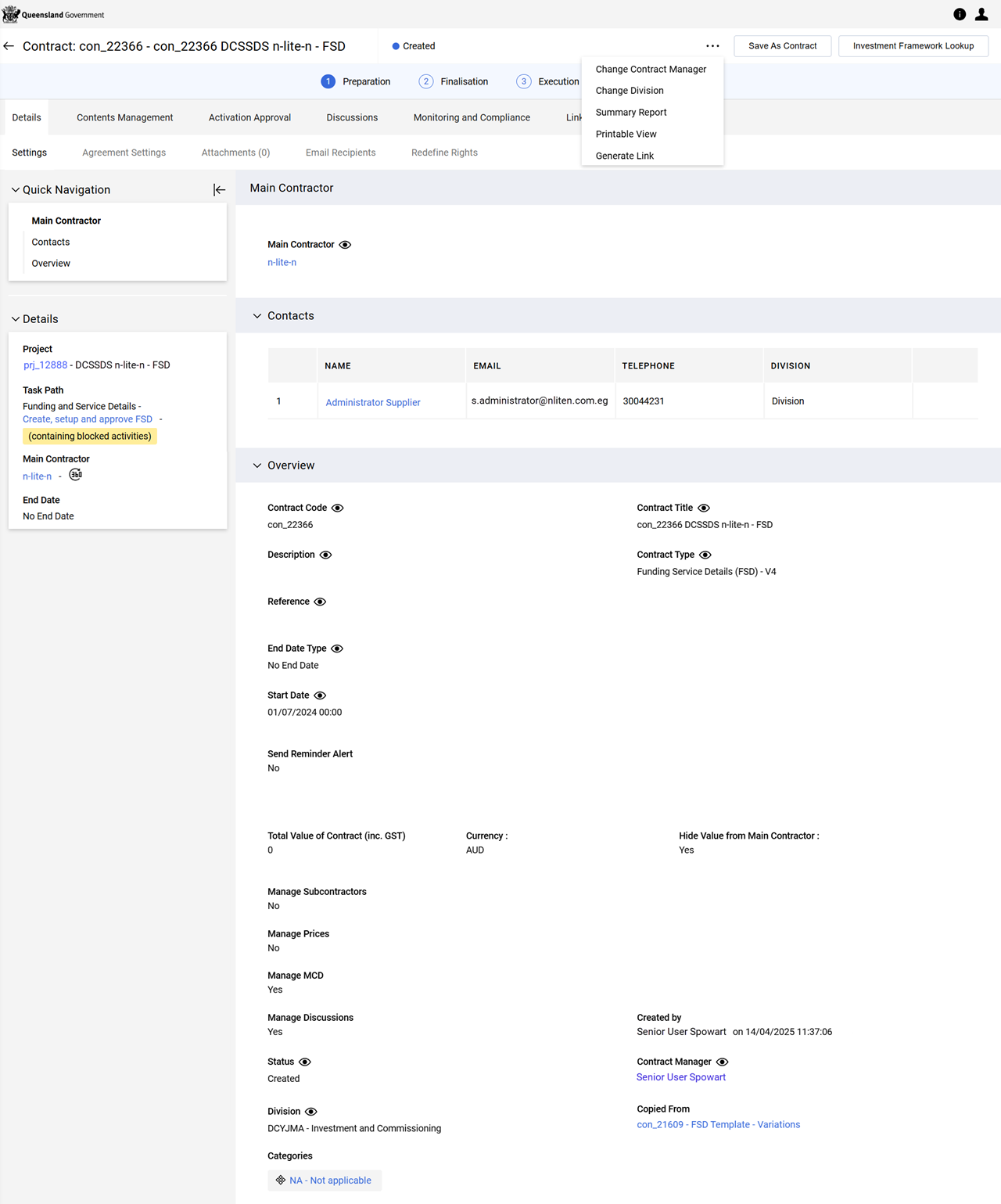
From contract, click the ellipsis (... in the right-hand corner of the screen).
-
Click Change Contract Manager.
-
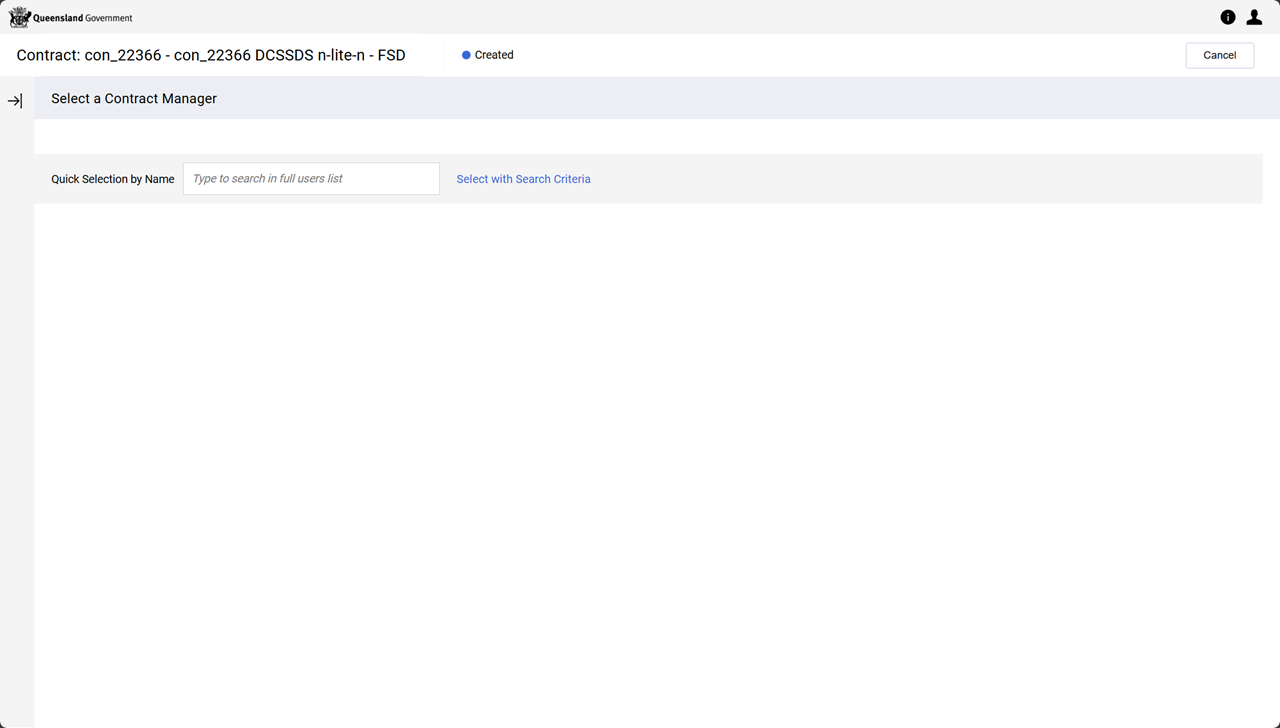
Search for and select the P2i Contract Officer.
-
Click Confirm.
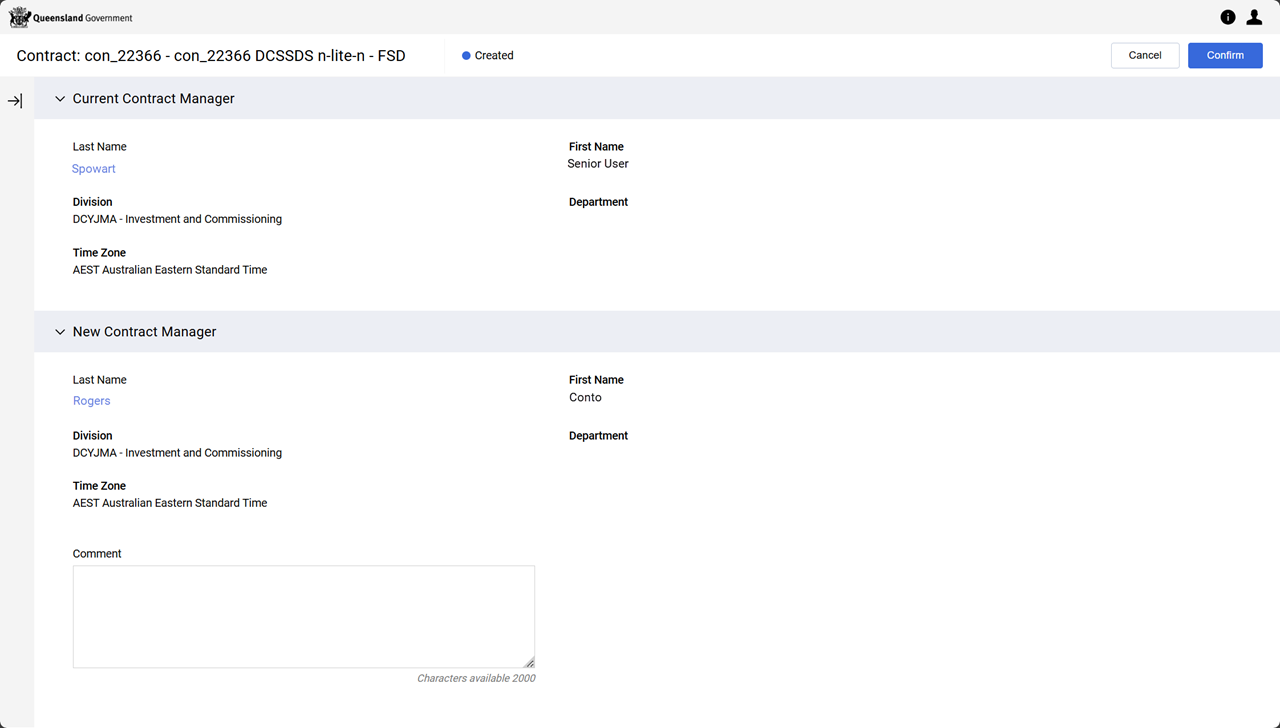
The Contract Manager is updated and the P2i Contract Officer receives an email notification informing they are the Contract Manager for this contract.