Updating a budget
Once the initial budget lines have been entered and saved, you may need to make changes to these lines throughout the life of the budget.
To change the status of a budget line:
-
Click the Budget tab to display the Budget screen.
-
Click Edit icon in the left hand Actions menu to amend the details in the fields of a budget line.
-
Select a new status from the list of available statuses.
-
Click Save.

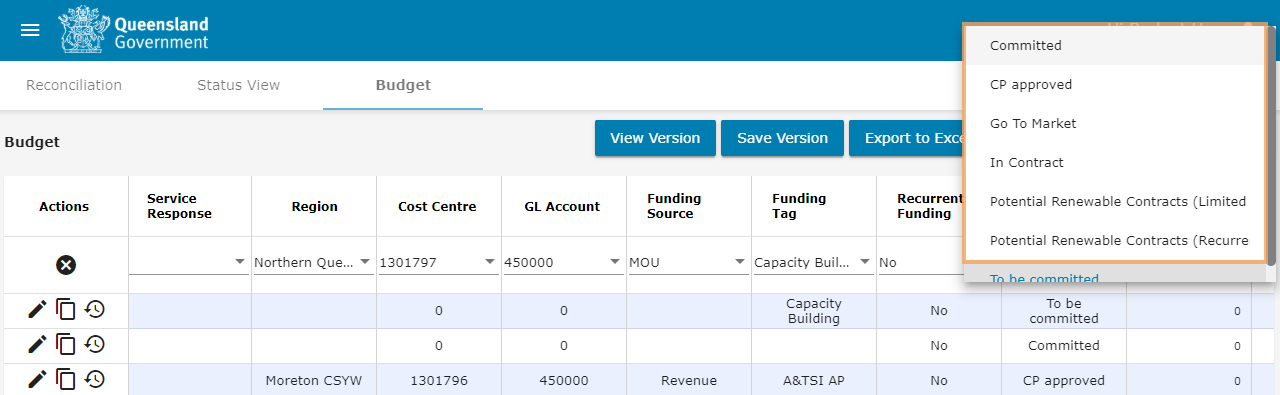
A message will display to indicate that your change was successful.

Viewing the change history for a budget line
Any changes that are made to budget lines, including the additions of notes and attachments, are recorded for auditing purposes.
To view the change history of a budget line:
-
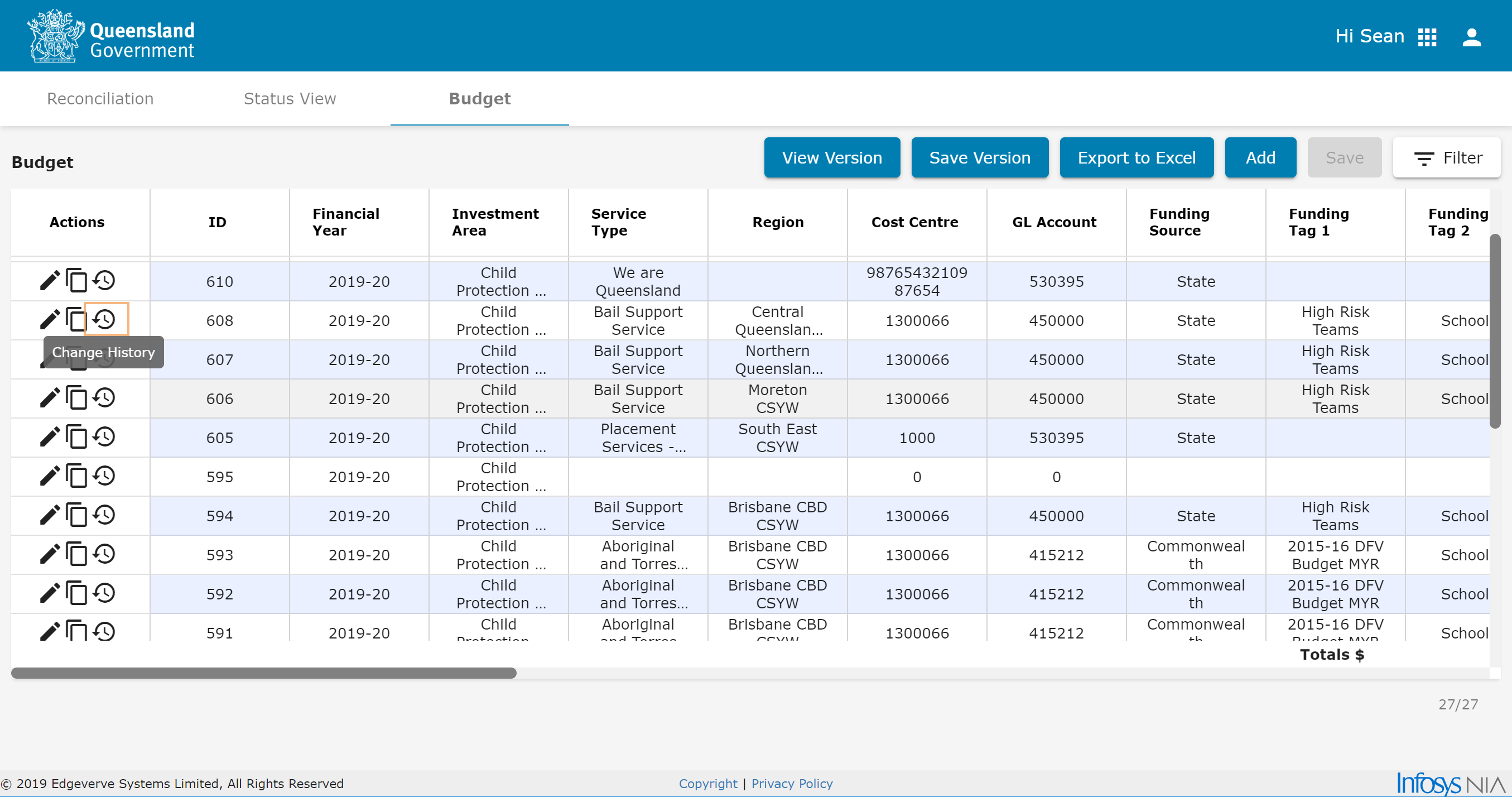
Click the change history icon in the Actions menu.
-
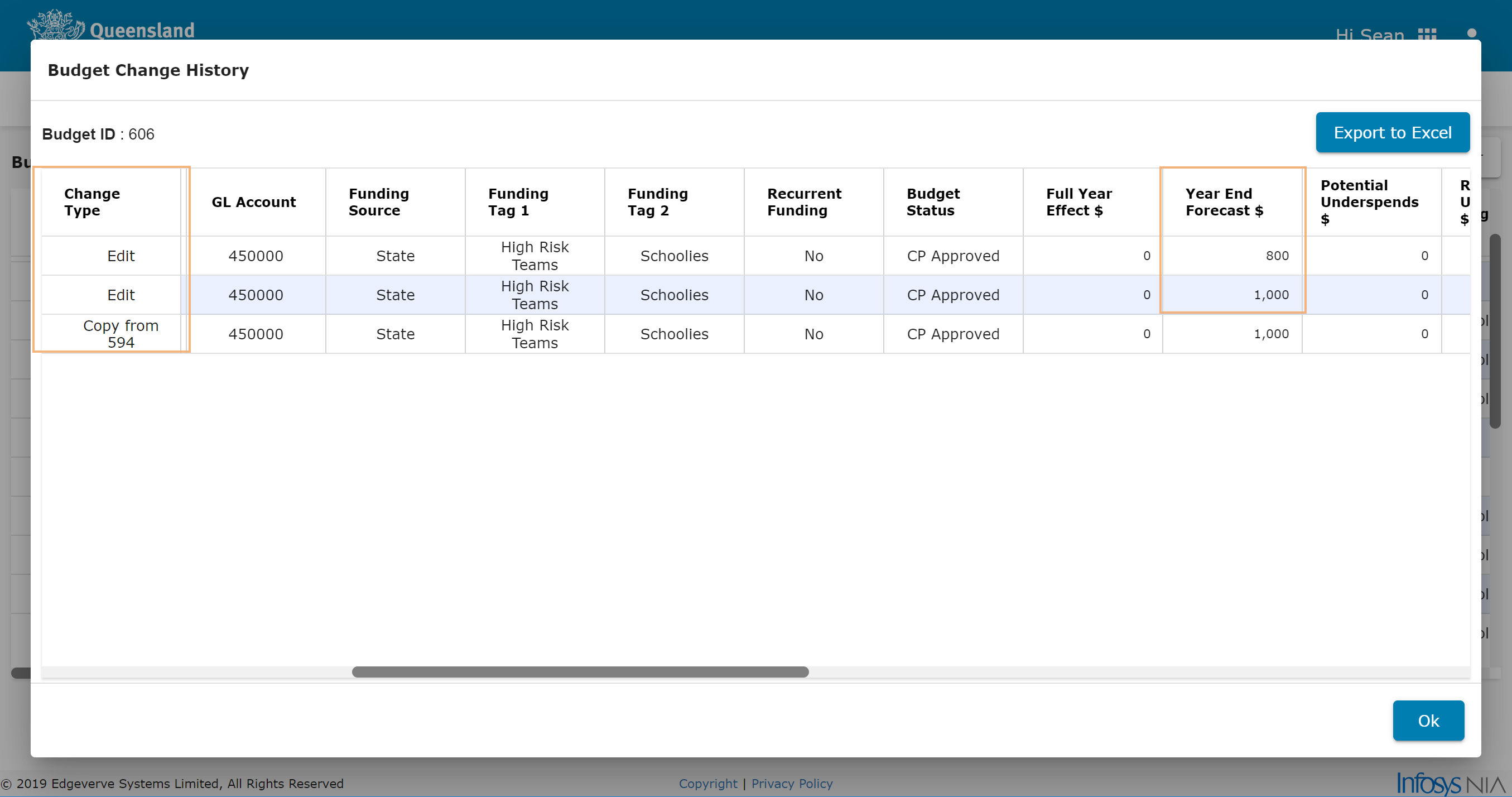
Scroll across to the right to review the budget lines for the changes that were made.
Tip Click Export to Excel to download a copy of the change history for further analysis.
Copying a budget line item
To easily duplicate an existing budget line, a Copy & Paste option is available in the Actions menu. This feature allows you to select up to five budget lines and duplicate them to create new budgets using the same settings as the copied budget.
To copy a budget line, simply click the copy icon in the Actions menu, change the fields as you desire, and then click Save.
Once a budget line has been copied, details in its fields changed and then saved, it appears as a new budget line with a new ID number.
See the Copy & paste function in action in the below video.