Confirm Funding Availability
When confirming funding availability the Sourcing Lead (the project's P2i Senior User or P2i Regional Manager) is prompted to answer questions for the P2i Budget Officer. The P2i Budget Officer is to refer to the Funding Memorandum of Approval for approval to Go to Market,
Confirm Funding Availability
-
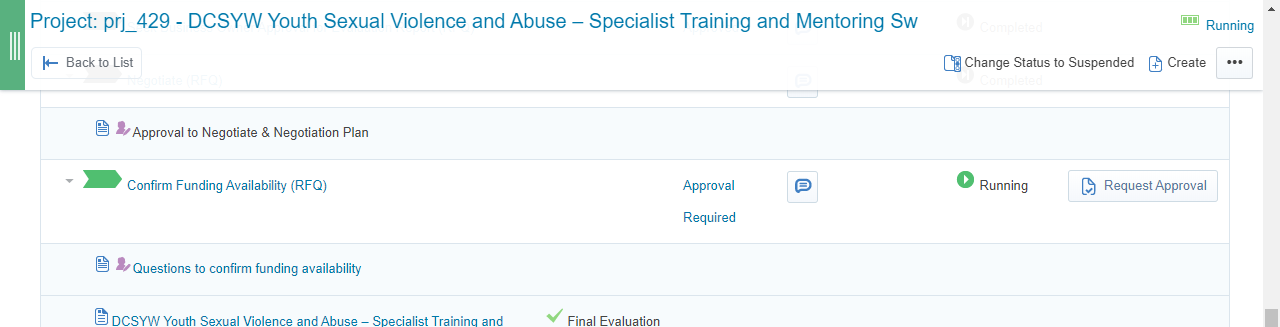
Click Confirm Funding Availability (RFQ)
-
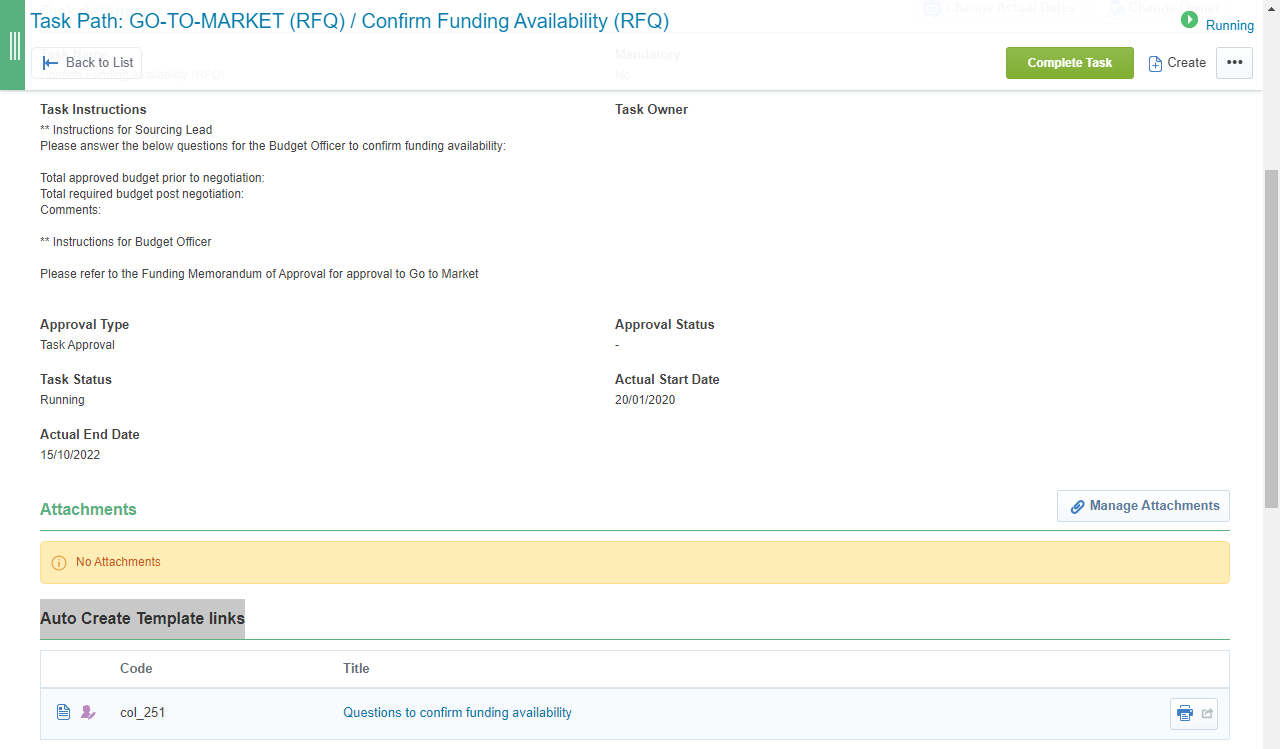
Review the requirements listed under Task Instructions.
-
Click Questions to confirm funding availability under Auto Create Template links.
-
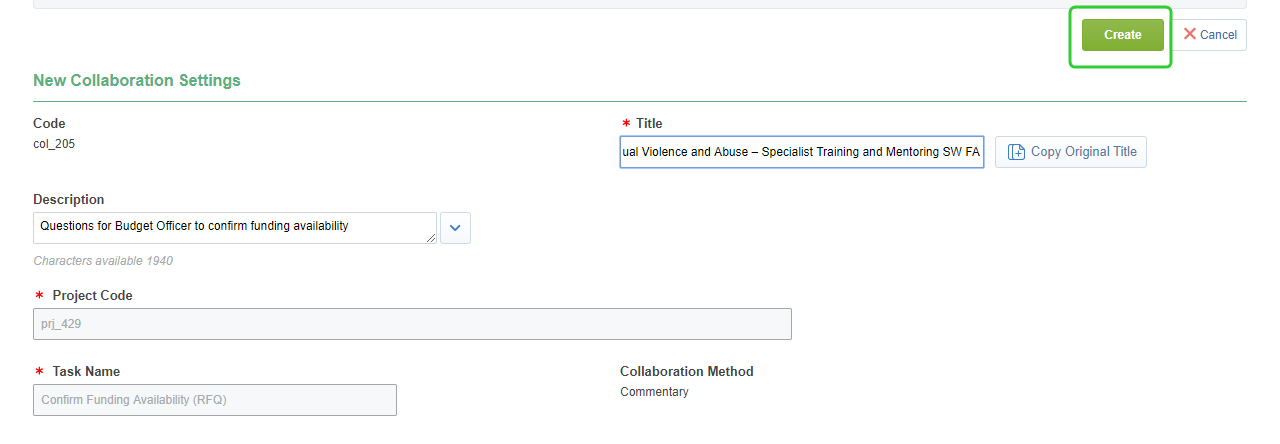
Enter a Title for the Questions for Budget Officer to confirm funding availability and click Create.
-
Click Edit Response.

-
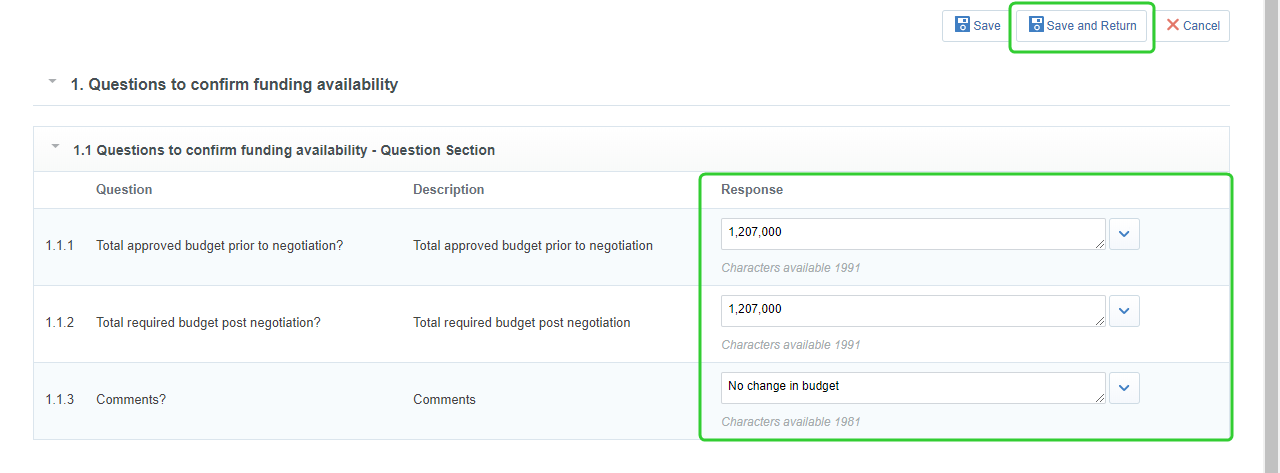
Answer the questions to confirm funding availability and click Save and Return.
-
Click Complete and Show Project Team.

-
Click the Project link to return to the workflow screen.

-
Click Request Approval for the Confirm Funding Availability (RFQ)

-
Provide a Description about the request.
Note Enter the following instruction into the task description for the P2i Budget Officer:
Please refer to the Funding Memorandum of Approval for approval to Go to Market.
-
Click Send Approval Request.

-
Once the funding has been confirmed click Promote Object next to the Confirm Funding Availability (RFQ) task.
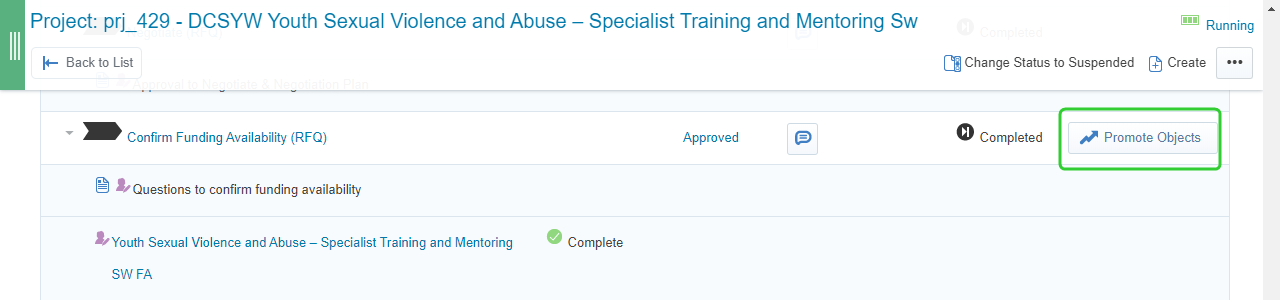
-
Promote all objects to Seek Business Owner Approval for RFQ outcome (RFQ).
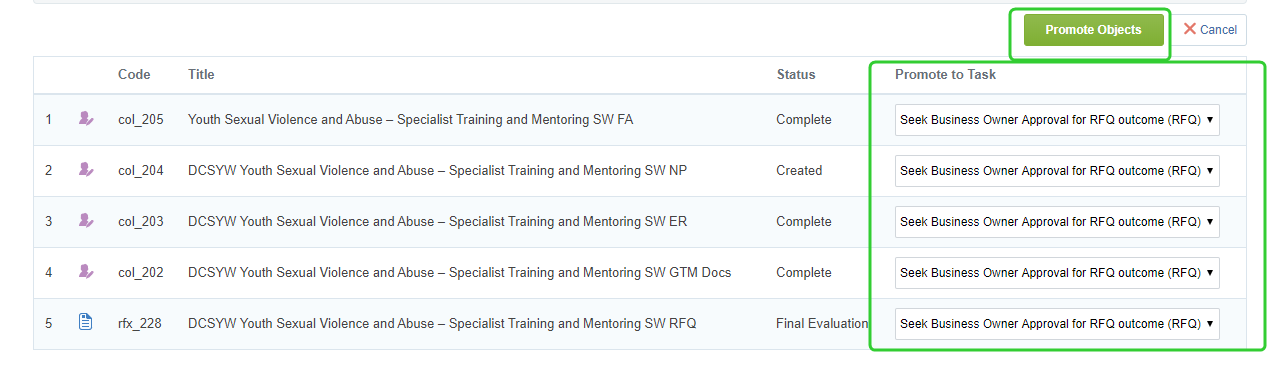
Note Now seek Business Approval for the outcome of the RFQ. Refer to the topic, Seek Business Owner Approval for RFQ Outcome (RFQ)