Seeking Approval for the Evaluation Report
Endorse Evaluation Recommendation
The P2i Senior User or P2i Regional Manager can seek endorsement of the evaluation report from the project's procurement authority.
To seek endorsement of the evaluation report:
-
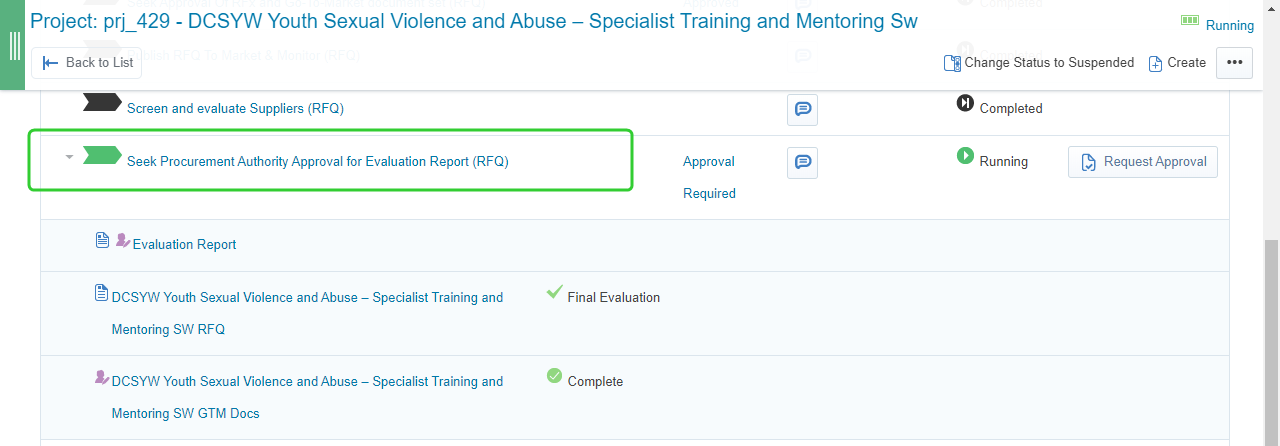
Open the Seek Procurement Authority Approval for Evaluation Report (RFQ) task.
-
Review the task instructions.
-
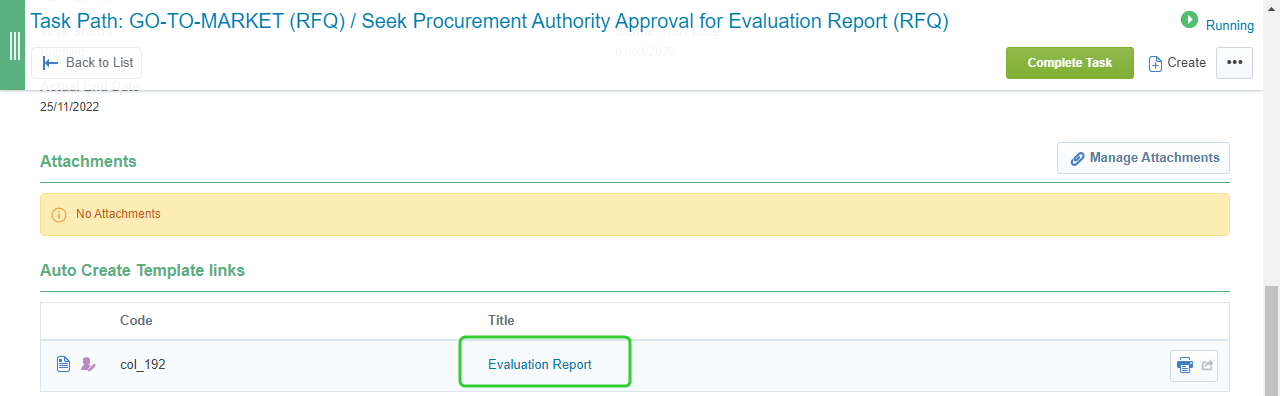
Click Evaluation Report under Auto Create Template Links.
-
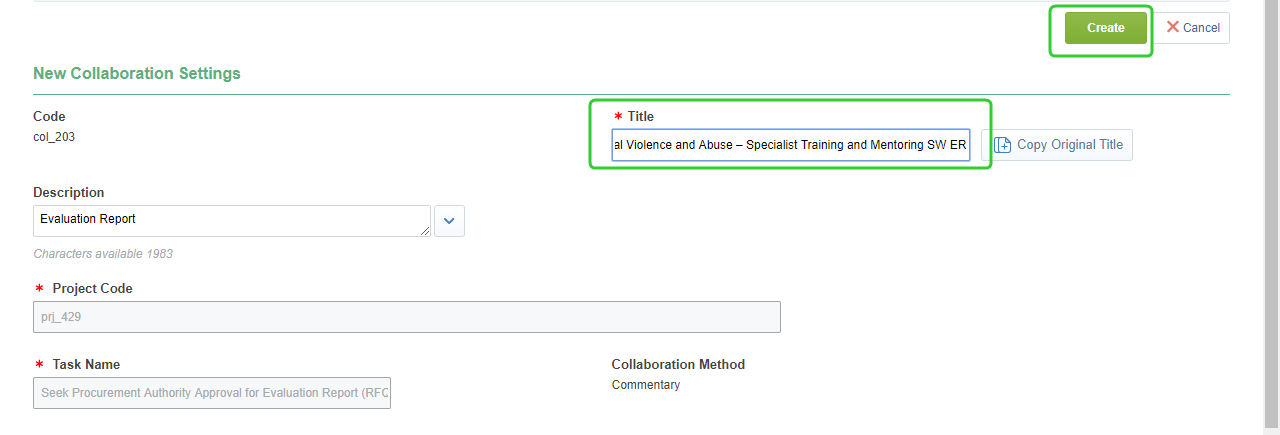
Enter a Title for the Elevation Report collaboration and click Create.
-
Click Edit Response.

-
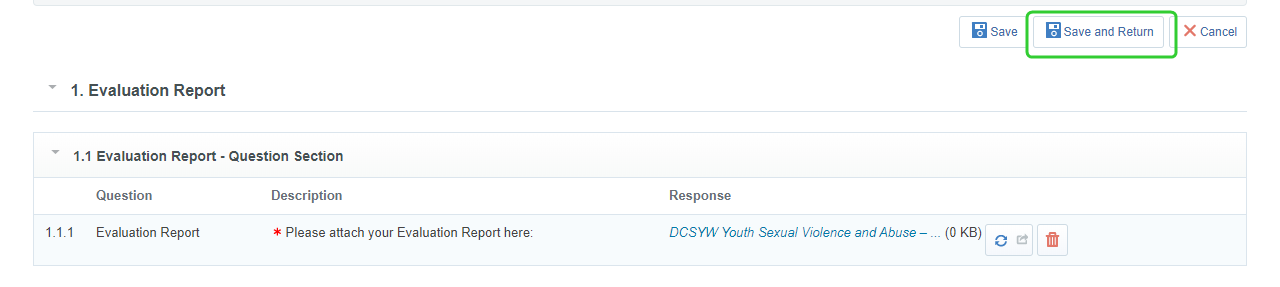
Attach the Evaluation Report and click Save and Return.
-
Click Complete and Show Project Team.
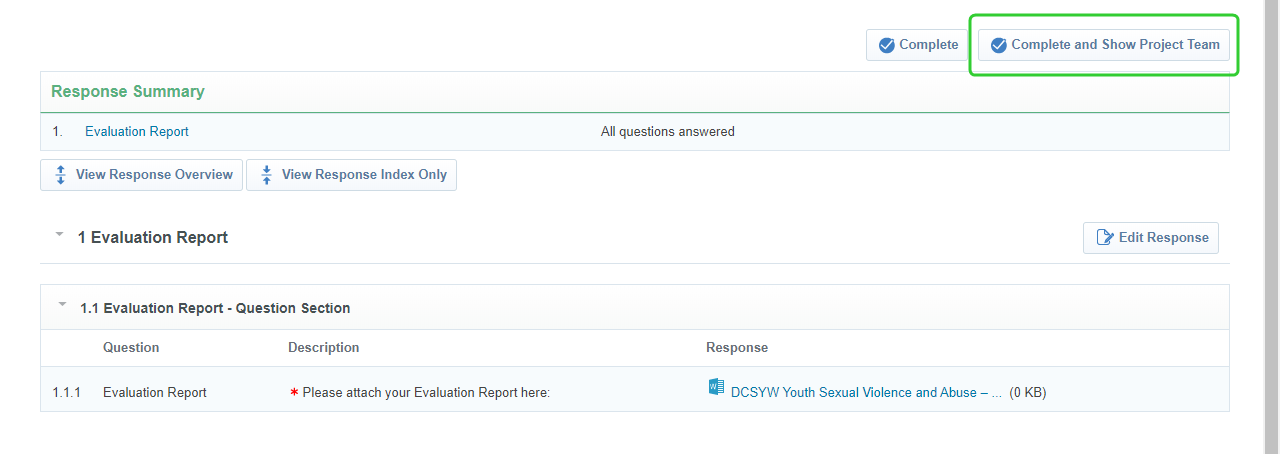
Click the Project link to to return to the workflow.

-
Click Request Approval on the Seek Procurement Authority Approval for Evaluation Report (RFQ) task.

-
Add a description of the approval request:
-
Click Send Approval Request.
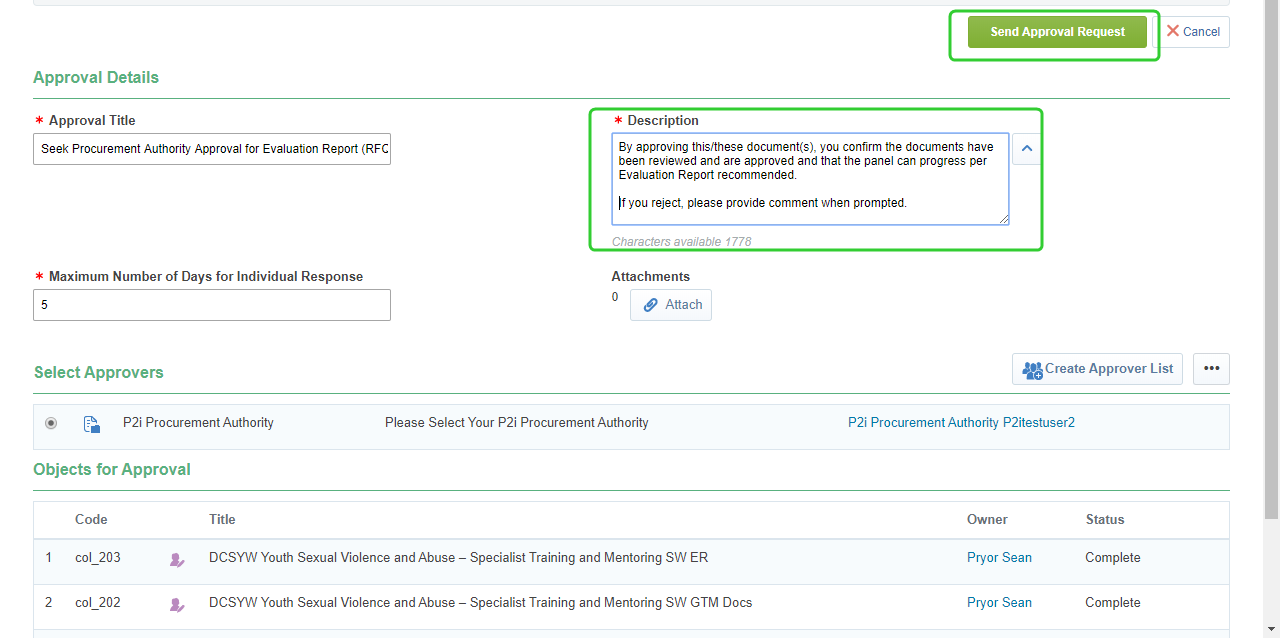
Note The Procurement Authority will receive an approval request from P2i. After the request has been approved, the Sourcing Lead can see complete the task. Refer to the topic, Approving an RFQ to Go-To-Market for instruction oh how to approve task requests in P2i.
Tip For naming consistency, use the Project Title and add ER at the end for Evaluation Report.
Note Add the following text to the description:
By approving this/these document(s), you confirm the documents have been reviewed and are approved and that the panel can progress per Evaluation Report recommended.
If you reject, please provide comment when prompted.
Completing the Seek Procurement Authority Approval on Evaluation Report task
-
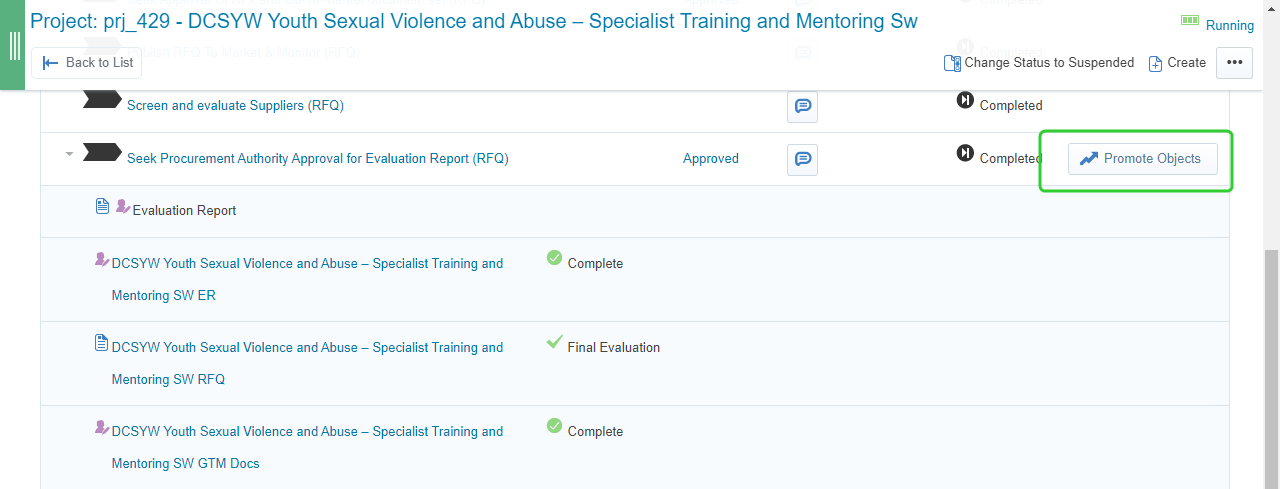
Click Promote Object on the Seek Procurement Authority Approval for Evaluation Report (RFQ) task.
-
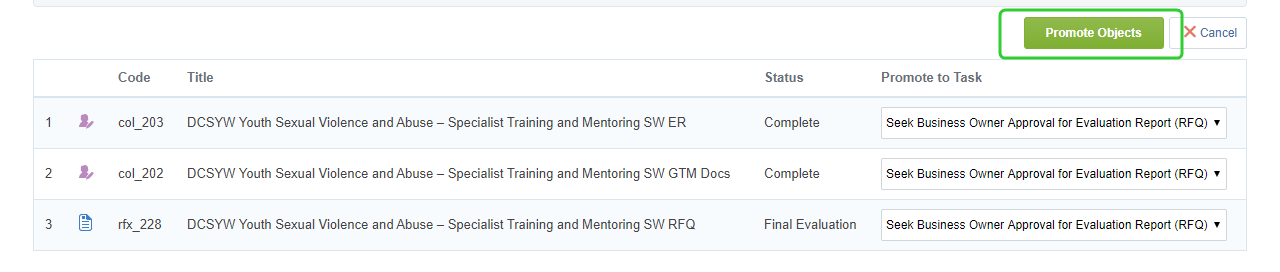
Select Seek Business Owner Approval for Evaluation Report (RFQ) under Promote to Task for the RFQ, Go to Market document set and Evaluation Report.
-
Click Promote Objects
Seeking Business Owner Approval on Evaluation Report
The next step is to seek approval from the project's Senior Director.
-
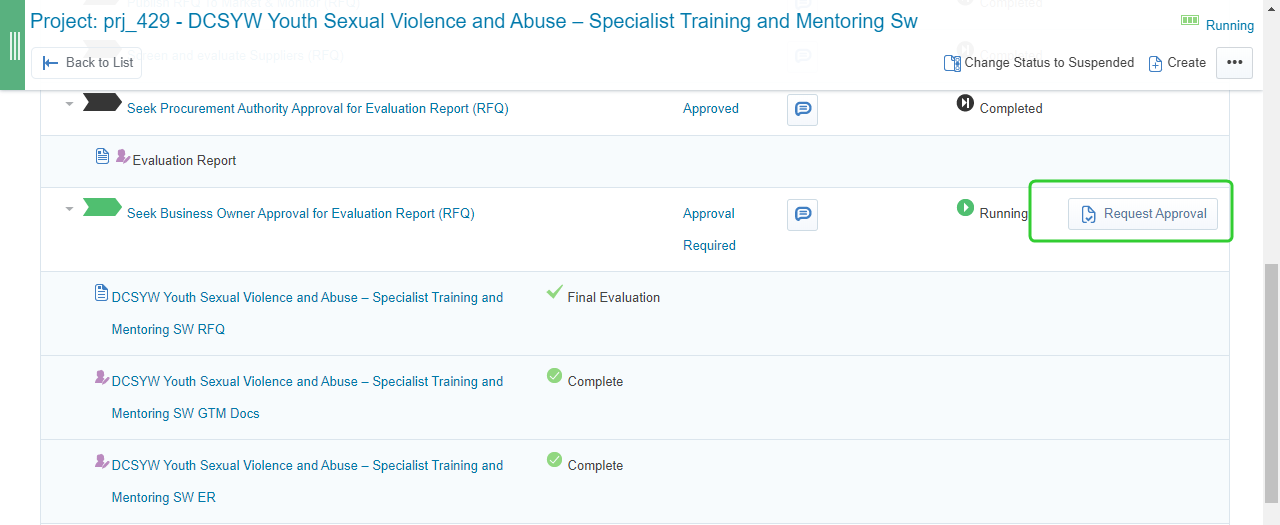
Click Request Approval on the Seek Business Owner Approval for Evaluation Report (RFQ) task.
-
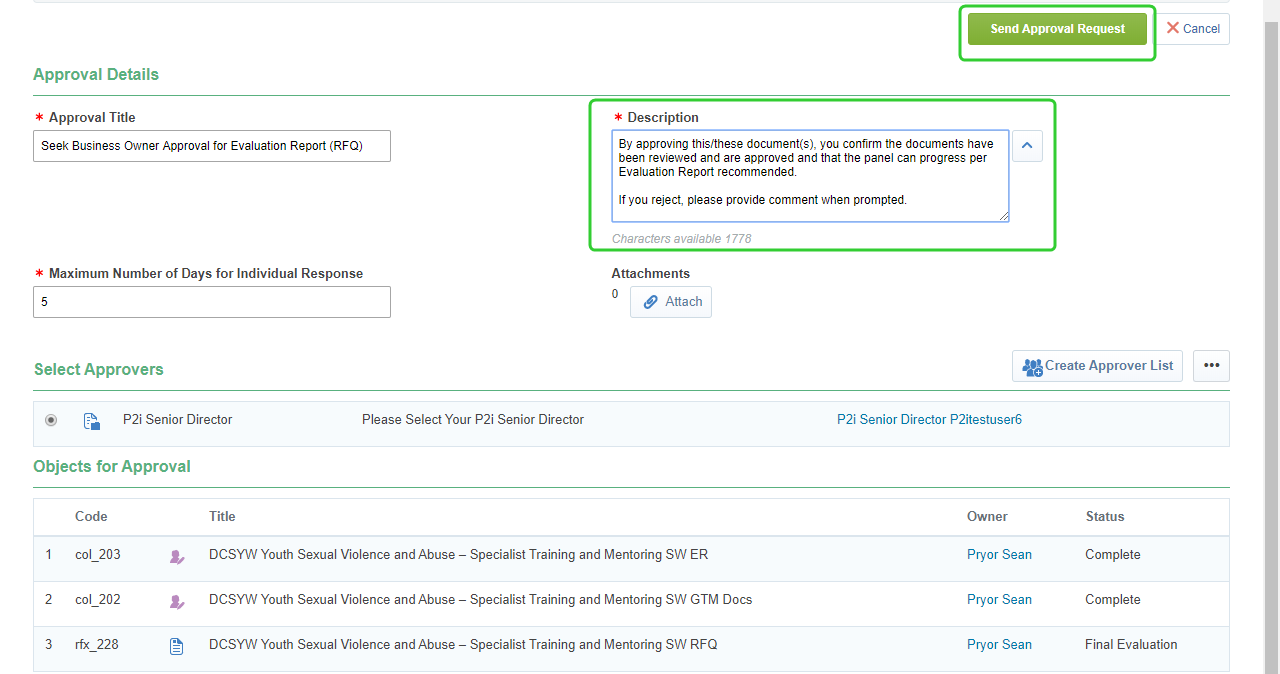
Add a description of the approval request.
Note Add the following text to the description (if applicable):
By approving this/these document(s), you confirm the documents have been reviewed and are approved and that the panel can progress per Evaluation Report recommended.
If you reject, please provide comment when prompted. -
Click Send Approval Request
Note The Business Owner will receive an approval request from P2i. After the request has been approved, the Sourcing Lead can see complete the task. Refer to the topic, Approving an RFQ to Go-To-Market for instruction oh how to approve task requests in P2i.
Completing the Seek Business Owner Approval for Evaluation Report (RFQ)task
-
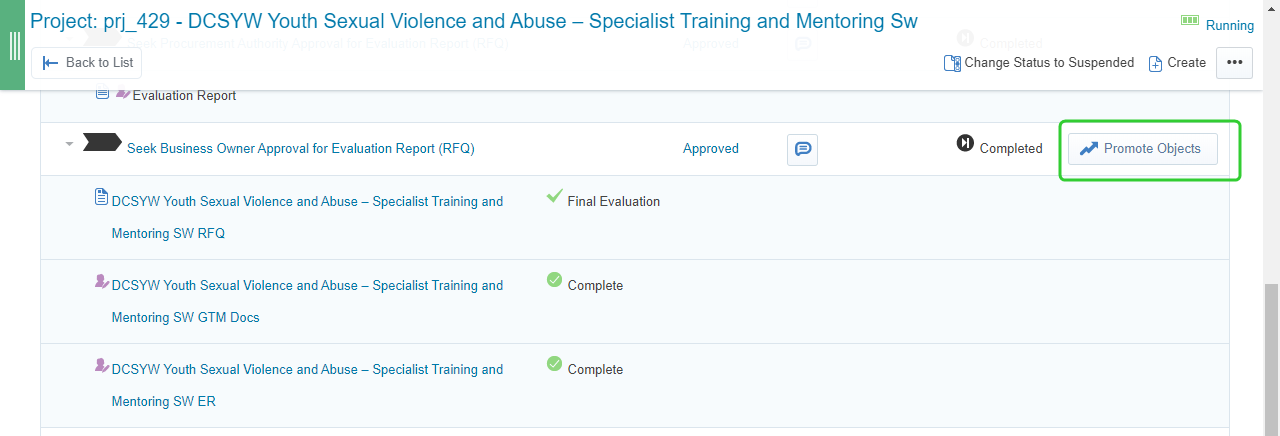
Click Promote Objects on the line for Seek Business Owner Approval for Evaluate Report (RFQ).
-
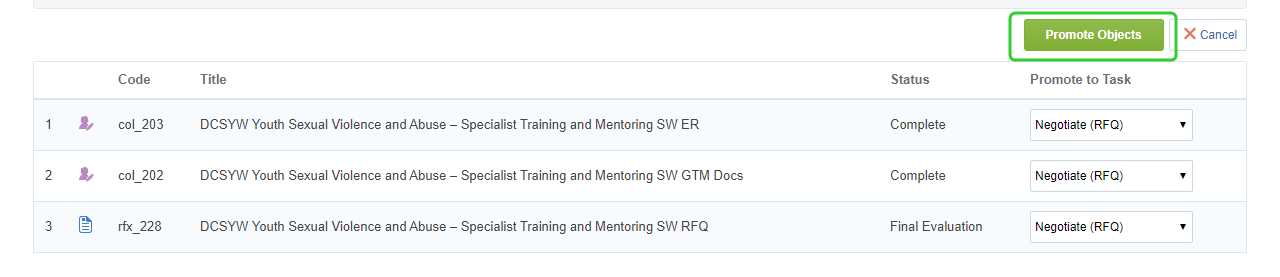
Select Negotiate to Promote to Task your RFQ, Evaluation Report, and Go to Market document set.
-
Click Promote Objects
Note Once you have received approvals from the project's Procurement Authority and Business Owner, the P2i Senior User or P2i Regional Manager can proceed with the negotiation stage of the RFQ. Refer to the topic, Negotiate (RFQ).