Evaluating the Commercial Envelope
The process for evaluation the commercial envelope follows a similar process to the previous envelope, however no score is entered, only a comment.
Watch the video to see how the commercial envelope is evaluated.
-
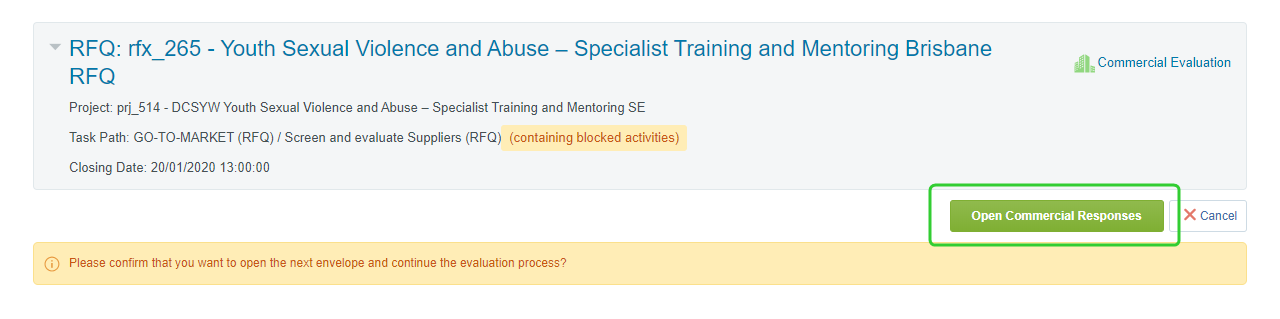
Click Open Commercial Responses.
-
Click the C box under View Response to begin reviewing the Commercial Envelope for a supplier.
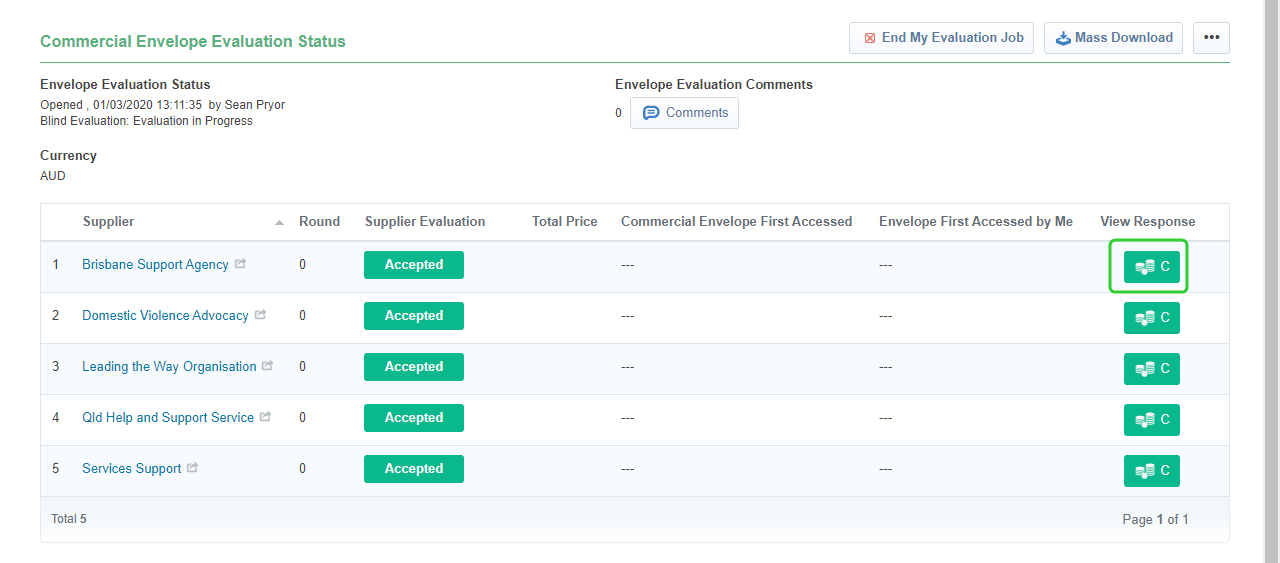
Tip Click Mass Download to download all attachments provided by Suppliers as past of their commercial response. This is useful if Suppliers were asked to attach their price via the Pricing Template.
-
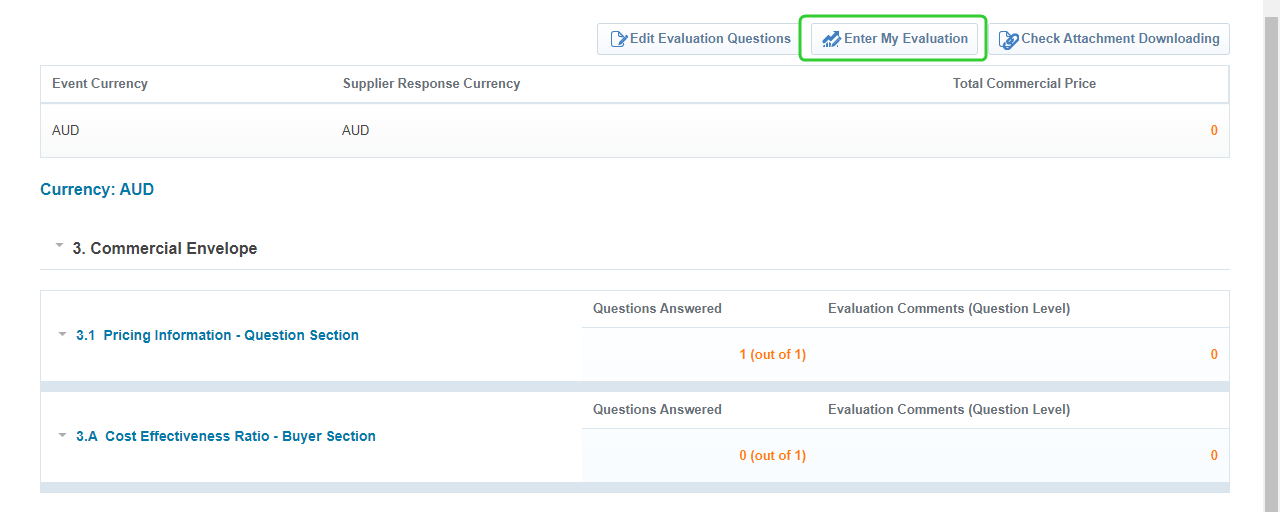
Click Enter My Evaluation.
-
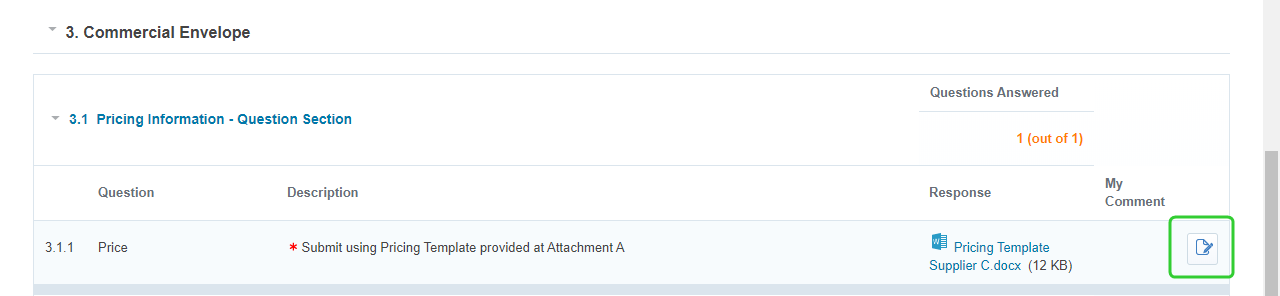
Click the Edit Mode icon.
-
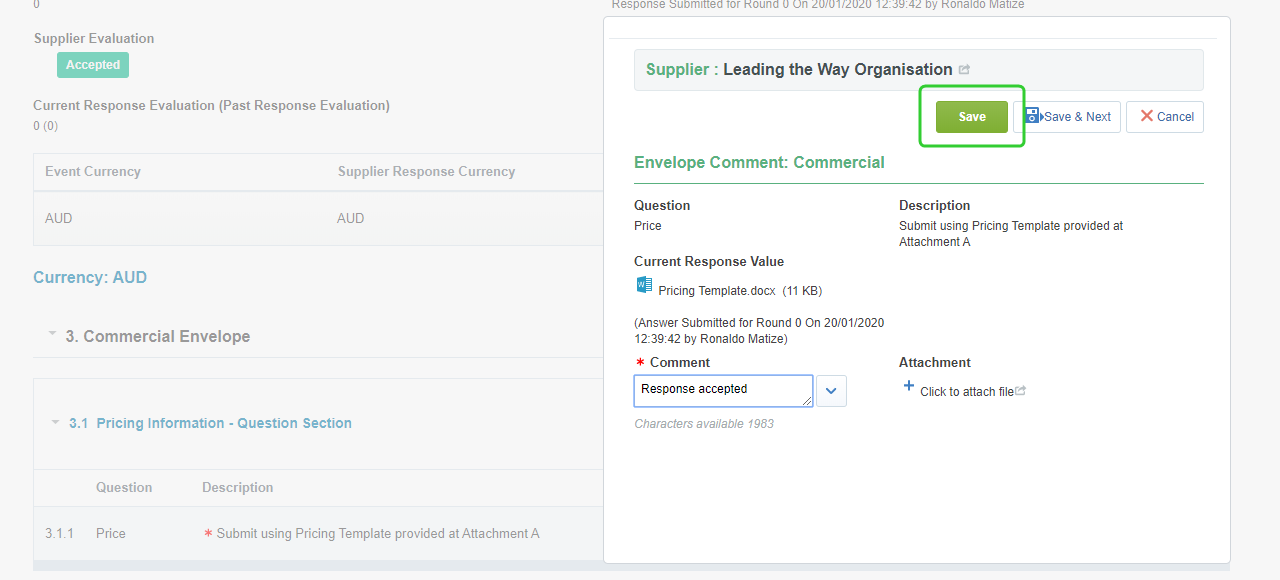
Add Comments
Tip If you did not use the Mass Download option to download the pricing templates uploaded by the supplier, click the document to download it.
-
Click Save
-
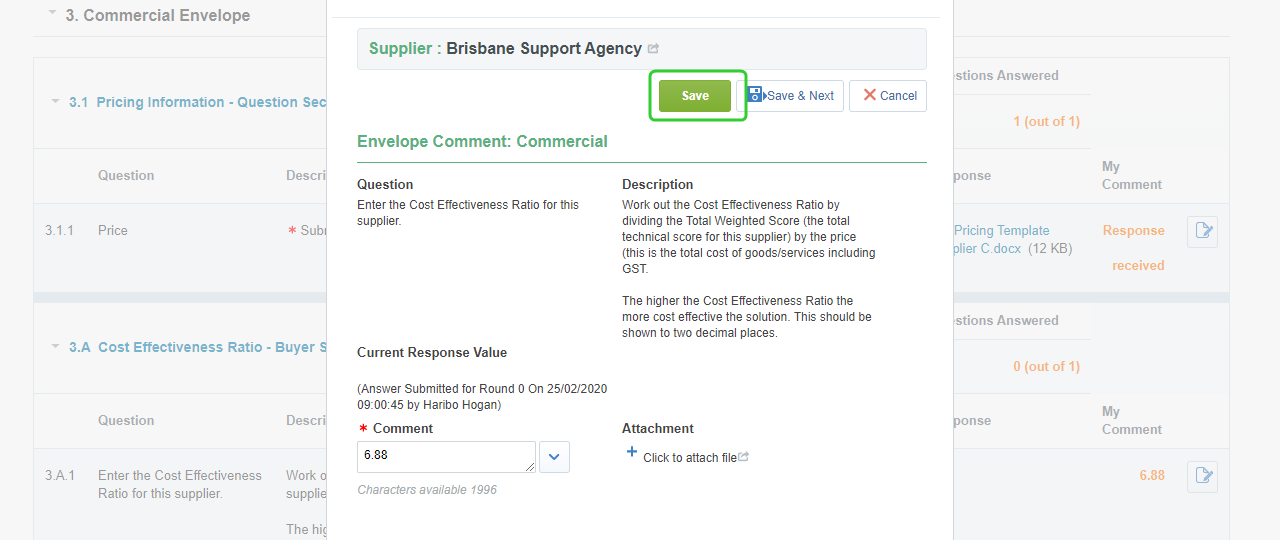
Click the Edit Mode icon to enter the Cost Effectiveness Ratio for the supplier (if required as part of the Evaluation Plan).

-
Enter the Cost Effectiveness Ratio and click Save.
-
Click Back.

Accepting or Rejecting the Supplier
Once all cost effectiveness ratios has been recorded, the Panel Chair can Accept or Reject the supplier and add supporting notes.
Warning Please check with your Department's procurement services team for guidance on using this feature in P2i.
-
Click the Evaluate Supplier button
-
Select Accepted or Rejected and enter Acceptance or Rejection Notes and click Save.
-
Repeat for each Supplier.
-
Click
 to return to the Evaluation Status screen
Adding a comment against each Supplier
Returning to the Technical Envelope Evaluation Status screen, the project's procurement authority can add comments against the Suppliers. This allows them to make recommendations to the Panel Chair and Panel Members regarding the supplier's responses.
Tip The Panel Chair can also add comments regarding the overall evaluation of the Commercial Envelope.
-
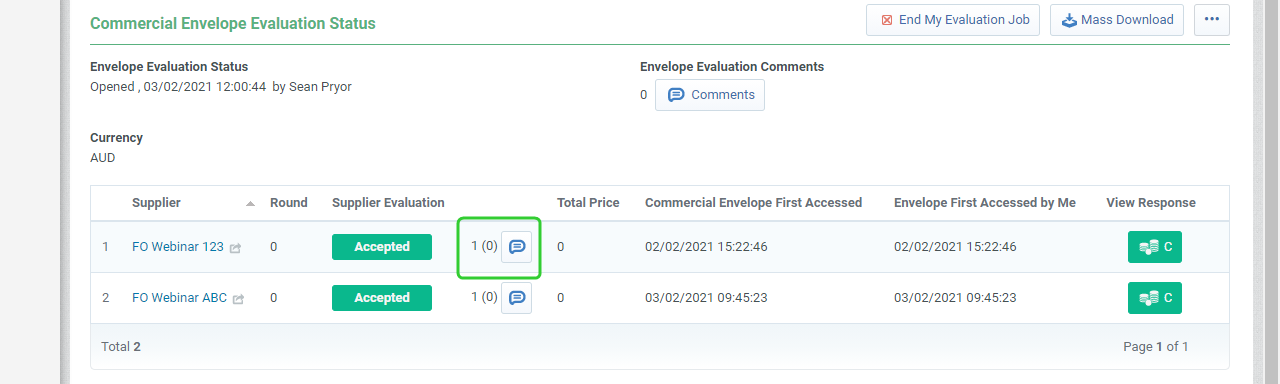
Click the Comments icon.
-
Click Insert New Comment.
-
Add the Comment and click Save.
-
Click the Back button
-
Repeat for all Suppliers.
End the Commercial Evaluation
Once the Commercial Evaluation has been completed by the Panel Chair (and panel members if they took part in the online evaluation) you can end the evaluation job.
-
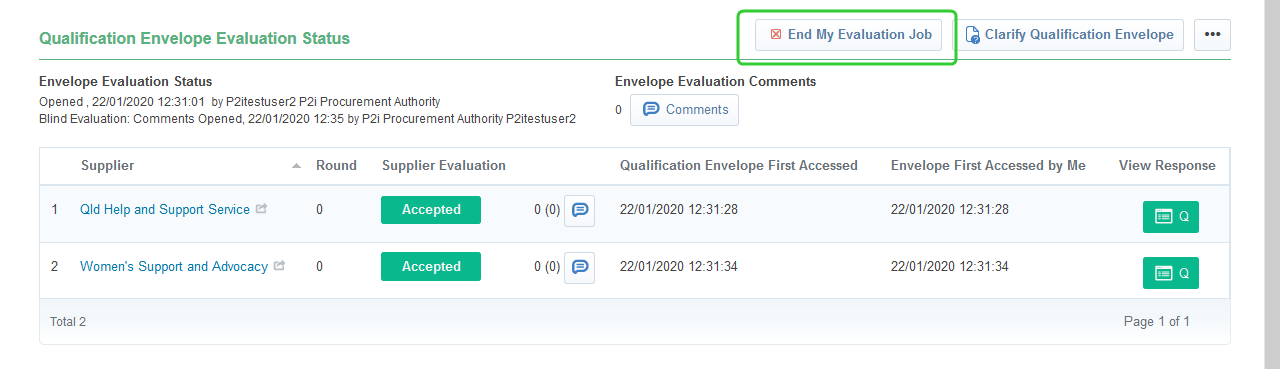
Click End My Evaluation Job and click OK when prompted.
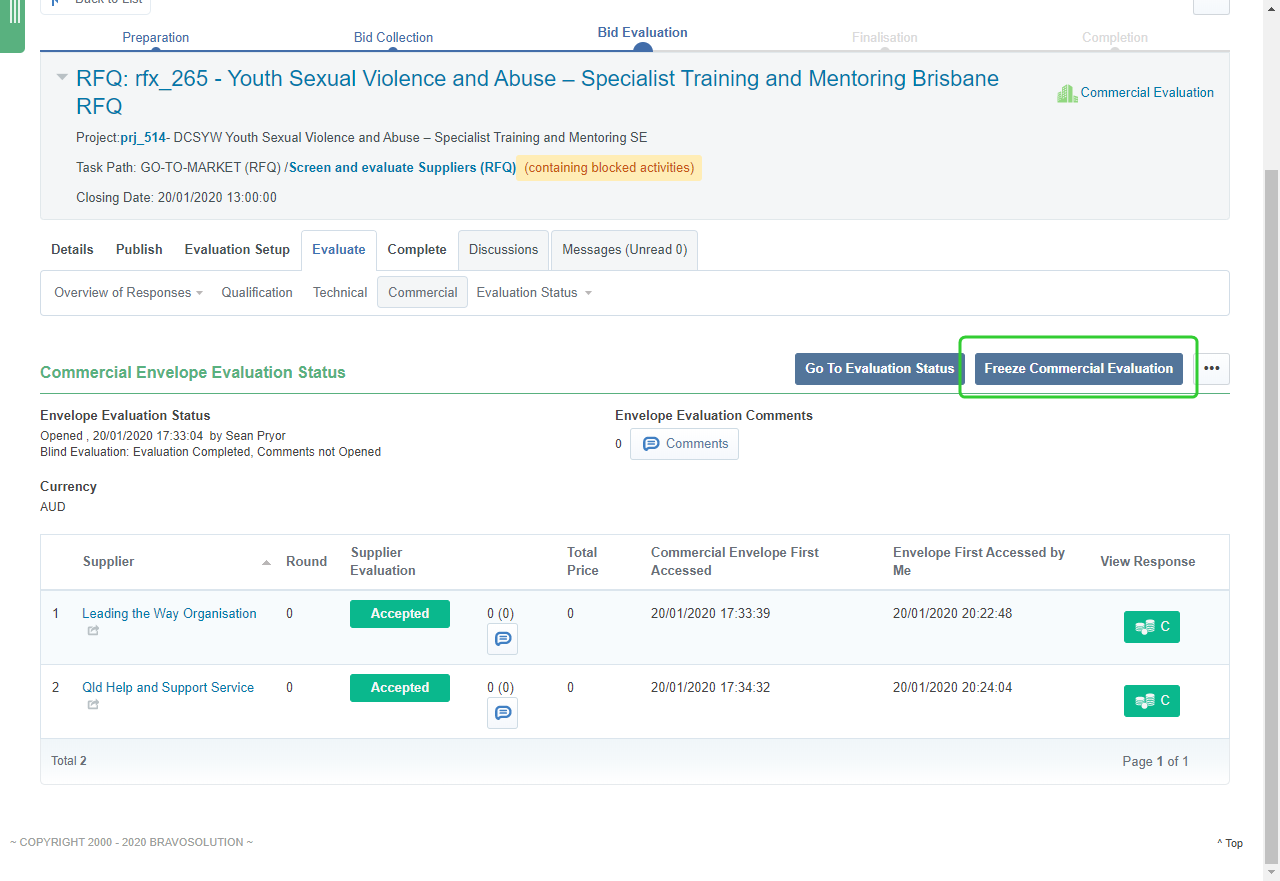
Note Once each panel member has completed their evaluation, the Panel Chair can freeze the Commercial Evaluation. Before doing so, follow the same process prior to freezing the Technical Evaluation by going to the Evaluation Status and opening the Evaluation Comments. The panel members can then review the comments and freeze the Commercial Evaluation once all panel members end their evaluation job for a final time.
-
Click Freeze Commercial Evaluation
-
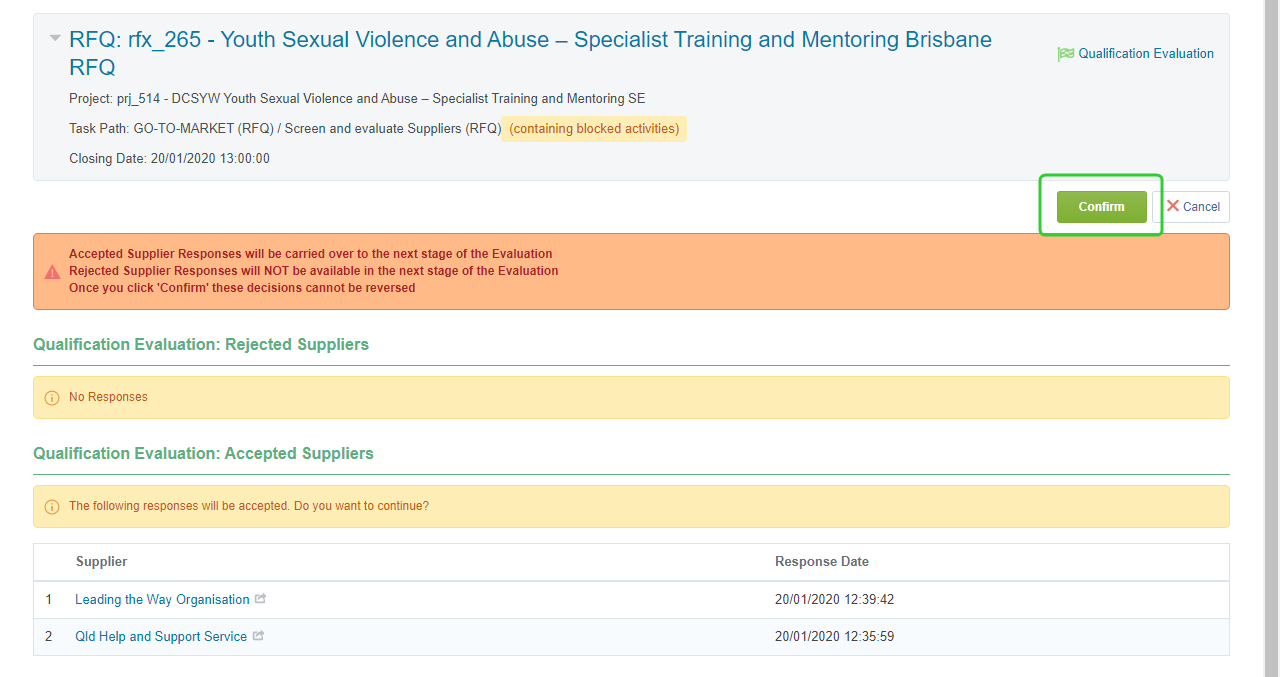
Click Confirm
The Final Supplier Ranking will display
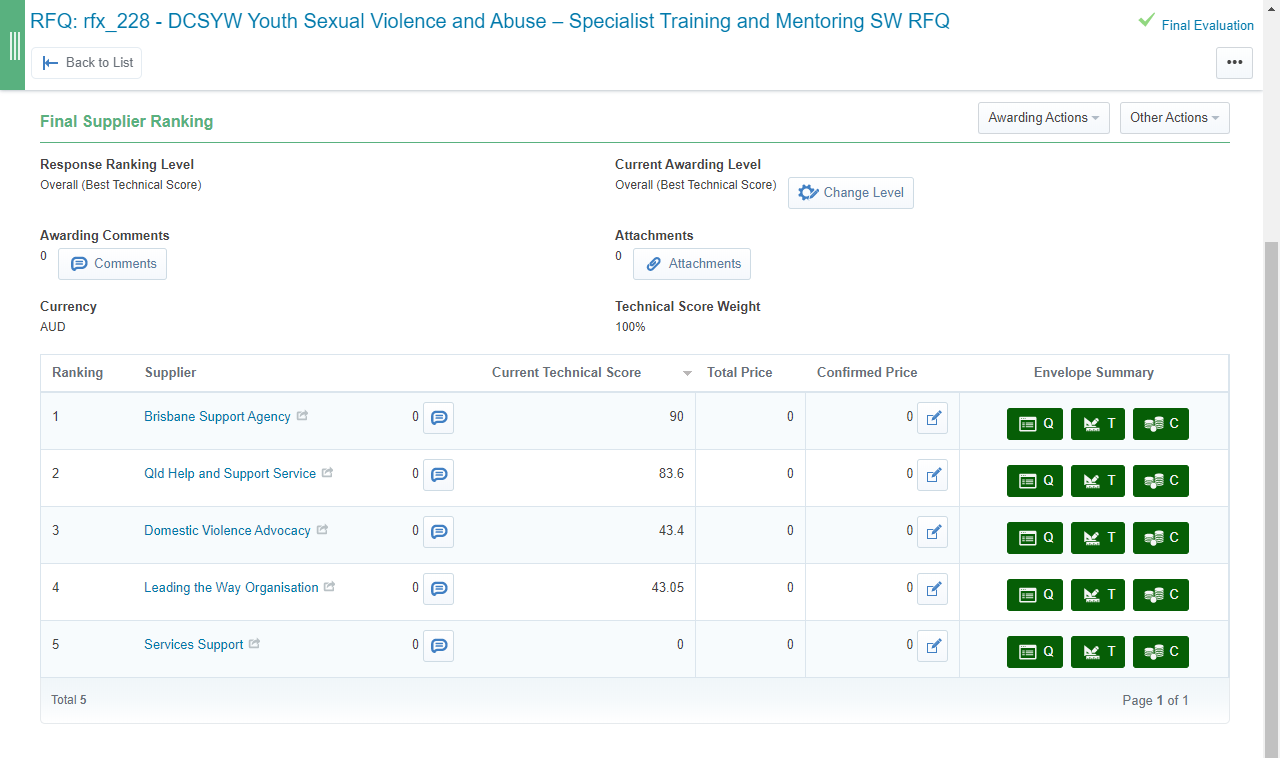
Warning Do not award to the supplier at this stage. This happens once you have a signed contract. Awarding at this stage will notify all the suppliers whether they have been successful or unsuccessful.
Generate an evaluation summary
The Panel Chair can generate a summary of the evaluation that can be used to produce the Evaluation Report.
To generate an evaluation summary:
-
Click the ... button.
-
Click Summary Report.

-
Tick the information that you want to include in the report. Click Select all RFQ Report Sections to include all information.
-
Click the Confirm.

-
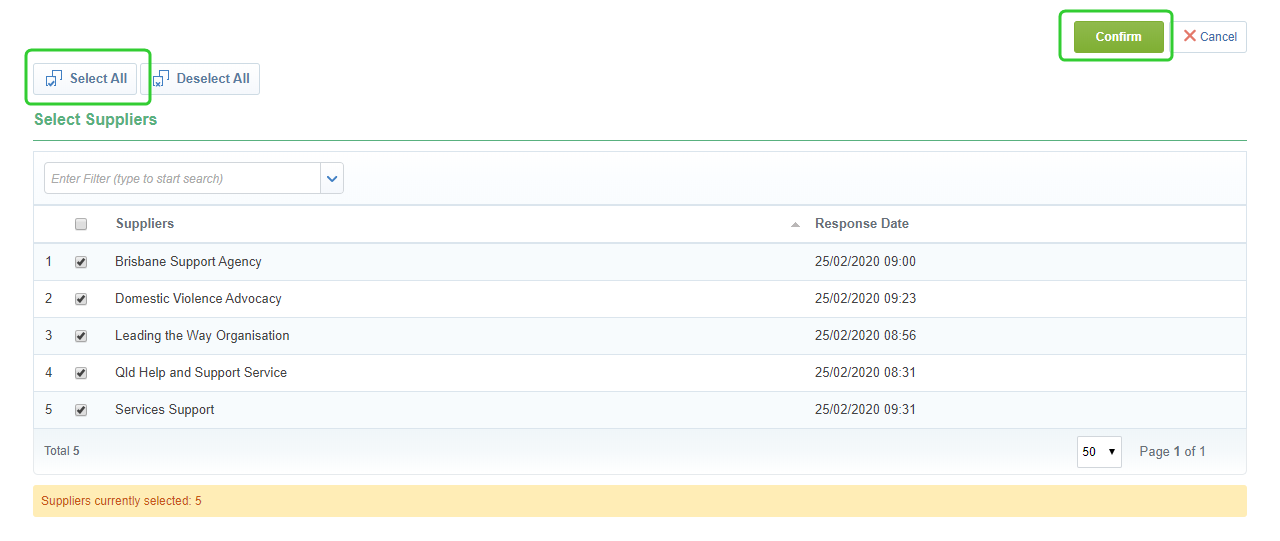
Tick the suppliers you want to include in the reports. Click Select All to include all suppliers.
-
Click the Confirm.
-
Select the report format and click Confirm.

Note When completed the report will download.
Complete Screen and Evaluate Suppliers (RFQ)
Once the evaluation of the suppliers has been completed, the procurement project's P2i Senior User or P2i Regional Manager can complete the task in P2i.
-
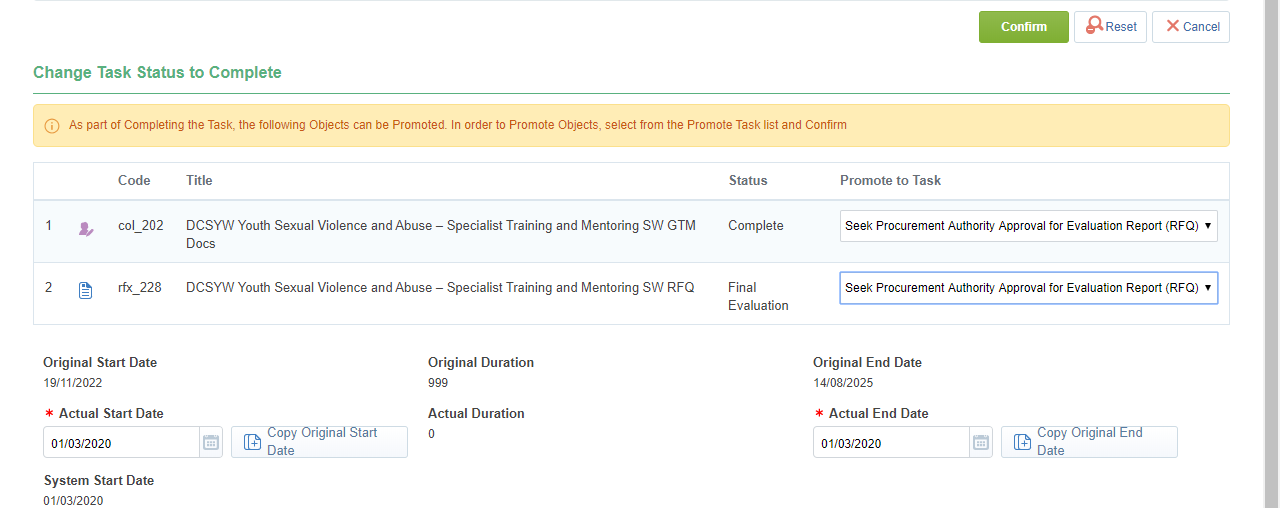
Click Complete Task next to the Screen and evaluate Suppliers (RFQ) task in the workflow.

-
Select Seek Procurement Authority Approval for Evaluation Report/Negotiation Plan (RFQ) under Promote to Task your RFQ and Go to Market document set.
-
Click Confirm
-
Add any comments relevant to completing this task.
-
Attach any files relevant to completing this task.
-
Click Confirm.
Note Complete the Evaluation Report off system and begin the next set of tasks to seek endorsement of the evaluation recommendation from the Procurement Authority and Business Owner. Refer to the topic, Seeking Approval for the Evaluation Report and Negotiation Plan