Screening Offers
The project's procurement authority screens all Supplier responses in P2i to identify compliant offers that can be released to the Evaluation Panel for evaluation and scoring. If no compliant offers are received, the project's procurement authority can request a change to the Commissioning Plan.
The process for screening offers is as follows:
-
Screen for Compliant Offers - The project's procurement authority reviews all offers received by the due date as part of the Pre-Evaluation stage and then screens out any non-compliant offers by reviewing and evaluating the items listed in the Qualification Envelope.
If no compliant offers were received, the project's procurement authority will request the Sourcing Lead change the Commissioning Plan and the RFQ process will recommence.
- Release offers to Evaluation Team - the project's procurement authority completes the Qualification Envelope evaluation results. All compliant offers are released to the subsequent Evaluation Panel(s) to evaluate (i.e. Commercial and Technical envelope evaluations).
Pre-evaluation of supplier responses
At the pre-evaluation stage the project's procurement authority has visibility of the suppliers that have responded and can recommend that a supplier is rejected if, for example, they submitted their response after the closing time.
To pre-evaluate supplier responses:
-
Click on My RFQs from the Quick Links area on the Main Dashboard.

-
Click on the name/link for your RFQ.

Note You will be presented with a list of suppliers who have responded to the RFQ.
-
Check for and respond to any Unread Messages from suppliers.
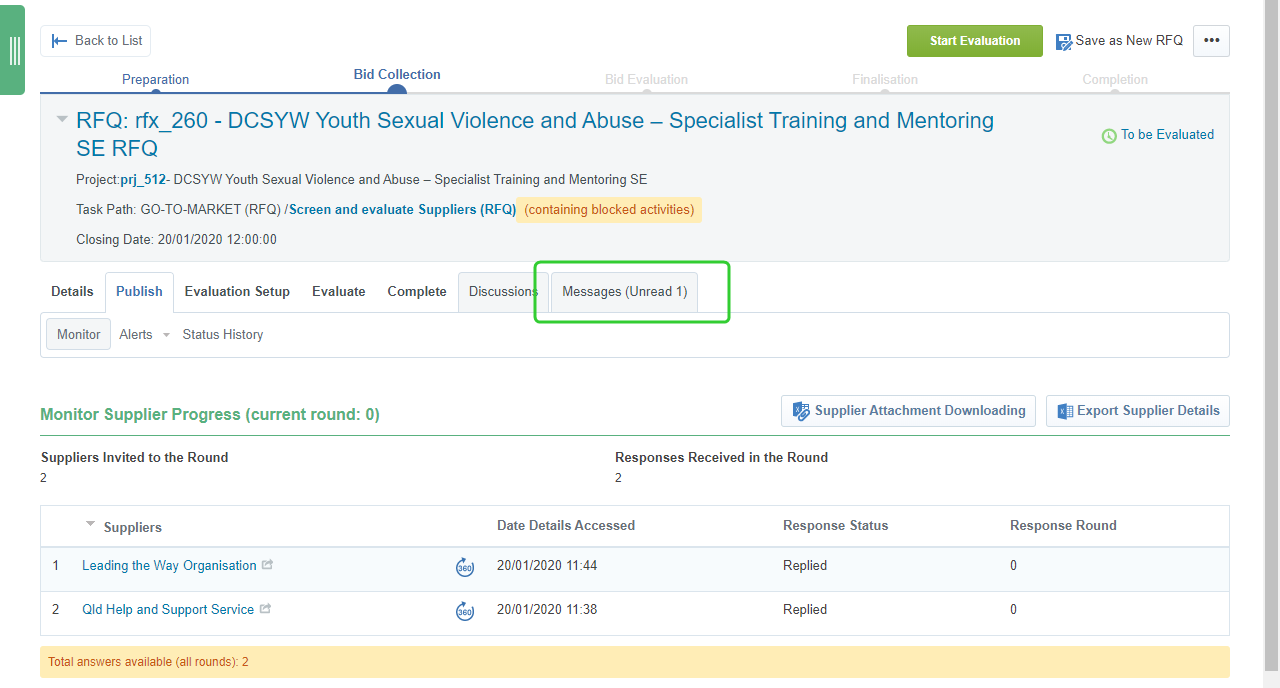
Note Refer to the topic, Managing supplier interactions for instructions on how to receive and respond to messages.
-
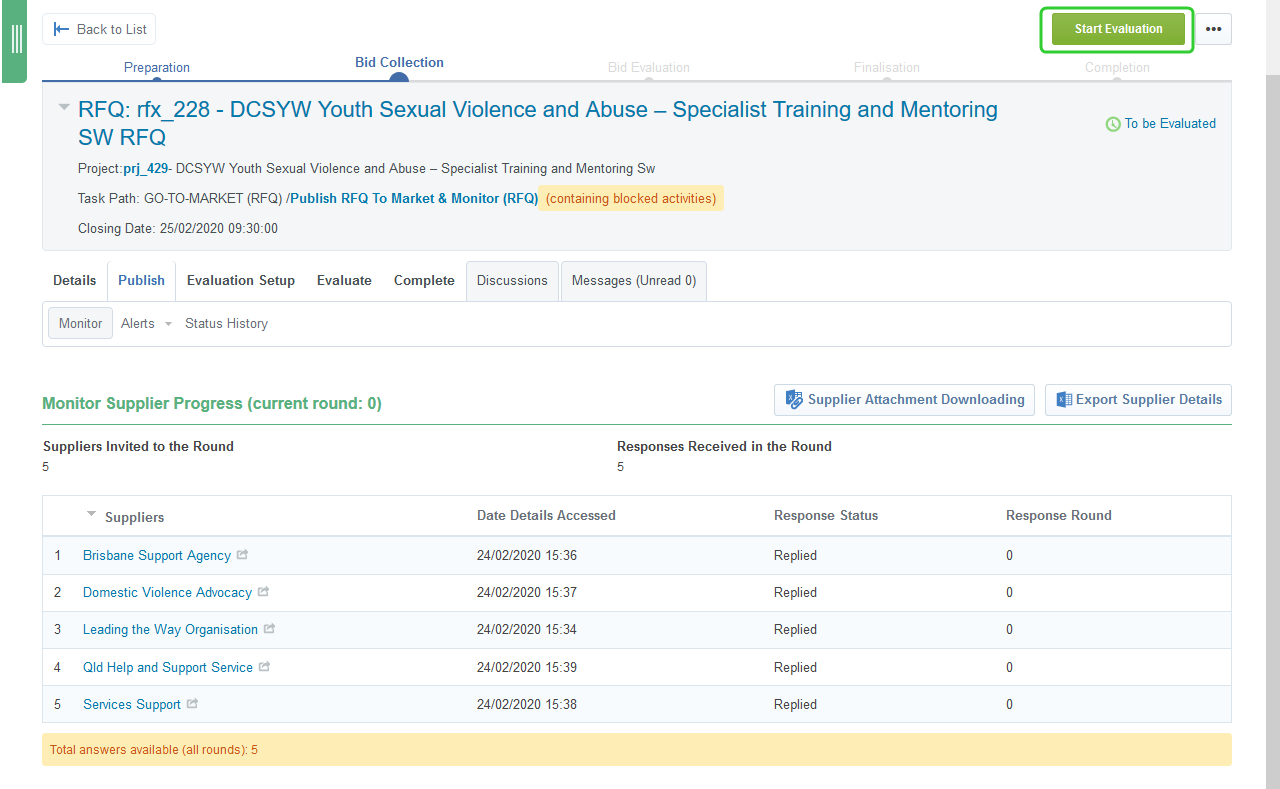
Click Start Evaluation.
-
Click Confirm to start the Pre-Evaluation.
Tip The Summary of Responses Received displays the break down of Supplier responses.

-
Click Freeze Pre-Evaluation & Open Responses
Warning Any late responses are automatically rejected by P2i. The project's procurement authority must click the Accept/Reject button to change the status to Accepted.

-
Change the Accept/Reject Supplier Response to Accepted and enter any Official Reject/Accept Notes.
-
Click Save.

-
Click Freeze Pre-Evaluation & Open Responses.

Click Confirm
Warning :
Accepted Supplier Responses will be carried over to the Evaluation process
Rejected Supplier Responses will NO longer be available for Evaluation
Once you click 'Confirm' these decisions cannot be reversed
Tip The red asterisk indicates that the response was submitted late.

Note Once you project's procurement authority confirms the freezing of the pre-evaluation, the responses can be opened as part of the Qualification Evaluation. Refer to the topic, Evaluating the Qualification Envelope.