Publishing and Monitoring the RFQ
Once the RFQ and Go To Market documents have been approved, the Sourcing Lead (P2i Senior User or P2i Regional Manager) must hand over ownership of the RFQ to the project's procurement authority. The procurement authority can then publish the RFQ, create a link to the RFQ that can be added to QTenders, and monitor supplier responses and clarifications.
Completing the Seek Approval Of RFx and Go-To-Market document set (RFQ) Task
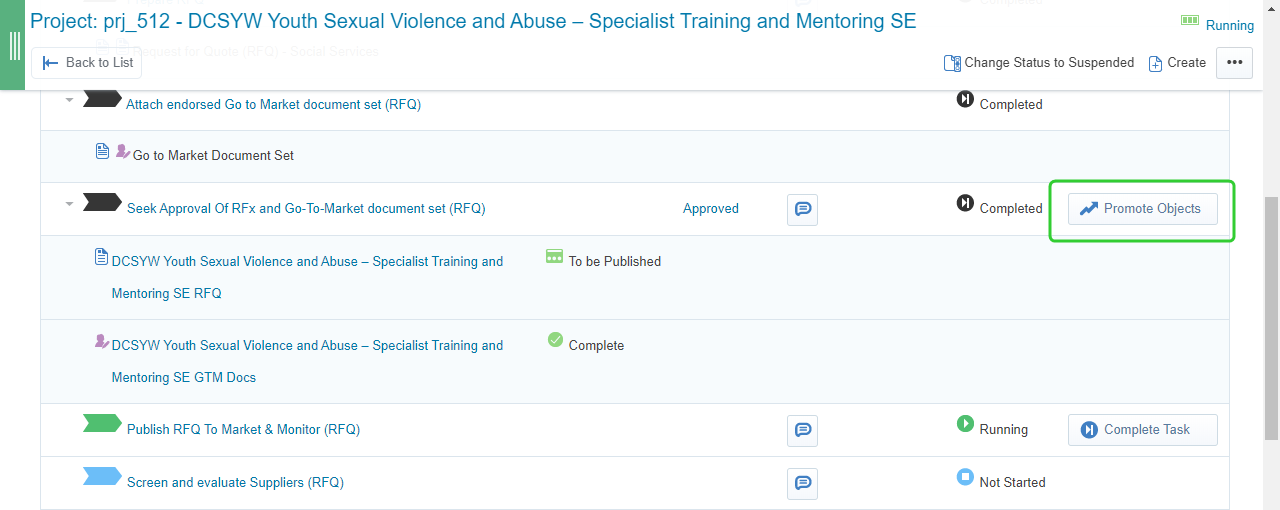
Before you can hand over the RFQ to the project's procurement authority, you will need to complete the Seek Approval Of RFx and Go-To-Market document set (RFQ) Task by promoting the RFQ and the Go-To-Market document set to the Publish
-
Click Promote Objects.
-
Click Promote Objects.
Note The Promote to Task field allows you to promote the RFQ and the Go to Market document set to the next task, Publish RFQ To Market & Monitor (RFQ).

Note You are now ready to move to the next topic, Publishing and Monitoring the RFQ.
Changing ownership of the project to the procurement authority
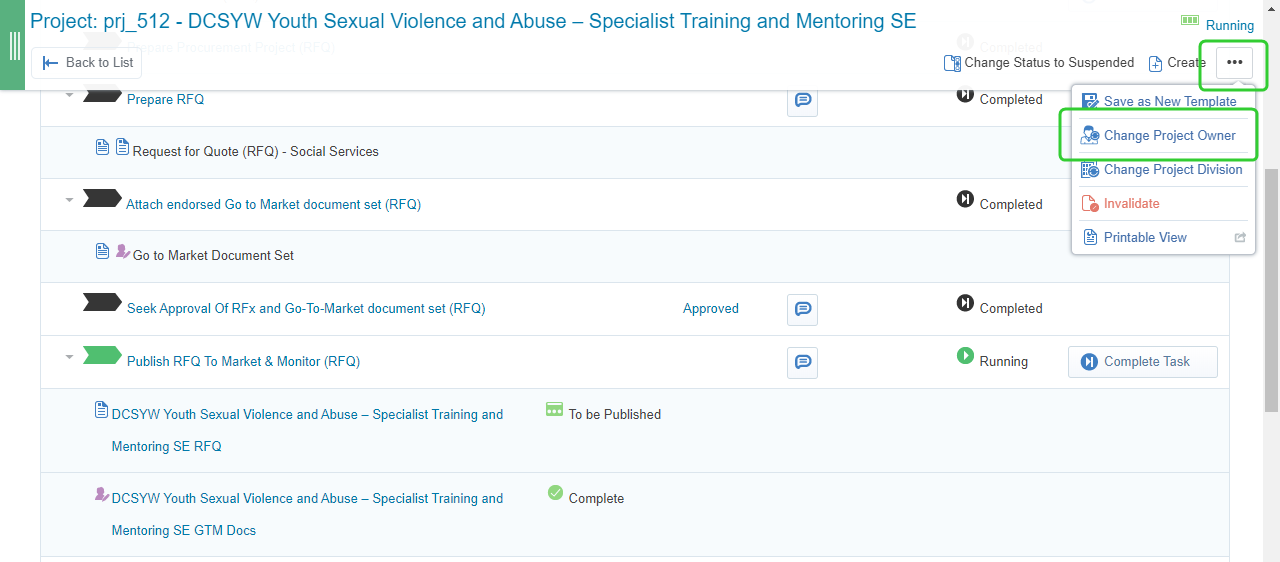
To change ownership of the RFQ:
-
Click the ... button and select Change RFQ Owner.
-
Enter the name of the project's P2i Procurement Authority.
-
Click Confirm.
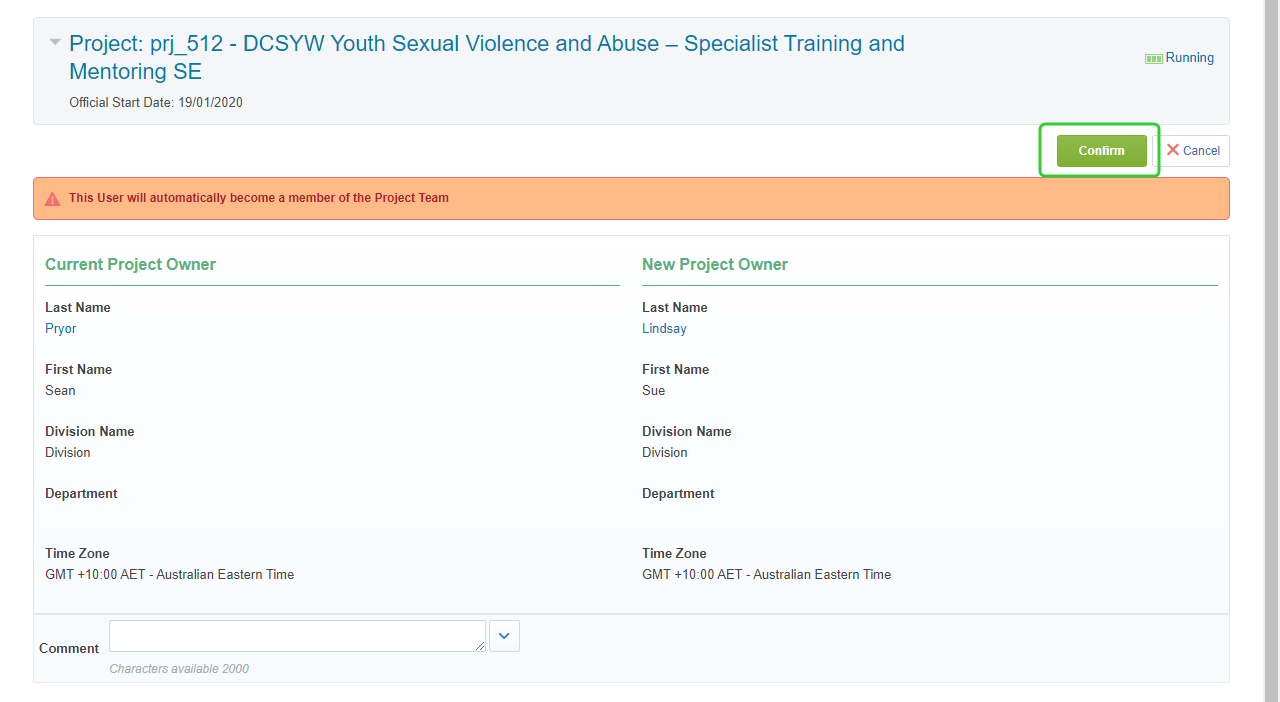
Note Inform the Procurement Authority that they are now the owner of the project and are required to publish and monitor the RFQ.
Creating a link and publishing the RFQ
To create a link and publish the RFQ:
-
Click the Publish RFQ To Market & Monitor (RFQ) task.

-
Read the Task Instructions
-
Click the name/link of your RFQ.

-
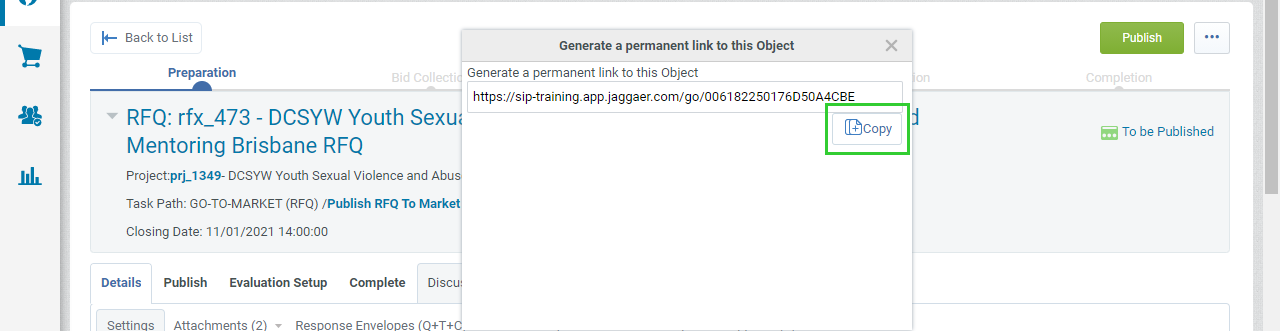
Click the ... button and select Generate Link.

-
Click Copy.
Tip The link is now added to your clipboard and can be added to QTenders.
-
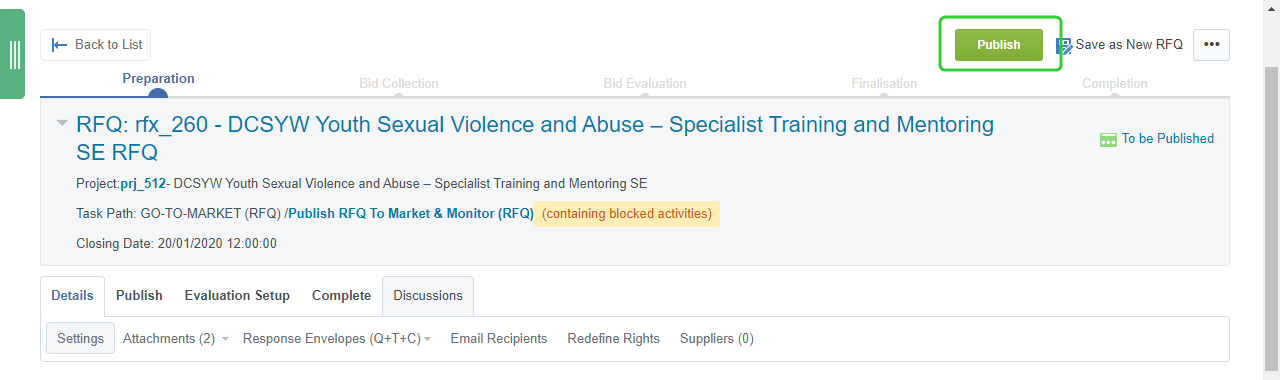
Click Publish.
-
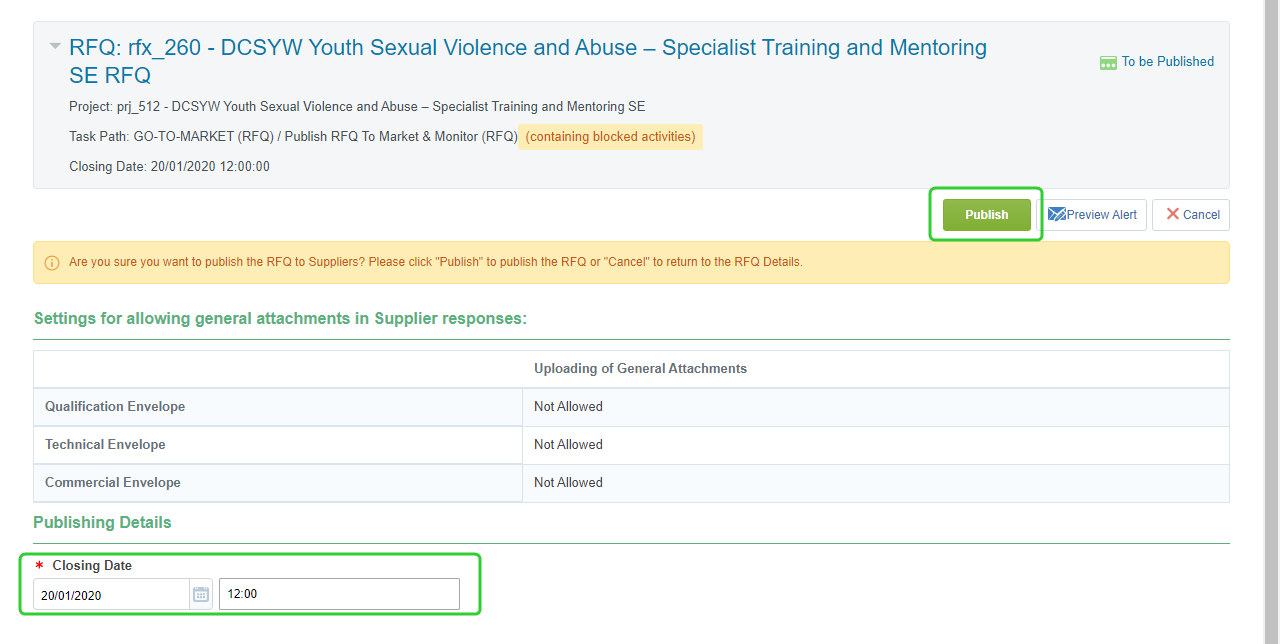
Confirm the Closing Date and Time and click Publish.
Note The Procurement Authority can now monitor Supplier Responses to the RFQ.
Monitoring Supplier Responses
When Suppliers want to respond to the RFQ they will need to express interest and then submit their response. They can also make use of the P2i message system to send questions to the project's procurement authority. The project's procurement authority can all add additional recipients from Procurement Services to receive messages from the Supplier. For instructions on how to manage supplier interactions, refer to the topic Managing supplier interactions in the Supplier Evaluation section of the guide.
Adding additional Email Recipients
To add additional email recipients in P2i:
-
Click the Details tab and select Email Recipients.
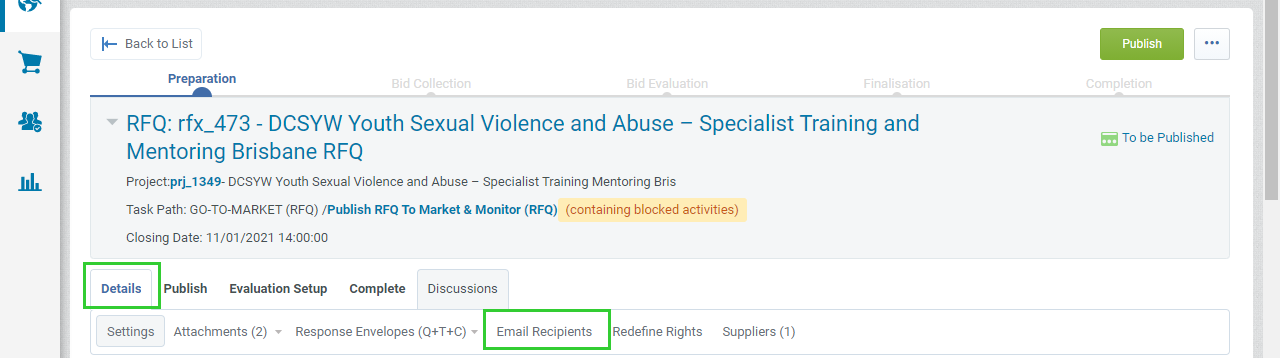
Tip The default email recipient is the person that owns the RFQ, originally the P2i Senior User or P2i Regional Manager. It should now be the P2i Procurement Authority or P2i Procurement Services.
-
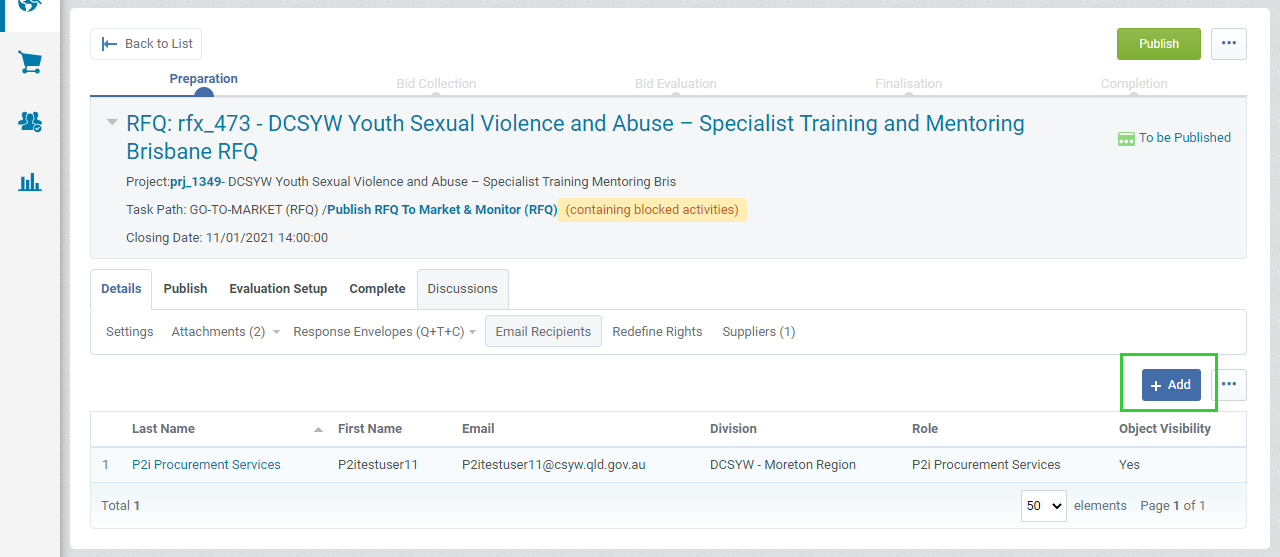
Click Add.
-
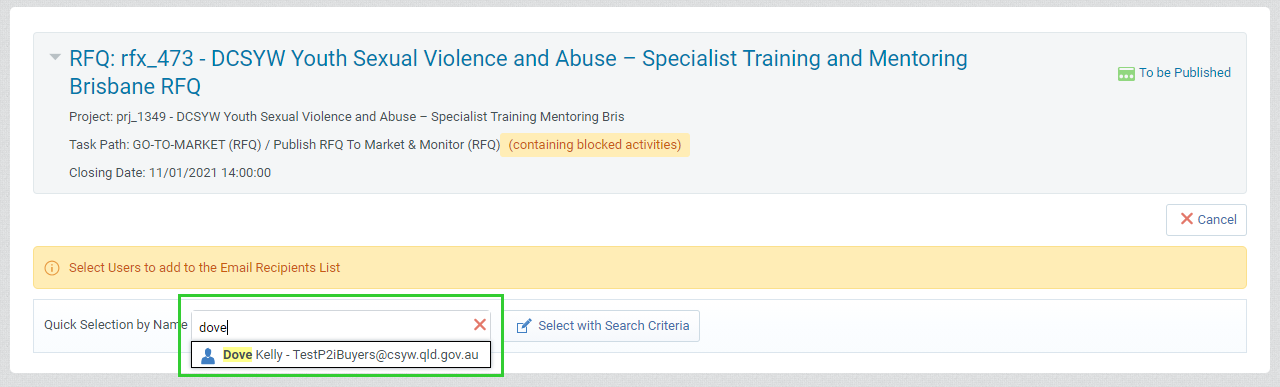
Search for the P2i Procurement Services person and click the name to select.
-
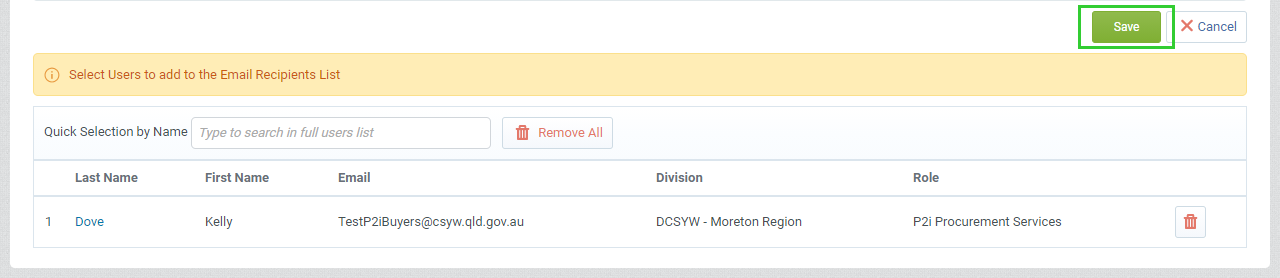
Click Save.
-
Click OK to confirm.
Viewing the status of supplier responses
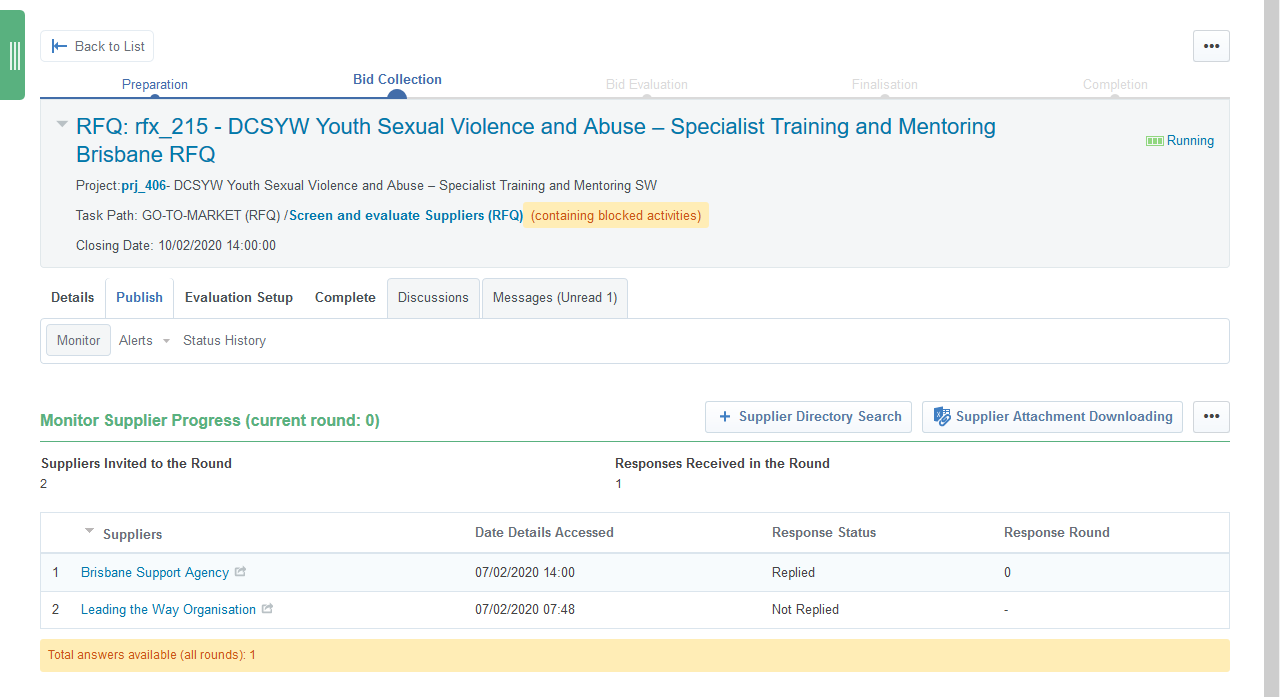
When a suppliers expresses interest in an RFQ their interest is flagged. When they respond to an RFQ, their response is recorded. When the project's procurement authority accesses the RFQ they are taken immediately to the Monitor Supplier Progress screen.
This progress screen indicates the number of suppliers that have expressed interest in the RFQ which can be seen in the Suppliers Invited to the Round. The screen also displays the number of Responses Received in the Round and when the RFQ was accessed by the supplier.
Note Suppliers Invited to the Round indicates the number of suppliers where the RFQ is by invitation only or the number of suppliers that have expressed invitation where the RFQ is open to all suppliers.
Completing the Publish RFQ To Market & Monitor (RFQ) task
Once the RFQ closes, the Procurement Authority can complete the Publish RFQ To Market & Monitor (RFQ) task and begin the Screen and evaluation Suppliers (RFQ) task. This is part of the Supplier Evaluation module.
To complete the task:
-
Click Complete Task next to the Publish RFQ To Market & Monitor (RFQ).
-
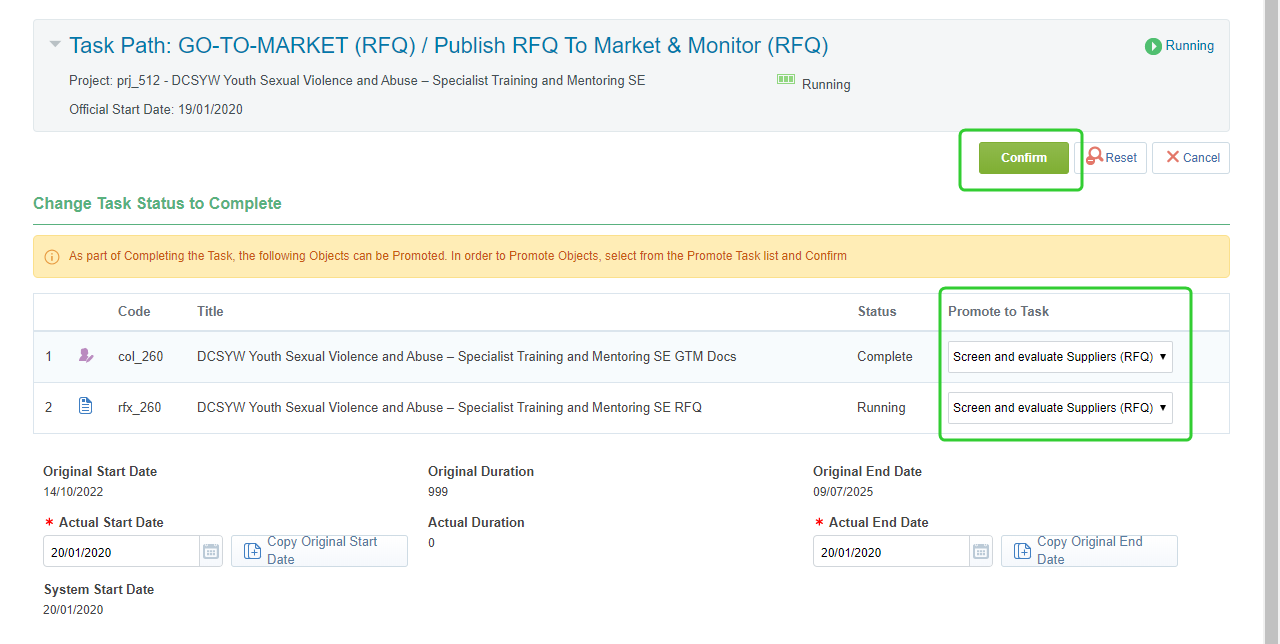
Select Screen and evaluate Suppliers (RFQ) from Promote to Task for both the RFQ and Go To Market documents sets and click Confirm.
-
Click Confirm.
Note Refer to the Supplier Evaluation topic for an overview of the business process and the Screen offers topic for the next steps in P2i.