Preparing the Technical Envelope (Absolute)
Note The following example has been set up to show how to apply absolute scoring to each question in the Technical Envelope, to learn how to apply Percentage Weights, refer to the topic Preparing the Technical Envelope (Percentage Weights).
Once the Qualification Envelope has been set up, you can move on to the technical envelope. The technical envelope can be expanded to include additional sections to form the Desirable Requirements. This allows the Supplier to respond to each criterion and allows the evaluation panel to score each criterion.
You can choose to create one section that contains the desirable criteria or you can create a section for each criterion and add questions for each sub-criteria. In the example below, there is one section with four questions.
-
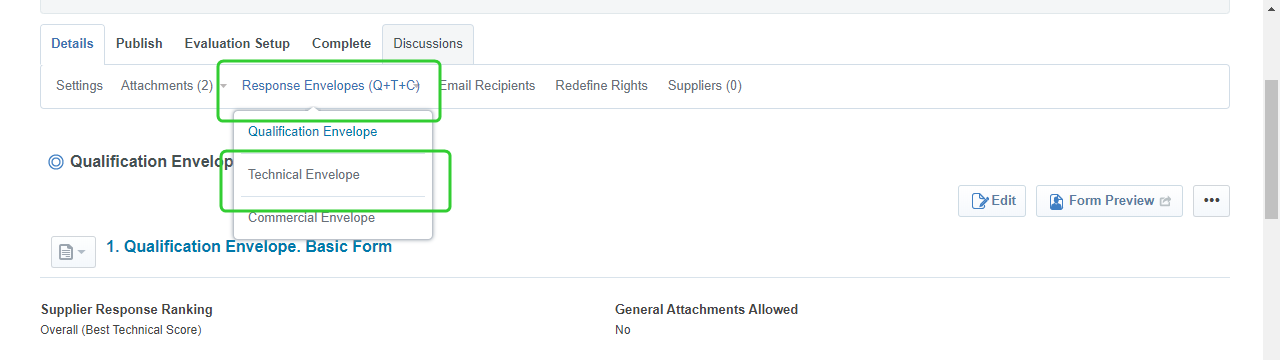
Click Response Envelopes and select Technical Envelope.
-
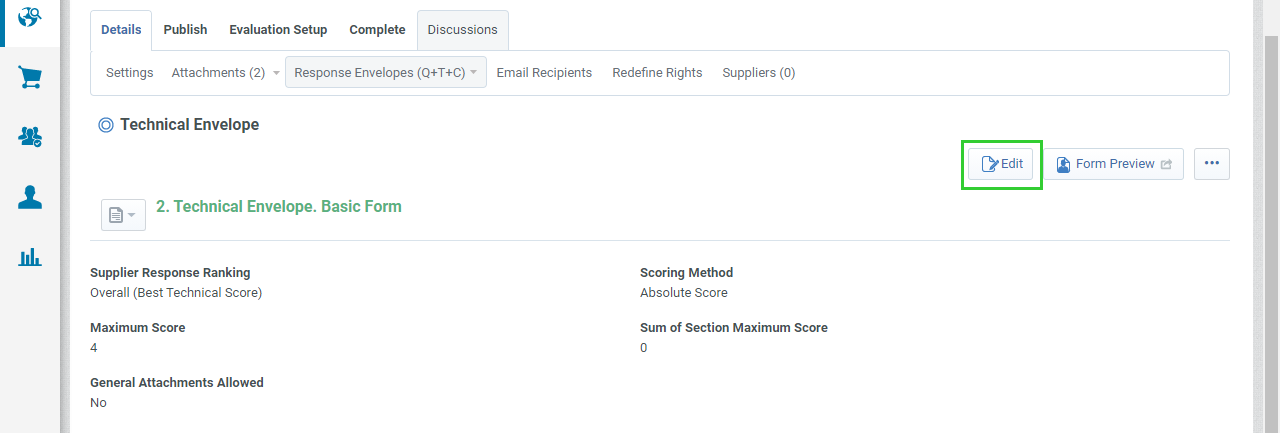
Click Edit.
-
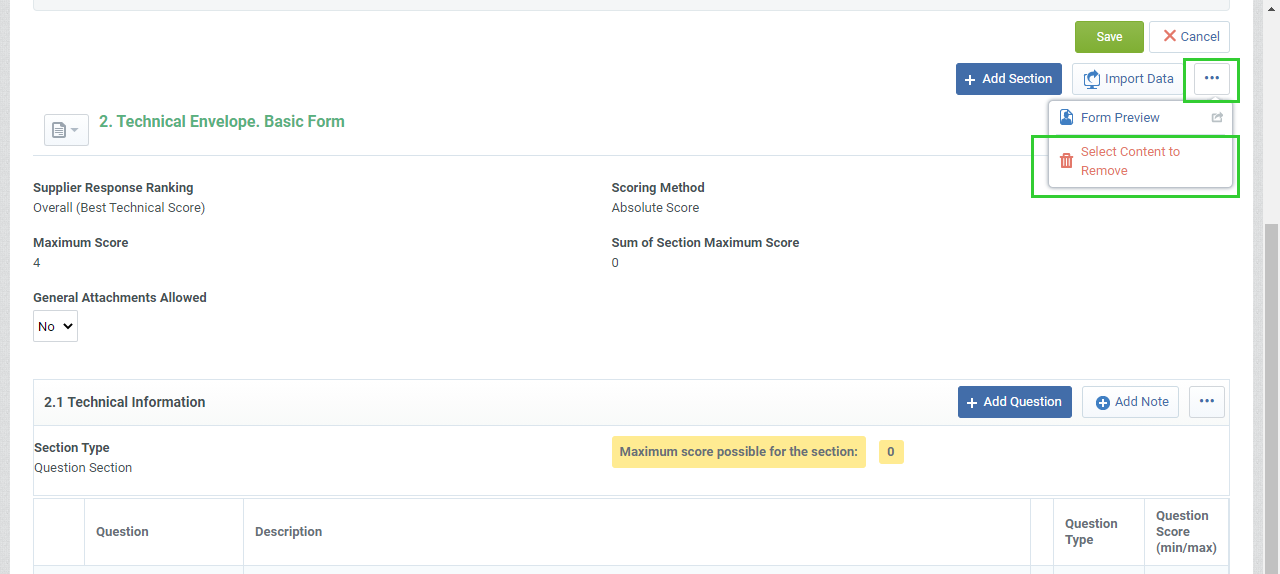
Click the ... button to the right of the section heading.
-
Click Select Content to Remove.
-
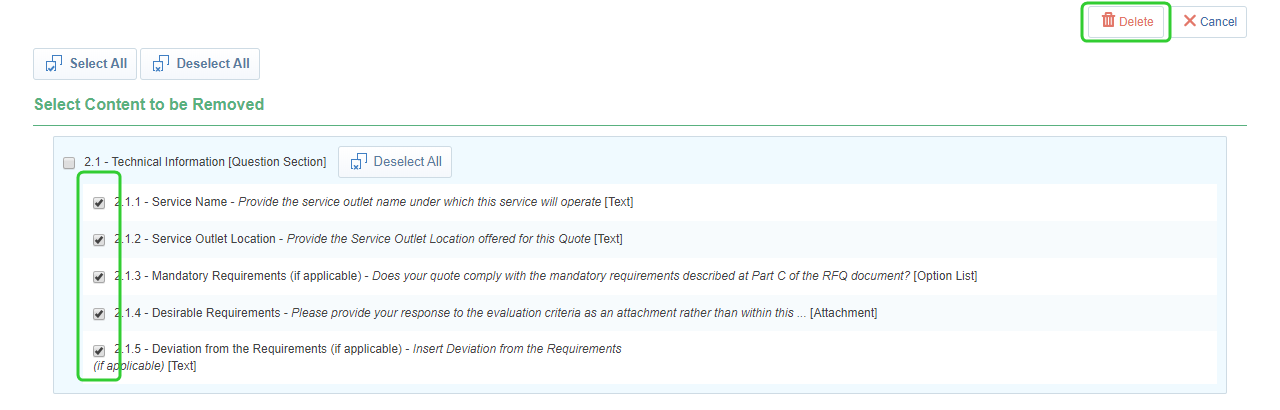
Tick the questions to be removed and click Delete.
Note Remove any sections or questions that are not required to evaluate the technical envelope.
-
Click the ... button to the right of the section heading.
-
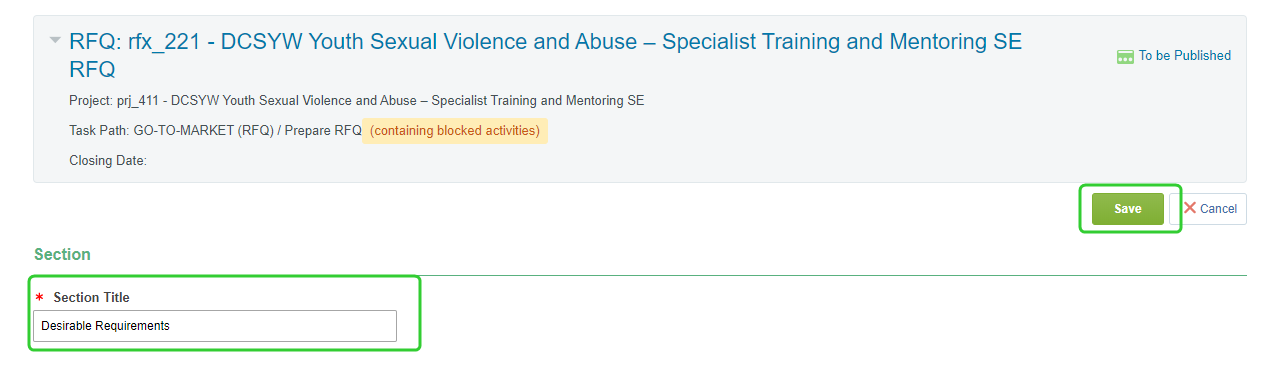
Click Edit Section to change the Section Title.
-
Enter a new Section Title and click Save.
-
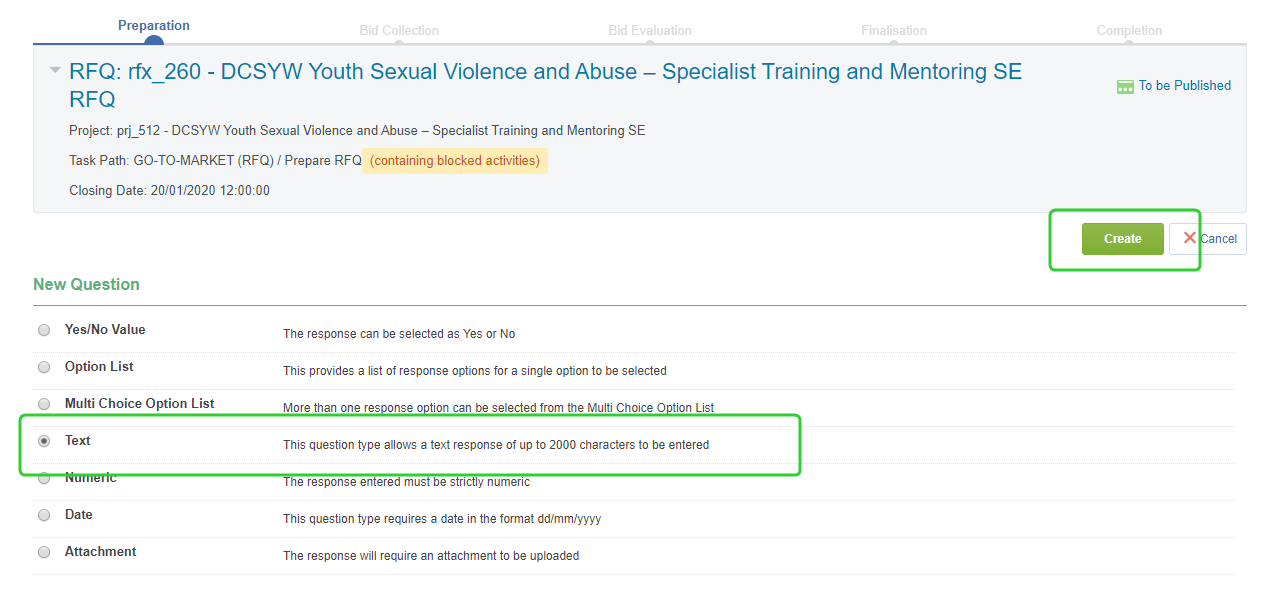
Click Add Question to create a question.

-
Select Text for the question type and click Create.
-
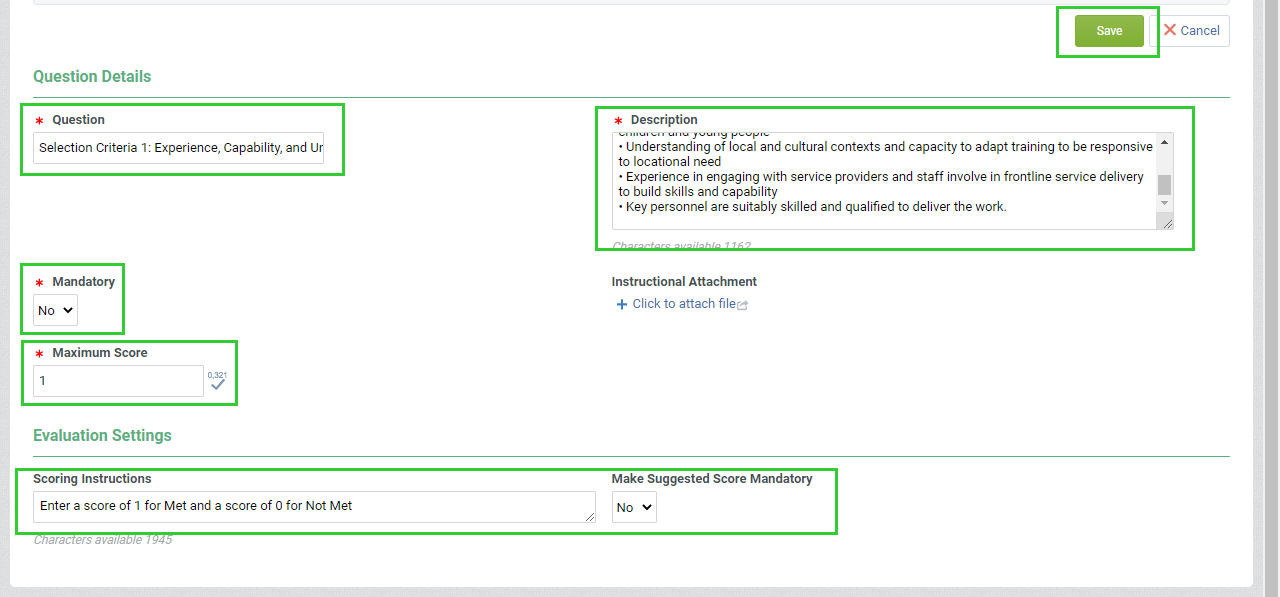
Enter the Question.
-
Provide a Description of the question.
-
For the Mandatory field, select No.
-
Enter a Maximum Score of 1.
-
Enter Scoring Instructions.
Tip Add instructions based on the method of scoring determined by the Evaluation Plan. For example. Enter a score of 1 for Met and a score of 0 for Not Met.
-
Select Yes or No to Make Suggested Score Mandatory for the evaluator to score.
-
Click Save
-
Repeat steps 9-17 to add more questions to the Section.
-
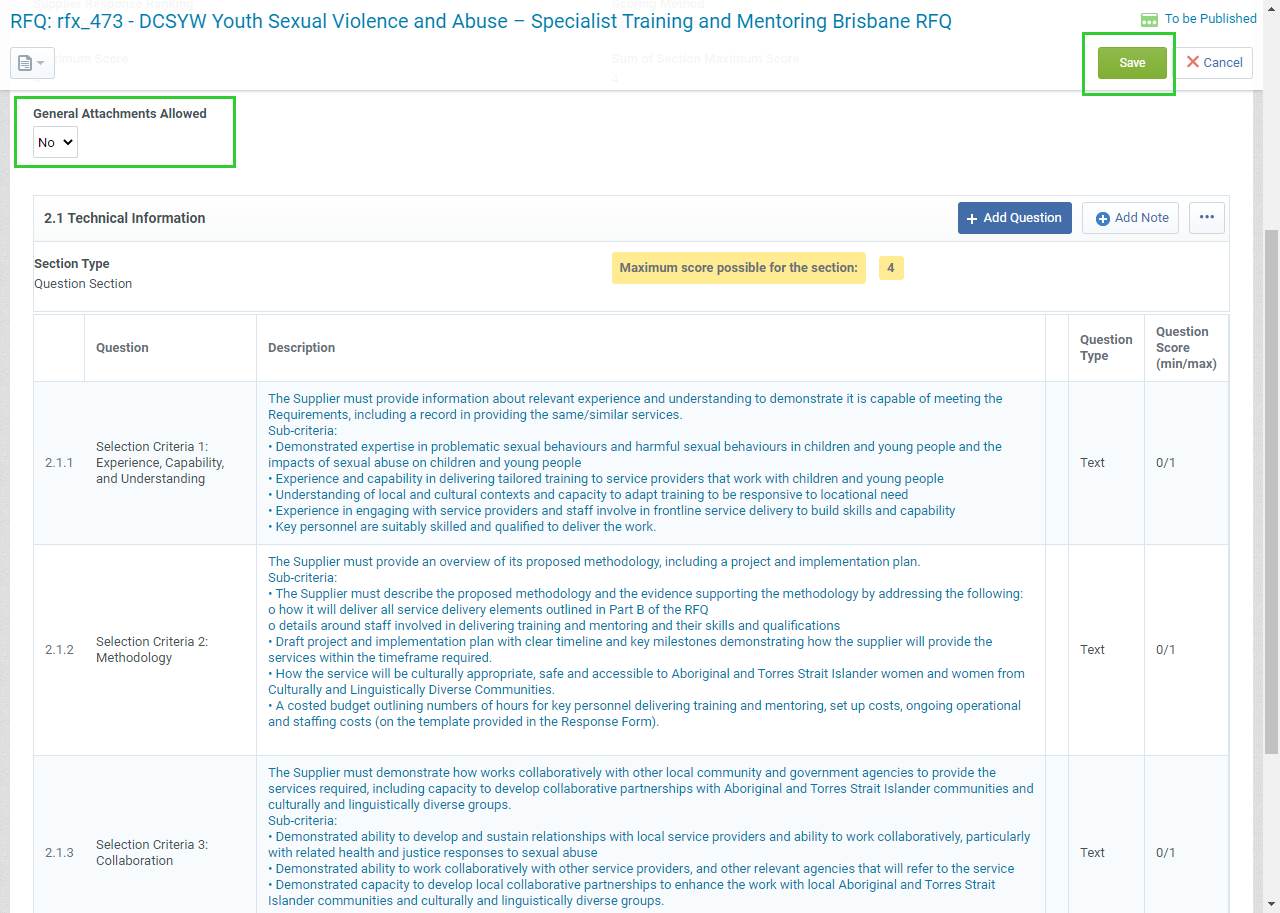
Allow the Supplier to add General Attachments by changing the option to Yes.
-
Click Save.
Note The Maximum score possible for the section is 4.
Note Follow the link to access the instructions for Preparing the Commercial Envelope.