Preparing the Qualification Envelope
The purpose of the Qualification Envelope is to gather information in order to qualify suppliers. Many of the questions that are included in the Qualification Envelope are answered by the Supplier when they register for P2i. These are captured in the Profile Question Sections and form part of the Supplier's P2i profile. When preparing the Qualification Envelope you can add questions from the Dictionary, which is a library of profile questions. If you want to have more profile questions added to the Dictionary, contact your P2i Super User.
-
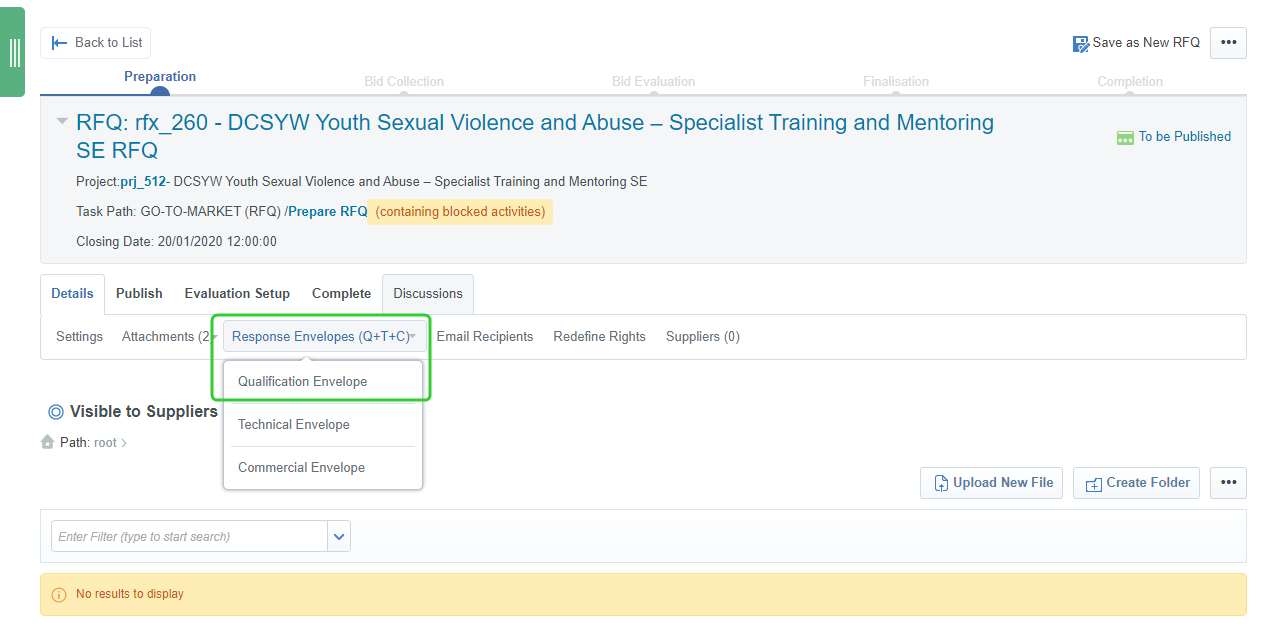
Click Details.
-
Click Response Envelopes (Q+T+C).
-
Select Qualification Envelope.
-
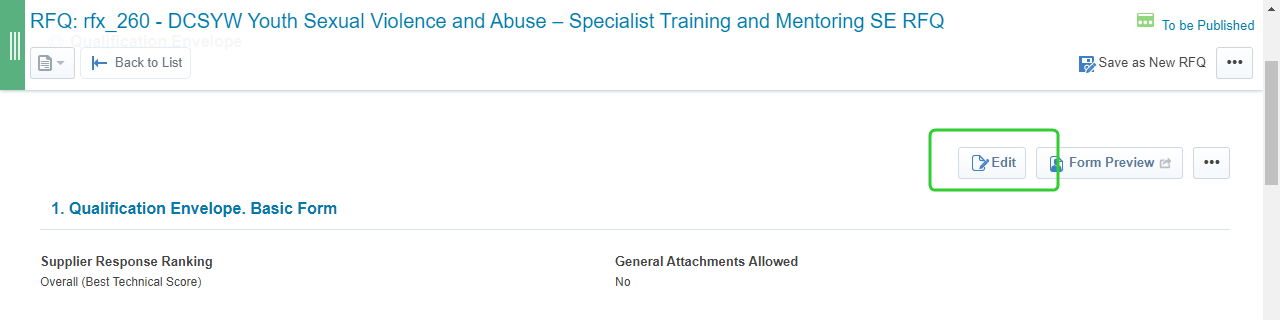
Click Edit
Editing Sections in the Qualification Envelope
You can edit sections of the Qualifications Enveloped to remove instructions, notes, and questions that are not required.
-
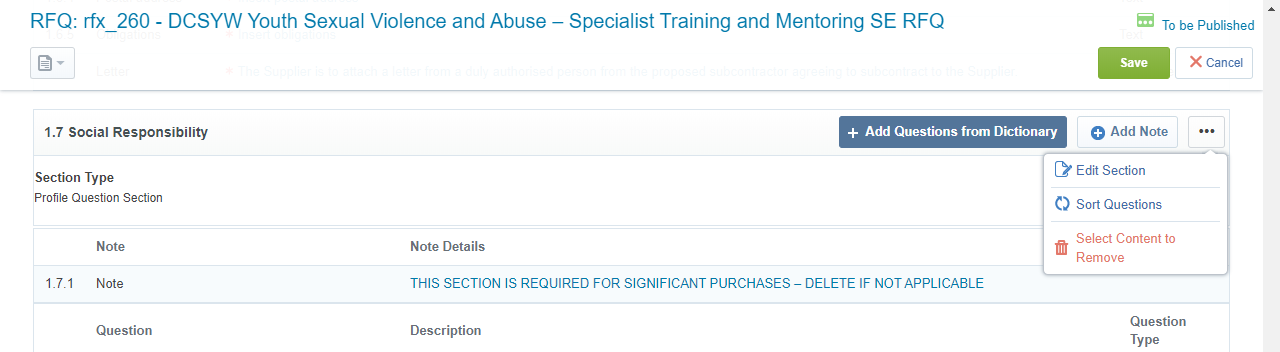
Scroll down to the Social Responsibility section.
-
Click the ... button to the right of the section heading.
-
Click Select Content to Remove.
-
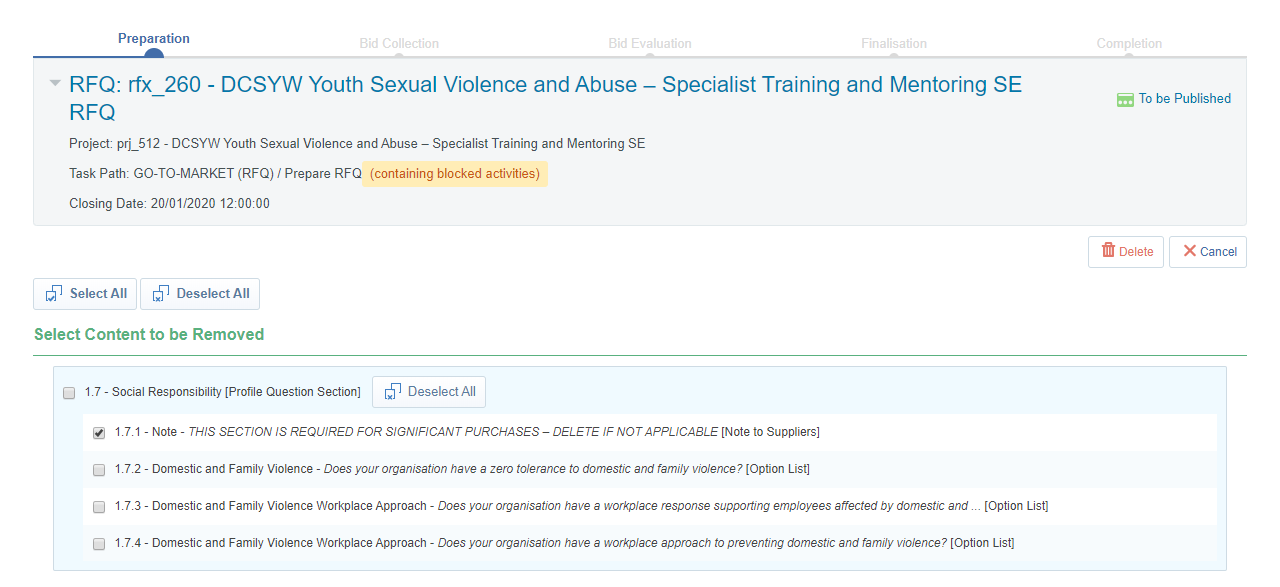
Tick the Note.
-
Click Delete.
-
Repeat the steps above to edit the Insurance section and remove the question related to motor vehicle and contents insurance.
Note This section is being edited because it is a significant procurement plan and we will need to remove the Note so that it is not visible to the suppliers.
Deleting Sections from the Qualification Envelope
You can remove sections of the Qualifications Envelope that are not required.
-
Scroll to top of the Qualification Envelope.
-
Click the ... button to the right of the envelope heading.
-
Click Select Content to Remove.

-
Tick the sections you want to remove.
-
Click Delete.
Tip If you delete a question by mistake, click Add Questions from Dictionary. Tick the question you deleted and click Add Selected Questions.
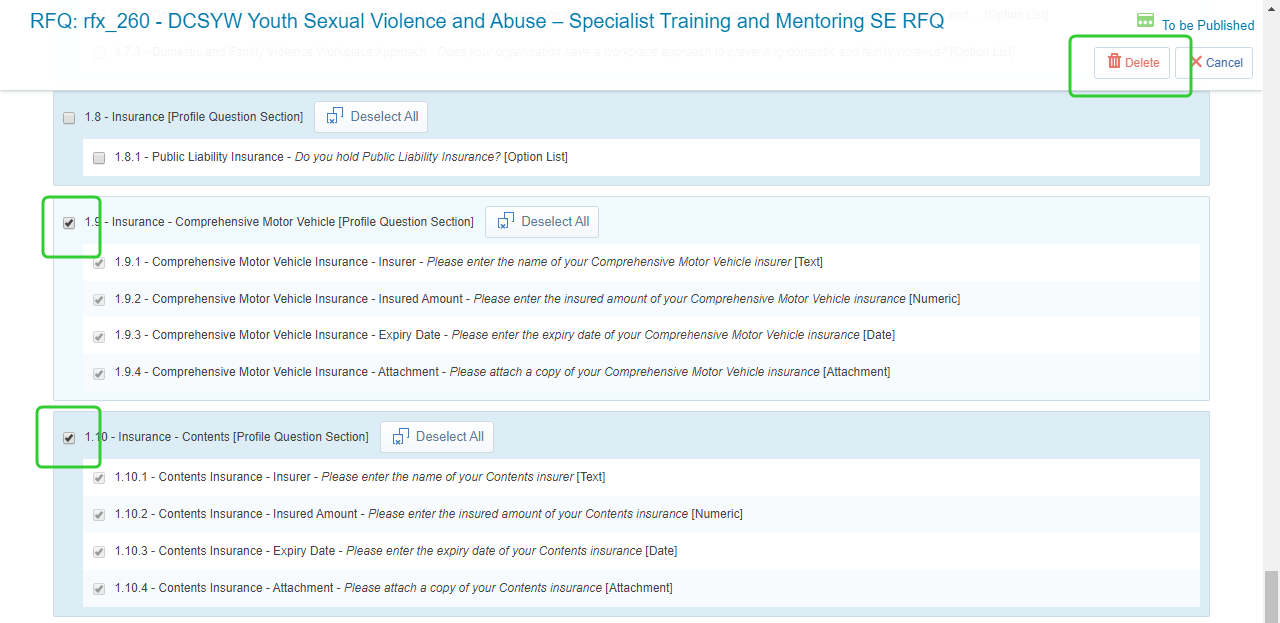
Note You will remove the sections related to Motor Vehicle and Contents Insurance.
Adding Sections to the Qualification Envelope
You can add new sections to the Qualification Envelope.
-
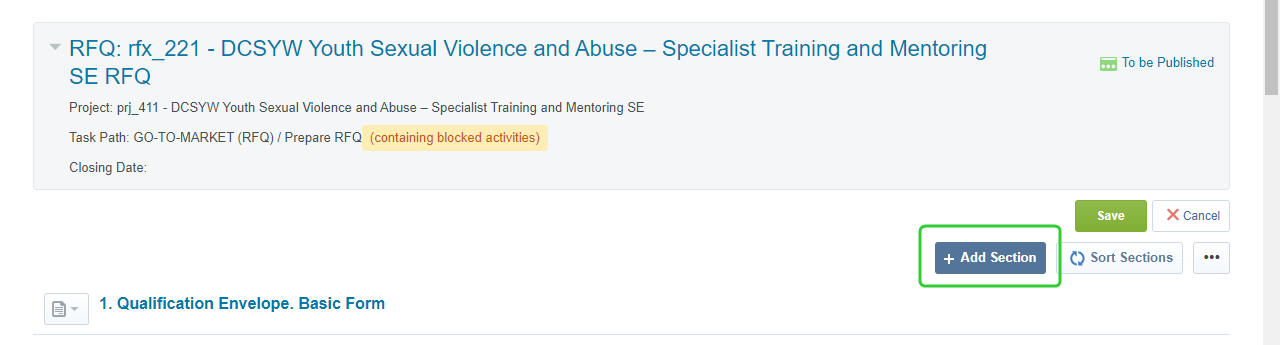
Click Add Section.
-
Select the section type and click Create.

-
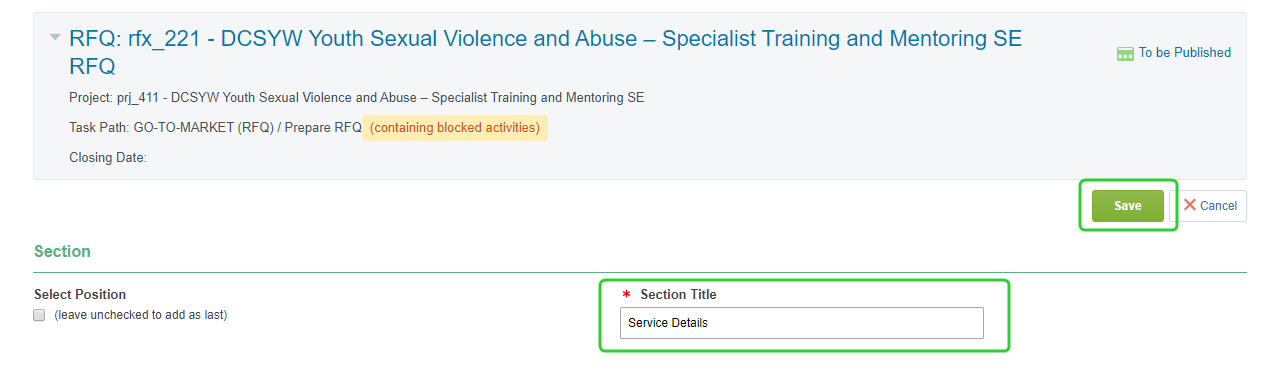
Enter a title for the section and click Save.
-
Click Add Question.

-
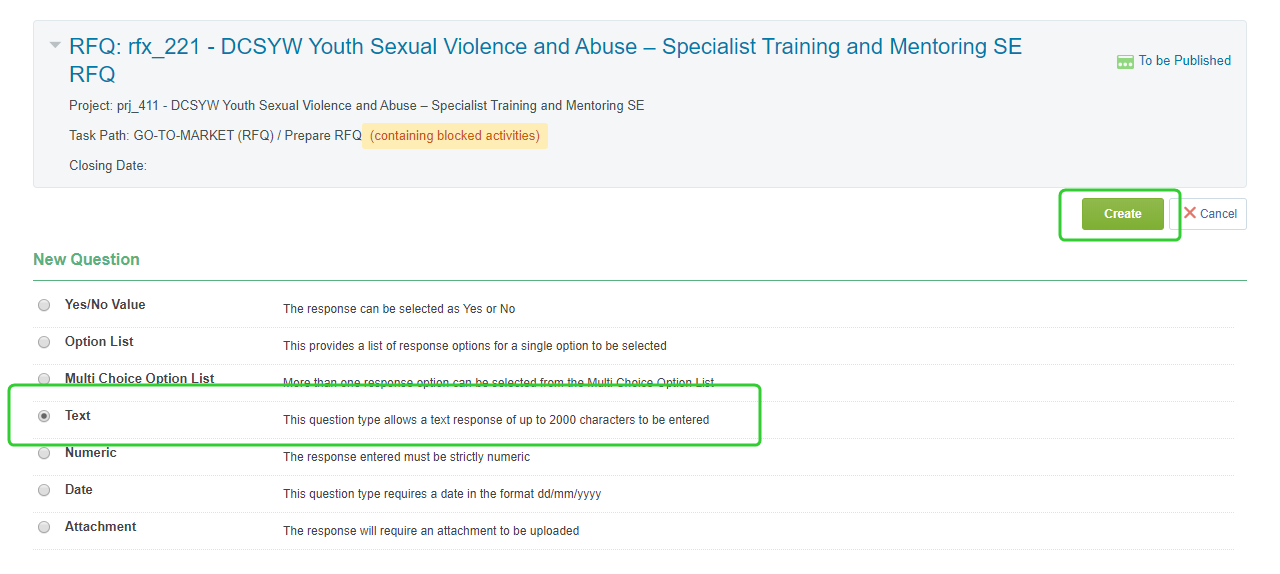
Select the question type and click Create.
-
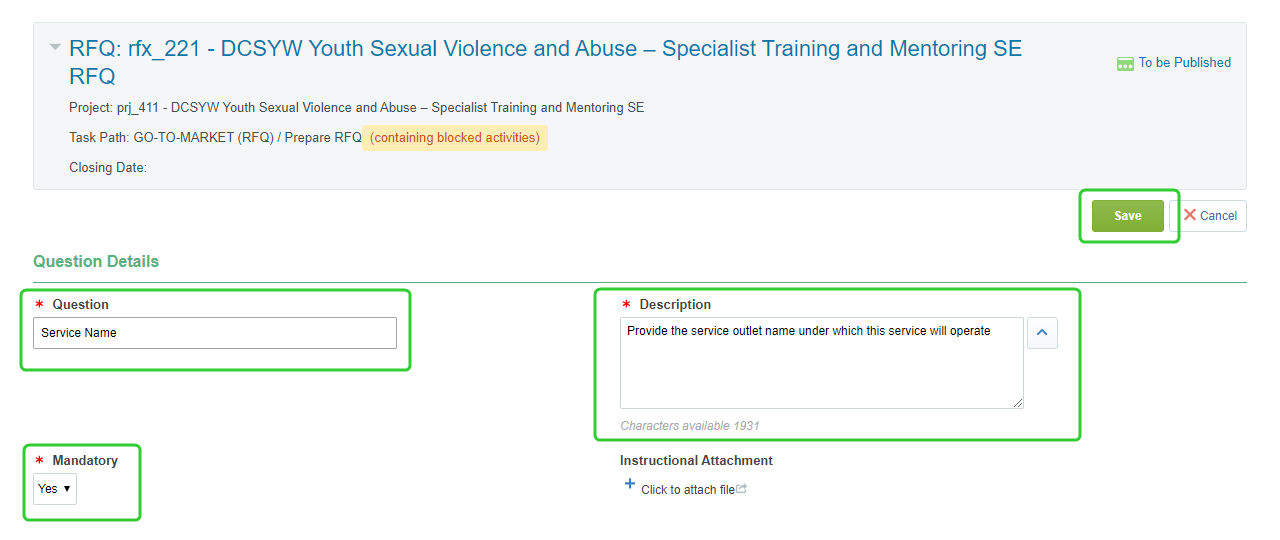
Enter the Question and a Description.
-
Select Yes to make the question mandatory.
-
Click Save.
Tip You have an option to attach instructions to assist the supplier in responding to the question.
Sorting and Previewing the Qualification Envelope
Once you have completed the set up of the Qualification Envelope you can sort the sections and preview the envelope to see what the suppliers will see when they respond.
-
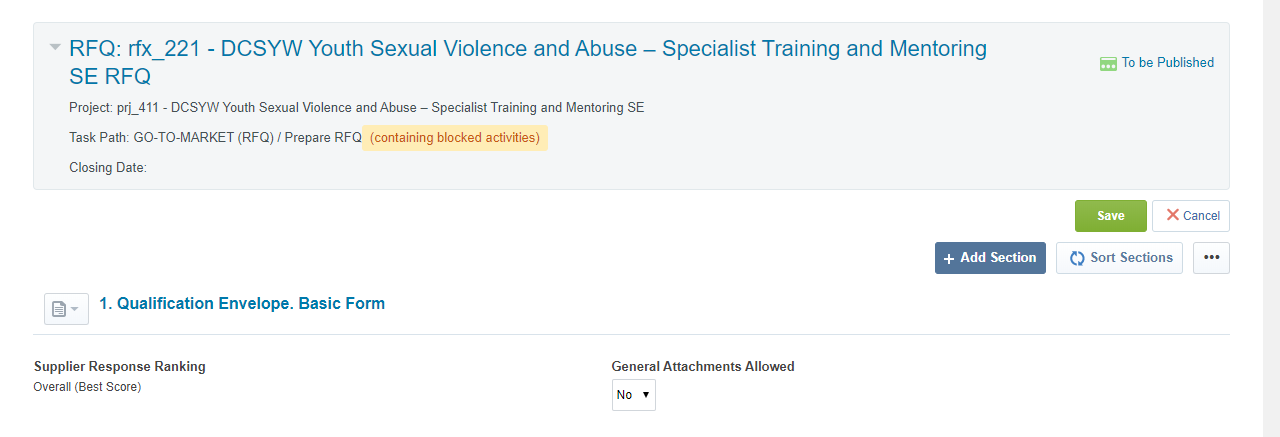
Click Sort Sections to arrange the new section.
-
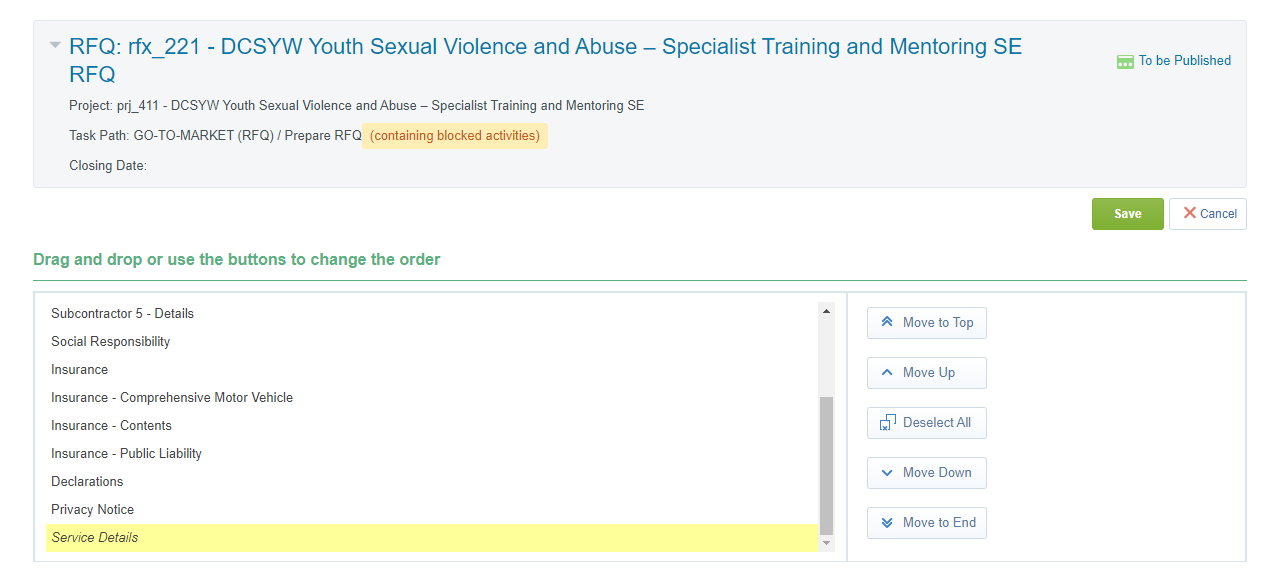
Select the section that you want to move and click Move Up.
-
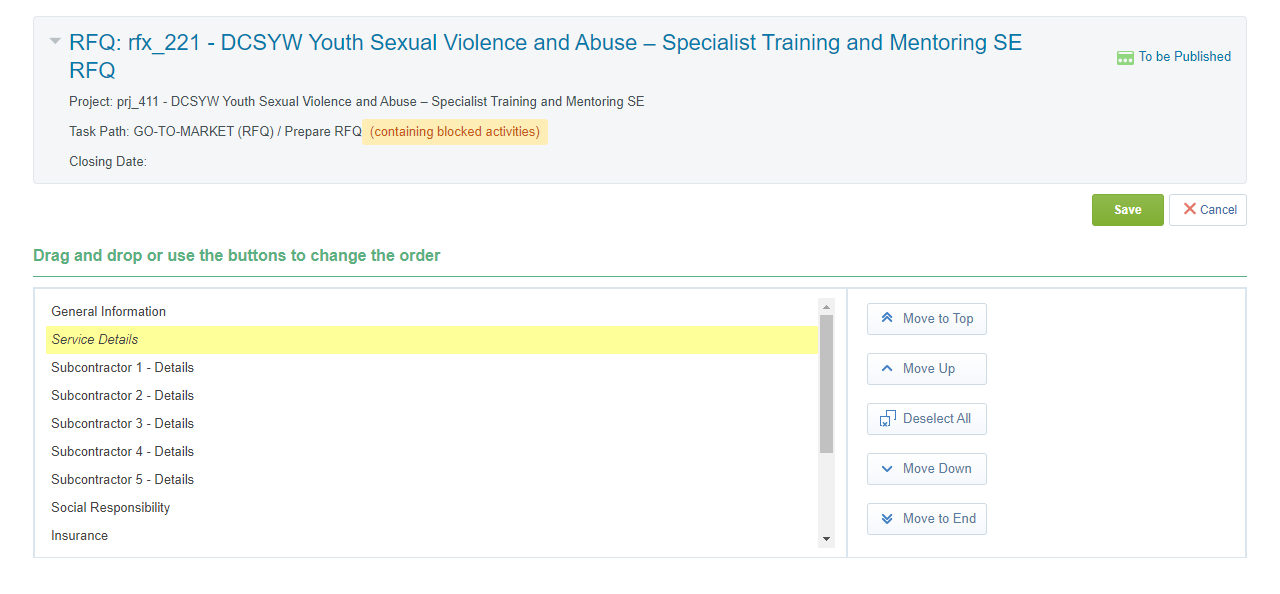
Click Save once you have finished sorting the sections.
-
Click Save once you have completed editing the Qualification Envelope.

-
Click Form Preview to view the Qualification Envelope questions.
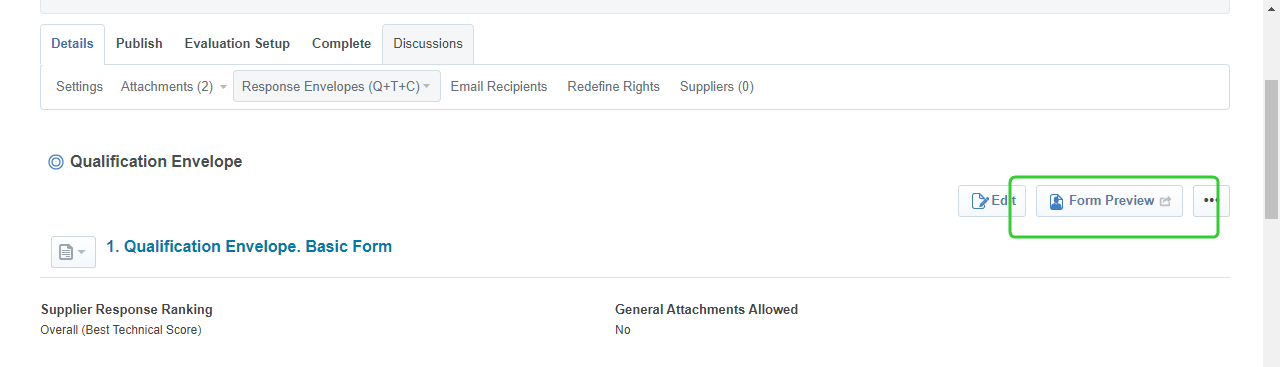
-
Click Close to return to the Qualification Envelope screen.
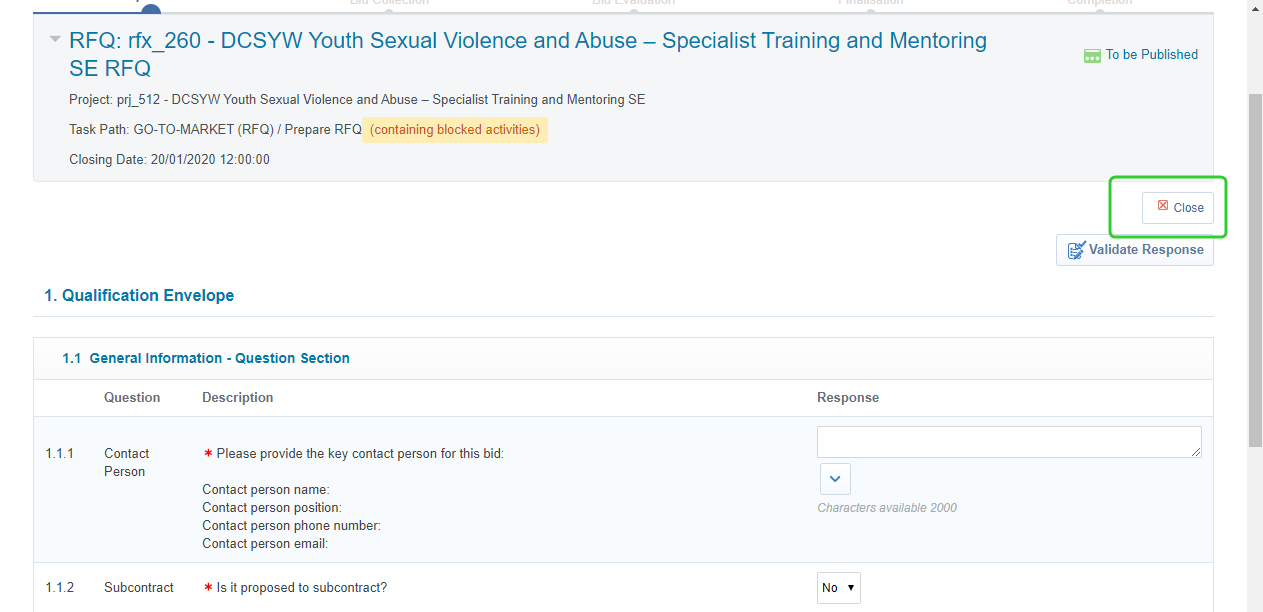
Note Follow the link to access the instructions for Preparing the Technical Envelope.